

How to manage roles & remove users
Change what a user is allowed to do, or remove them from your organization.
Who can do this: Admin.
🎬 Video
changing a user's roles and removing a user from the organization
users-and-organization-manage-roles.mp4Change a user’s roles
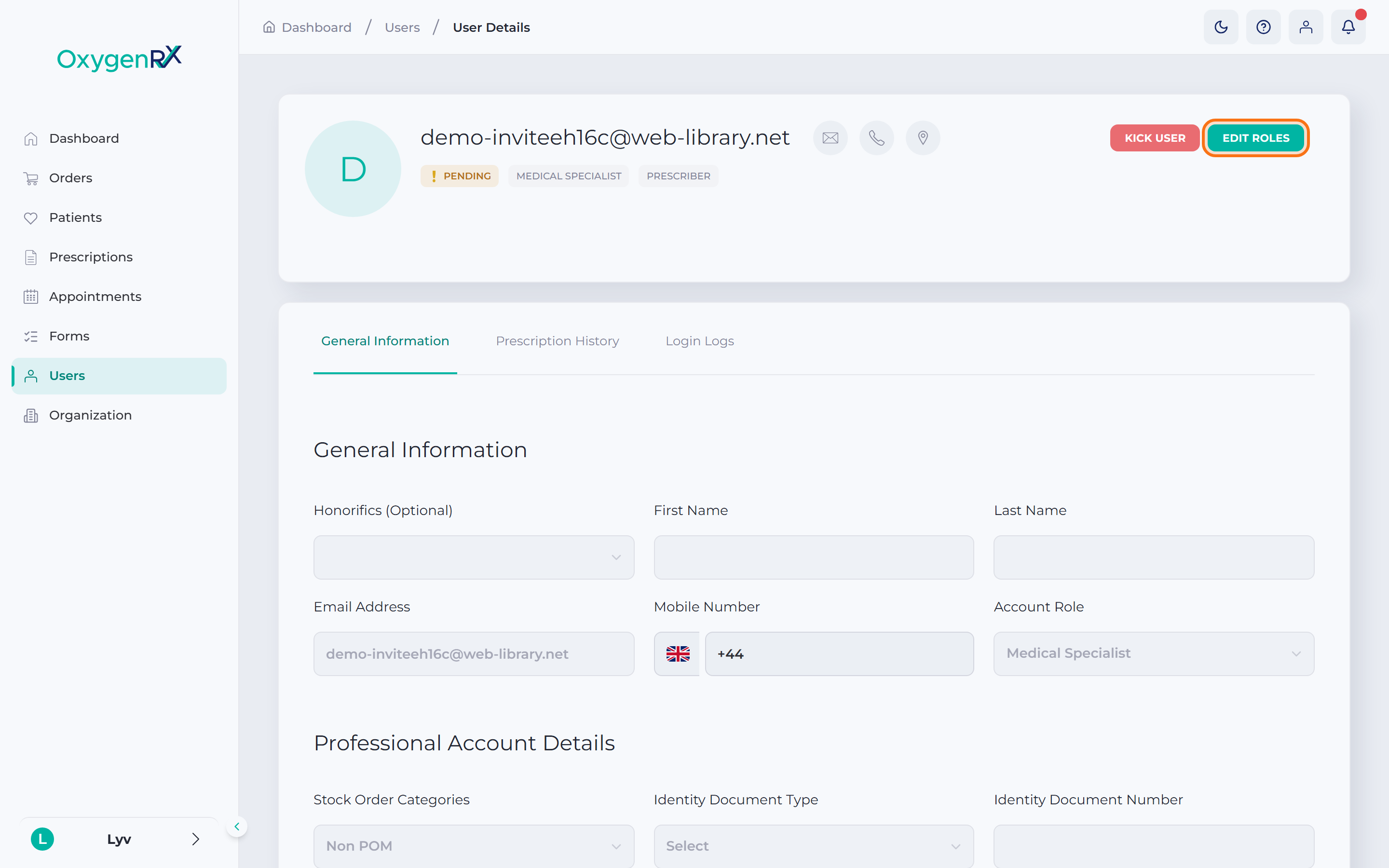
Section titled “Change a user’s roles”- On the user’s page, click Edit Roles next to their name. A small window titled User Roles opens, showing their current roles.
- Tick or untick roles: Admin, Manager, Prescriber. See the roles glossary entry for what each role can do.
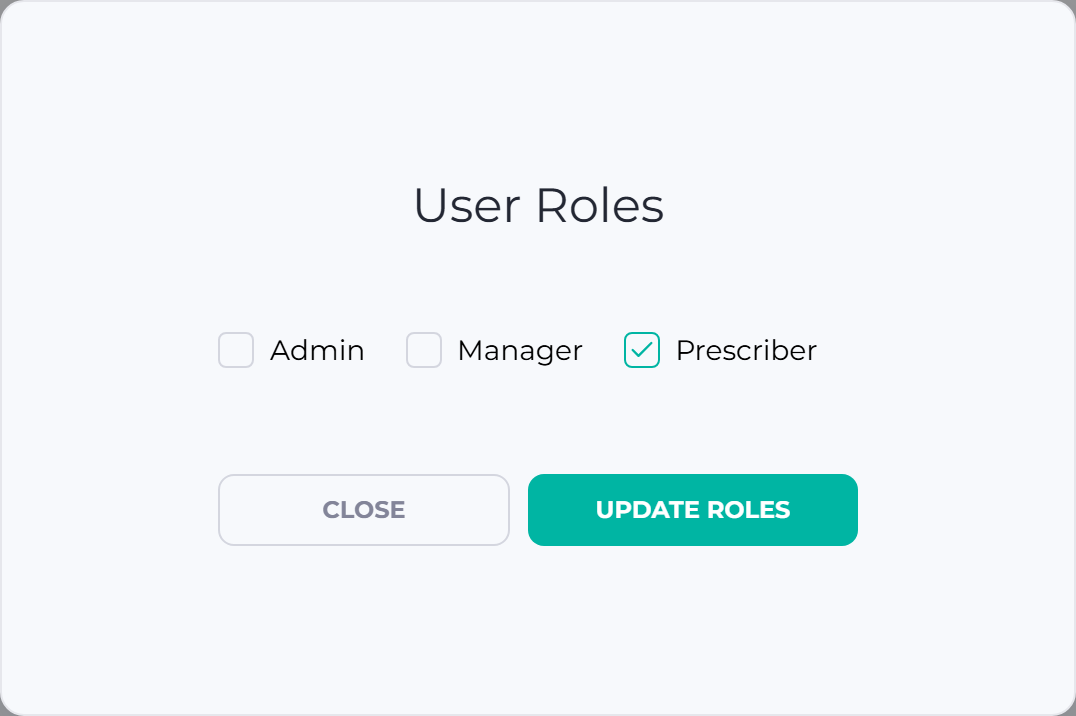
- Click Update Roles to save.
Edit Roles only appears when you view someone else’s page. You can’t change your own roles. You also can’t change the roles of the person who created the organization.
Remove a user from your organization
Section titled “Remove a user from your organization”- On the user’s page, click Kick User. A small window opens and asks: “Are you sure you want to remove [email] in [organization] organization?”
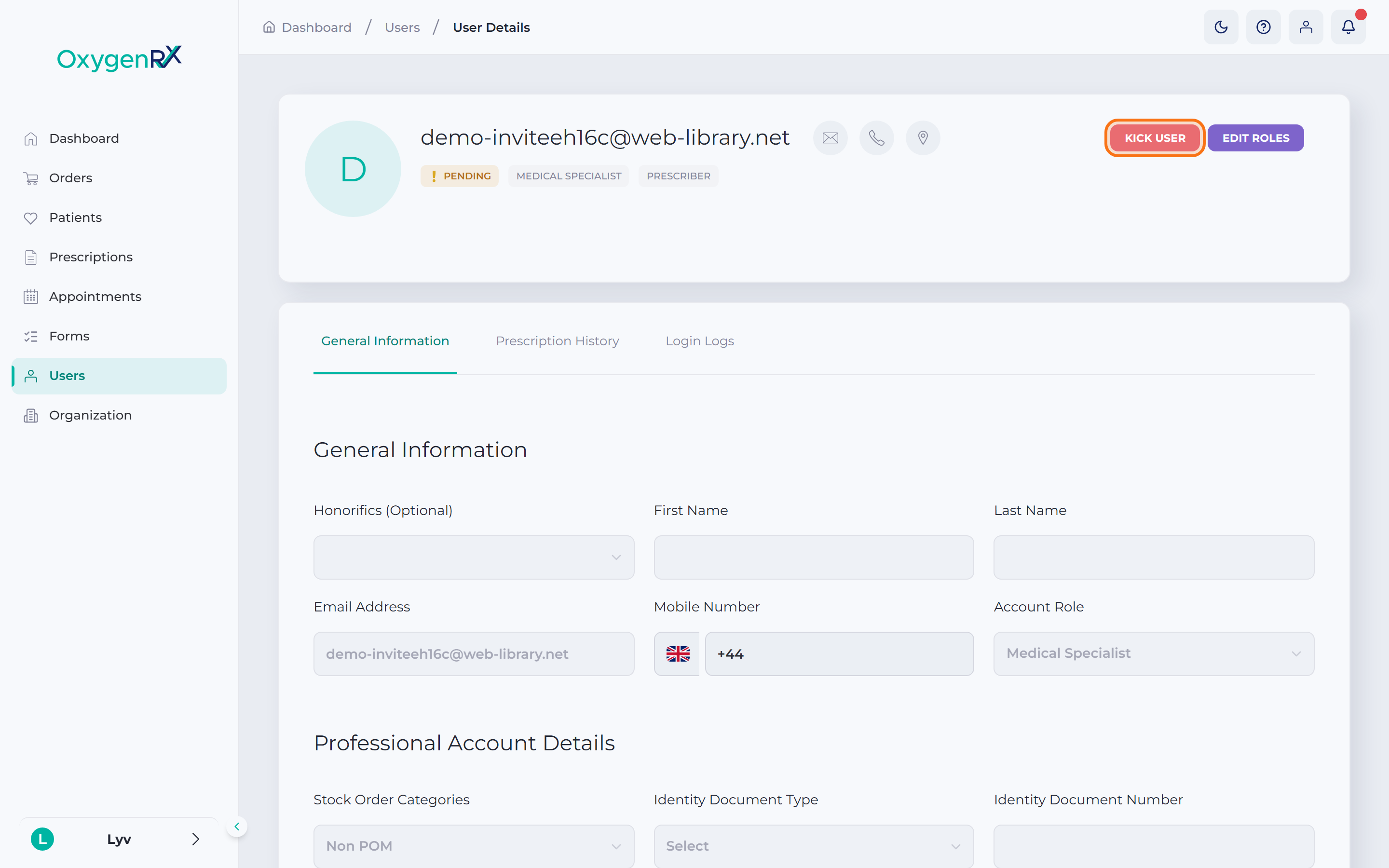
- Click Remove User to confirm.
On your own page this button reads Kick Yourself instead.
What happens next
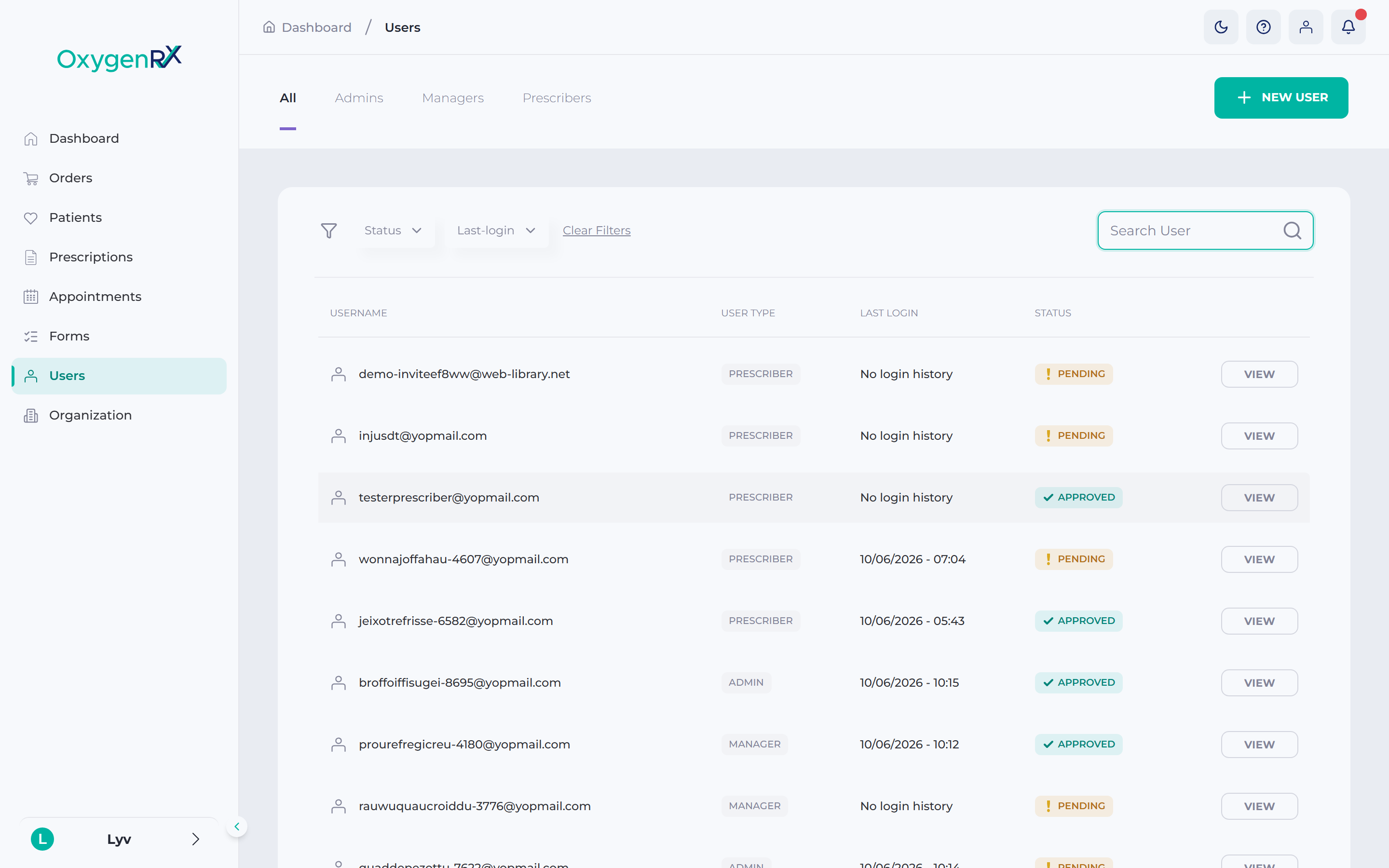
Section titled “What happens next”Role changes apply right away. They show on the user’s page and in the Users list. A removed user disappears from your Users list, but their account isn’t deleted. You can invite them again later.
If something goes wrong
Section titled “If something goes wrong”- No Edit Roles button? You’re on your own page, or the organization creator’s page. Ask another Admin to change your own role. The organization creator’s role can’t be changed here.
- Only Admin, Manager, and Prescriber appear as tick boxes here. Other roles a user may hold can’t be changed from this screen. Contact a Platform Admin if you need one of those changed.
- Click Close in any small window to back out without saving.