

How to book an appointment
This page shows you how to send a patient their booking link. It also shows what they see when they use it.
Who can do this: Any prescriber or admin can send a booking link from a patient’s record. The patient then picks their own date and time.
🎬 Video
Sending a patient a booking link, then the patient choosing a consultation type, completing an intake form, and confirming a time.
appointments-book-an-appointment.mp4- On the patient’s record, click Book Consultation.
- Sending from an order instead? Open the order and click Book Consultation there.
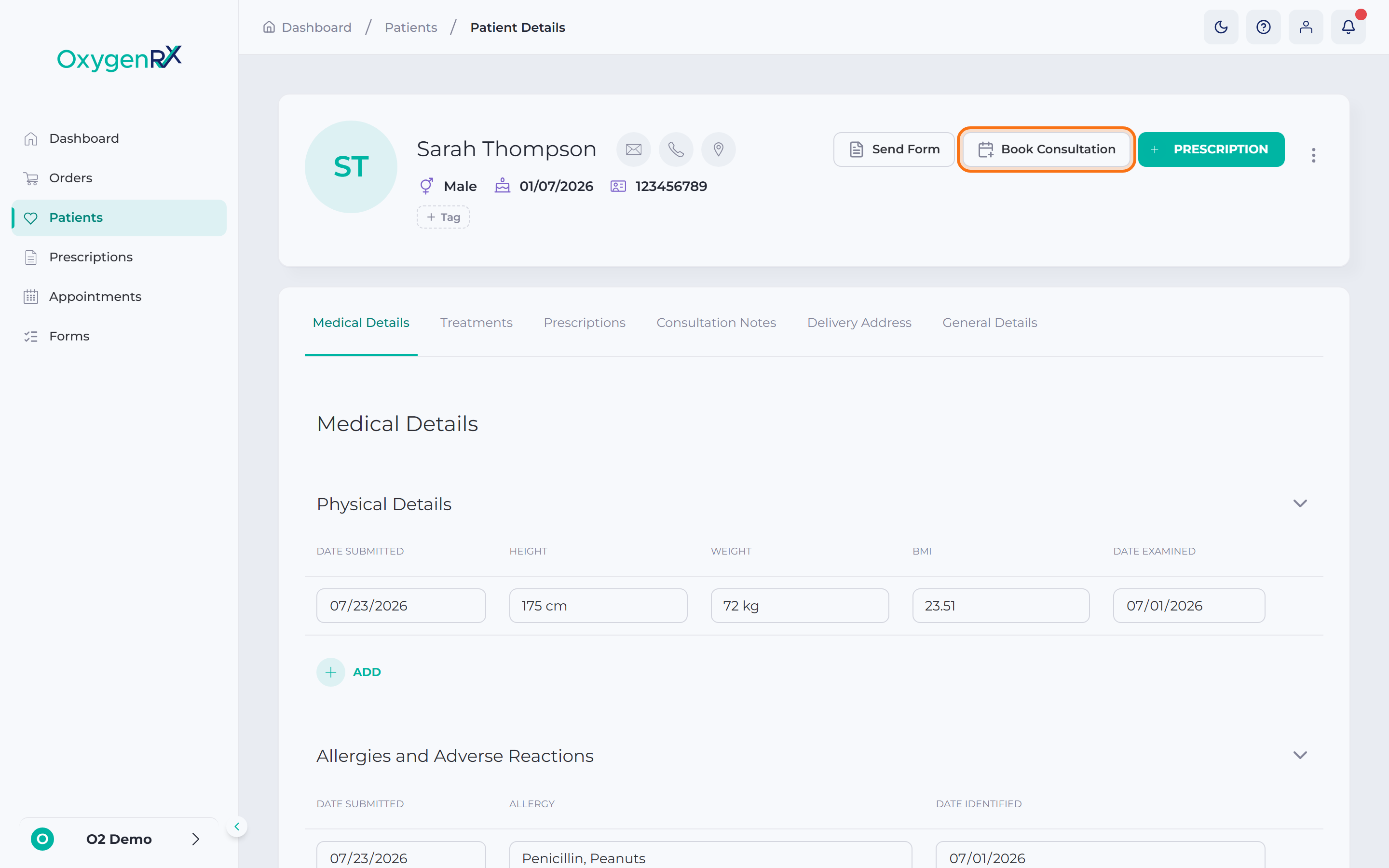
The patient record with the Book Consultation button highlighted. - Check the patient’s name in the Send Consultation Email window.
- If you started from an order with more than one patient, choose one from the list, or choose All patients to email them all.
- Click Send Email.
What happens next
Section titled “What happens next”- The button shows Sent once the email goes out.
- Your patient gets an email with a link to book their own appointment.
- They pick the type of consultation they need from a list.
- Some consultation types ask for extra details first. If so, your patient fills in a short online intake form first. They finish it before they can continue.
- They pick an available date and time, then enter their contact details.
- They review the booking summary and confirm it.
- The confirmed booking appears on your Appointments screen, ready for you to open.
- Your patient also gets a link to manage their own booking. See How to reschedule or cancel.
If something goes wrong
Section titled “If something goes wrong”- “Failed to send” — click Send Email again. If it keeps failing, check the patient’s email address on their record.
- Patient says their link doesn’t work — ask them to use the most recent email you sent them, or send a fresh one from Book Consultation.
- “Scheduling is unavailable” — this is shown to your patient if online booking is switched off for now. Wait a while and try sending a fresh link, or contact support.
- “Failed to load the intake form” — your patient can click Retry, or click Choose another consultation to start again.