

How to import patients from Excel
This page shows you how to add many patients at once using a spreadsheet.
Who can do this: Anyone signed in to the portal.
🎬 Video
Full walkthrough of importing patients from a spreadsheet
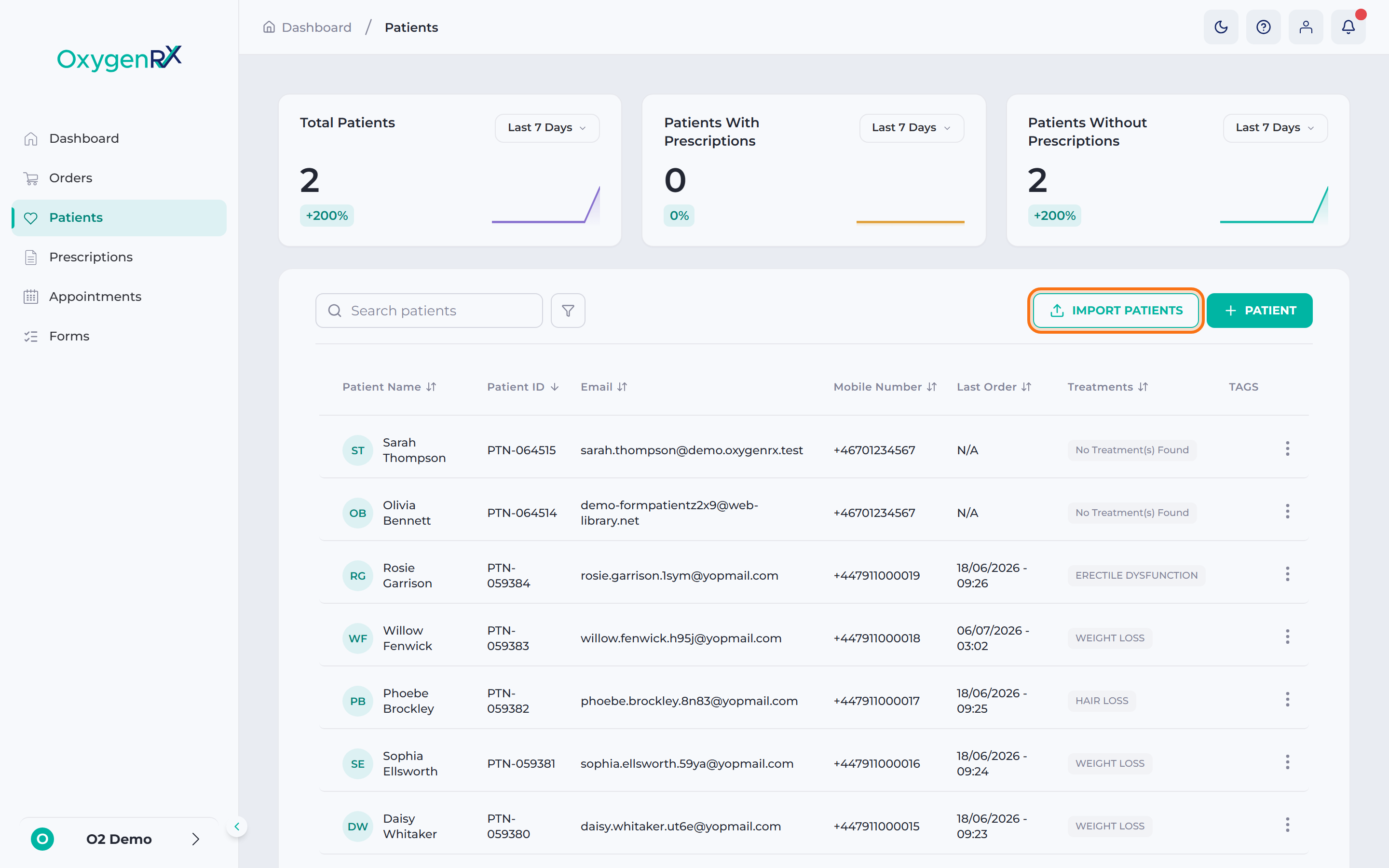
patients-import-patients.mp4- Go to Patients.
- Click Import Patients. The Import Patients window opens.
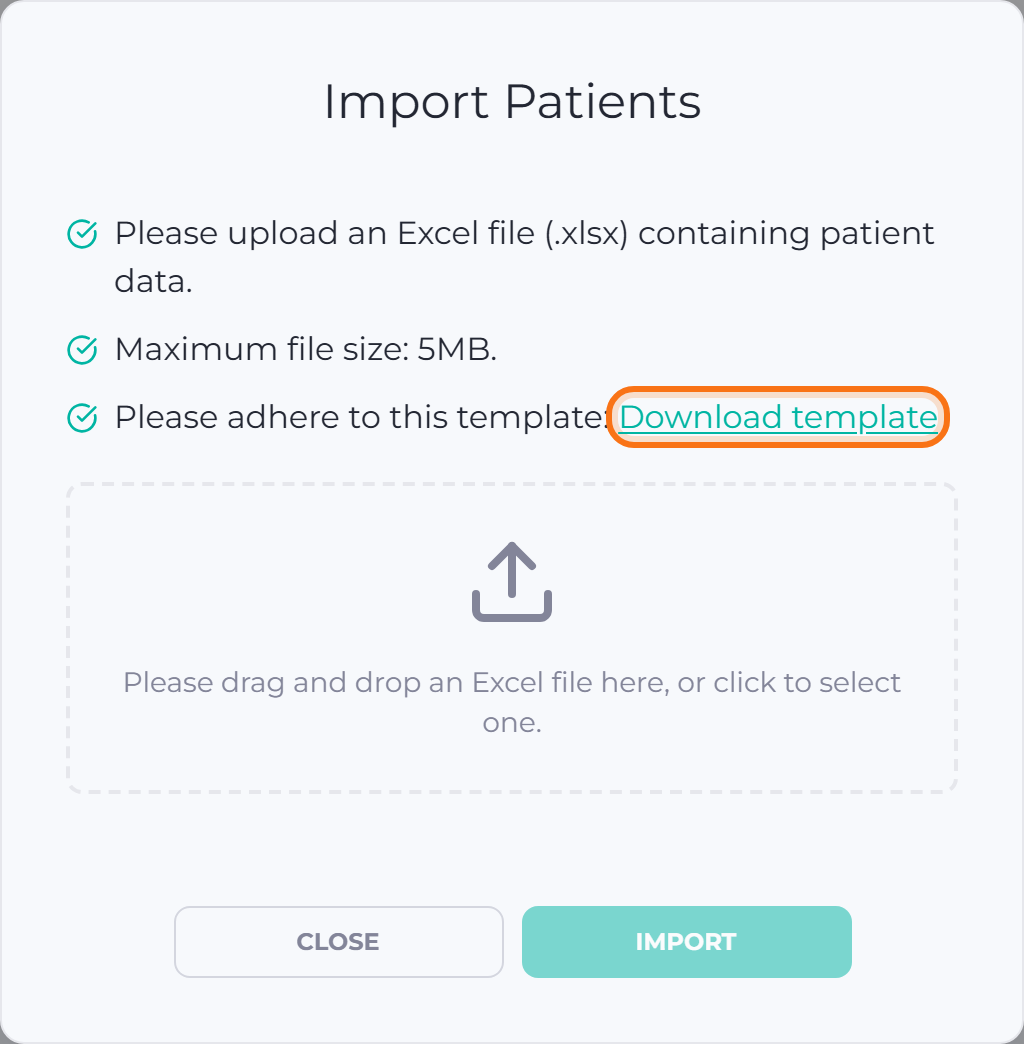
- Read the file requirements shown on screen.
- Click Download template if you need the spreadsheet layout.
- Drag your file into the upload area, or click it to browse.
- Check the file name and size shown in the upload area.
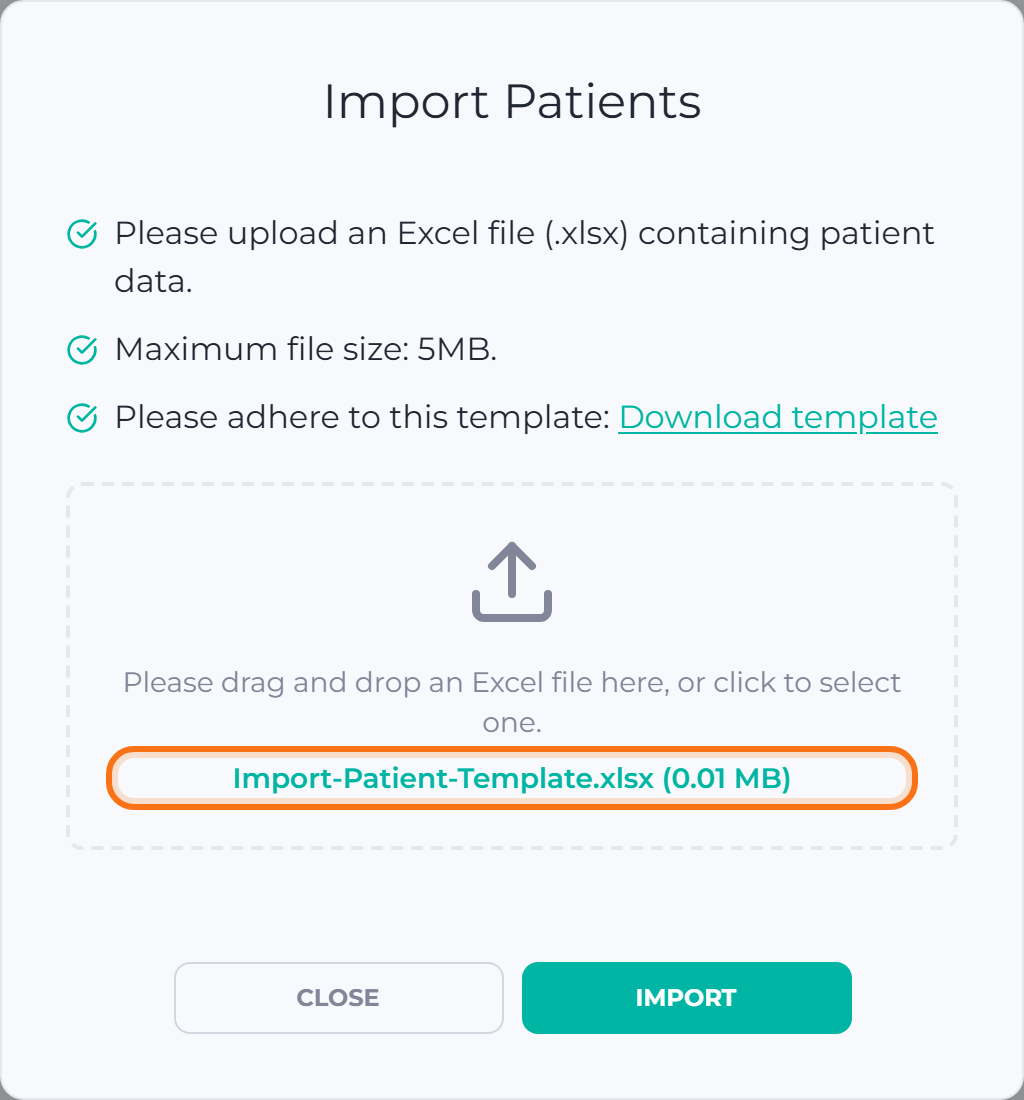
- Click Import to upload the file.
📷 Screenshot
Success screen confirming the import has started
patients/import-patients-04.pngWhat happens next
Section titled “What happens next”OxygenRX shows a message that the import has started. You’ll get an email once it finishes. New patients appear in the Patients list once the import completes.
If something goes wrong
Section titled “If something goes wrong”- Save your file as .xlsx before uploading. Files saved as .xls or .csv won’t upload.
- Make sure your file is 5MB or smaller.
- Use the Download template file as your starting point. Matching its layout avoids errors.
- You can’t close this window by clicking outside it. Use Close, or wait for the import to start.