

How to book a consultation for a patient
This page shows you how to email a patient their booking link.
Who can do this: Anyone signed in to the portal, for patients in your organization.
🎬 Video
Full walkthrough of emailing a patient their consultation booking link
patients-book-a-consultation.mp4- Open the patient’s record.
- Click Book Consultation. The Send Consultation Email window opens.
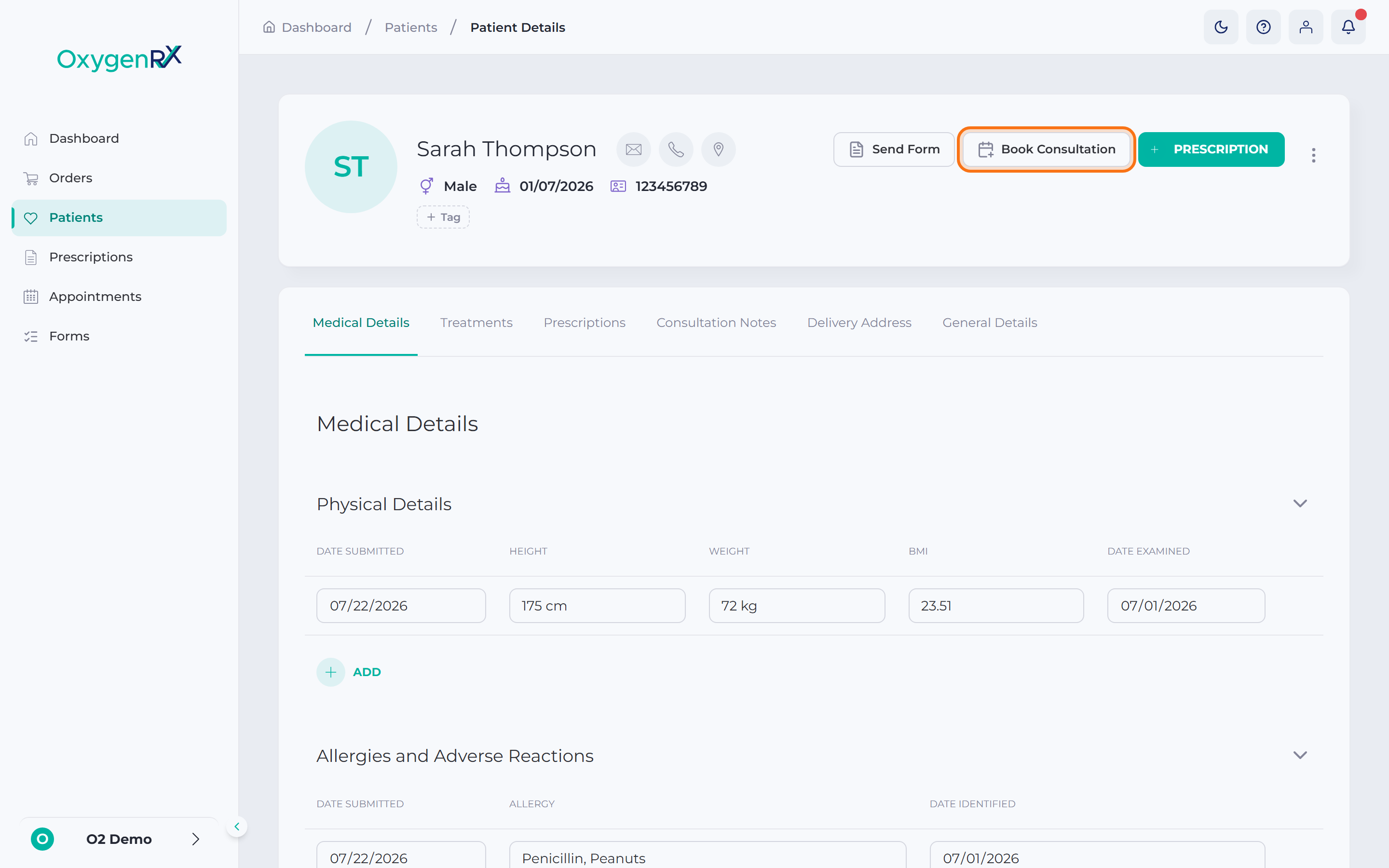
- If sending to more than one patient, choose one, or choose All patients.
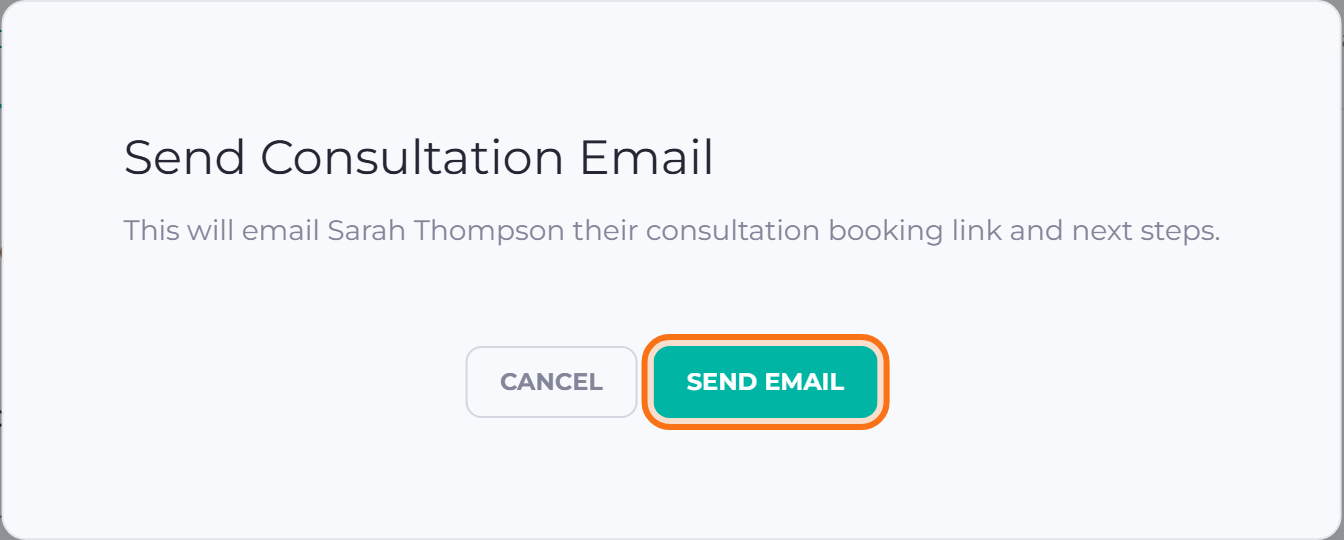
- Click Send Email to send the booking link.
What happens next
Section titled “What happens next”OxygenRX emails the patient a link to book their consultation. They pick a type, date, and time, without signing in. Find the booked appointment on the Appointments screen.
If something goes wrong
Section titled “If something goes wrong”- Send Email stays grayed out if there’s no valid patient to send to. Check the patient has a valid email address, then try again.
- If sending fails, you’ll see Failed to send. Try again.
- On success, the window shows Sent.
- You can’t close this window by clicking outside it. Use Cancel, or wait for it to finish.