

How to save a prescription as a draft
This page shows you how to save a prescription you have started. You can finish it later without sending it.
Who can do this: Prescribers. See roles for what each role can do.
- Click Prescriptions in the main menu.
- Click Prescription. A panel slides in with a patient search box.
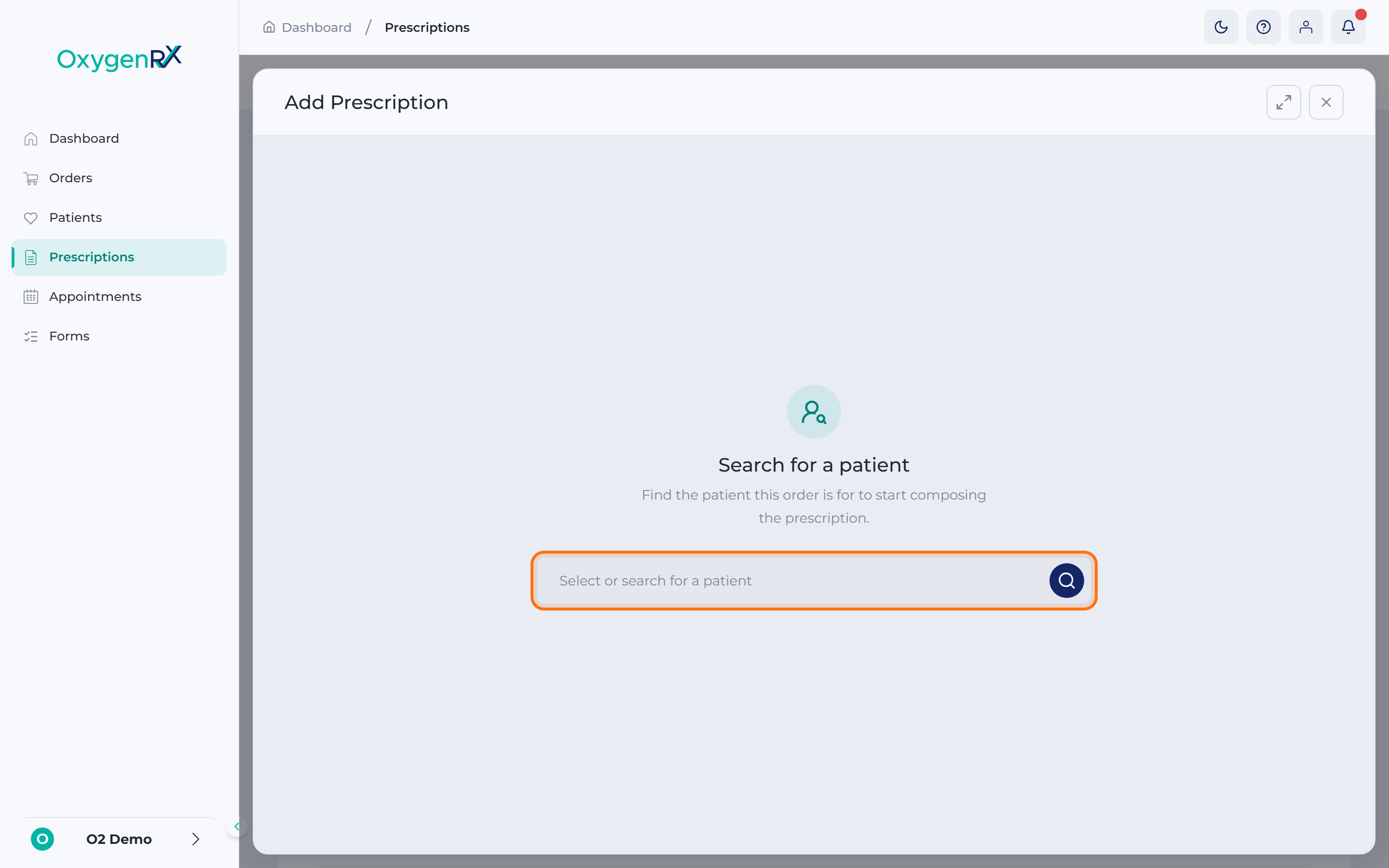
the Add Prescription panel with the patient search box open. - Type the patient’s name or reference in the search box.
- Select the patient from the matching results.
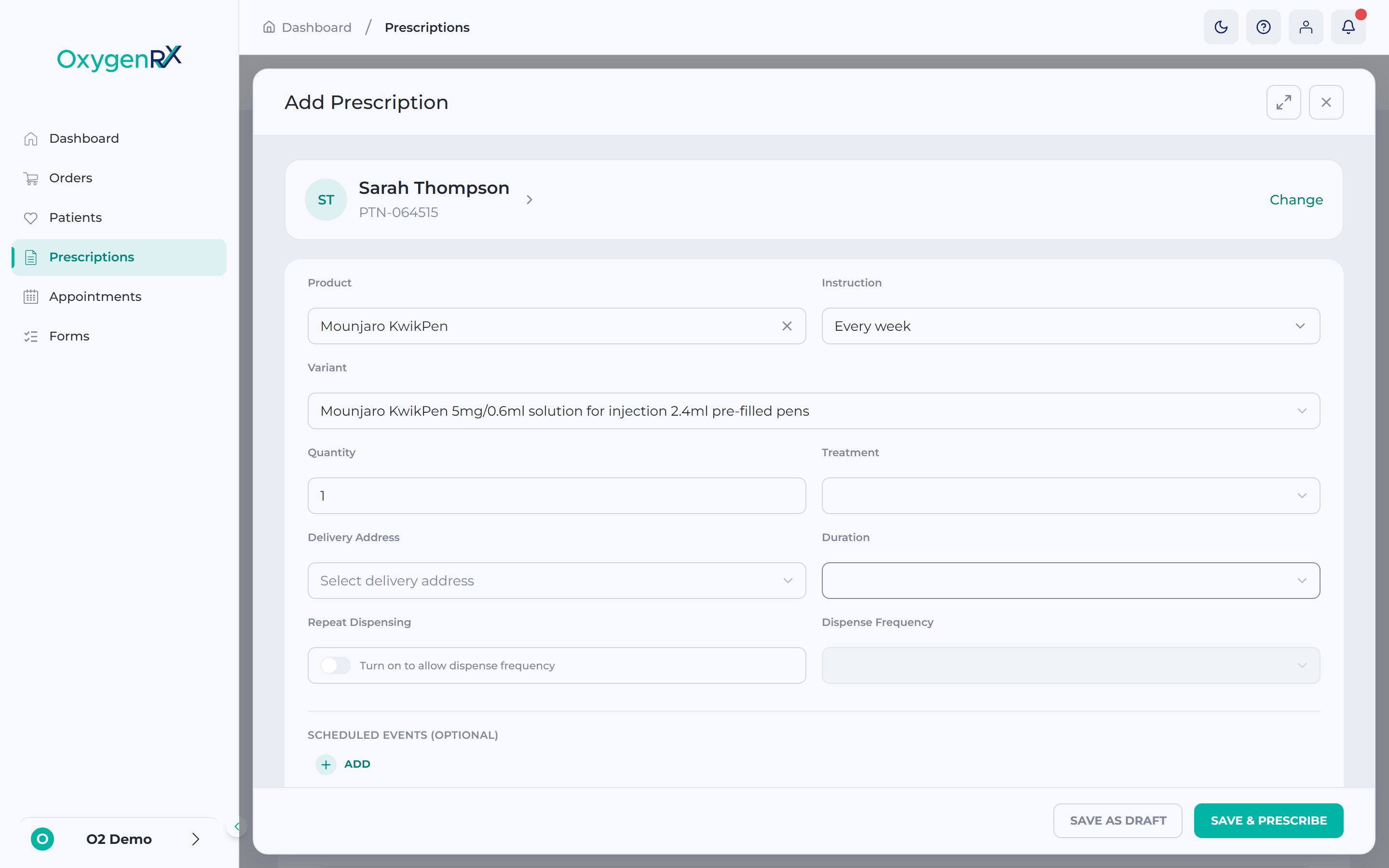
the panel showing some product boxes filled in and others still empty. - Fill in whatever product details you have so far. See How to prescribe for what each box means.
- Click Save as Draft. The Save Draft Prescription window opens.
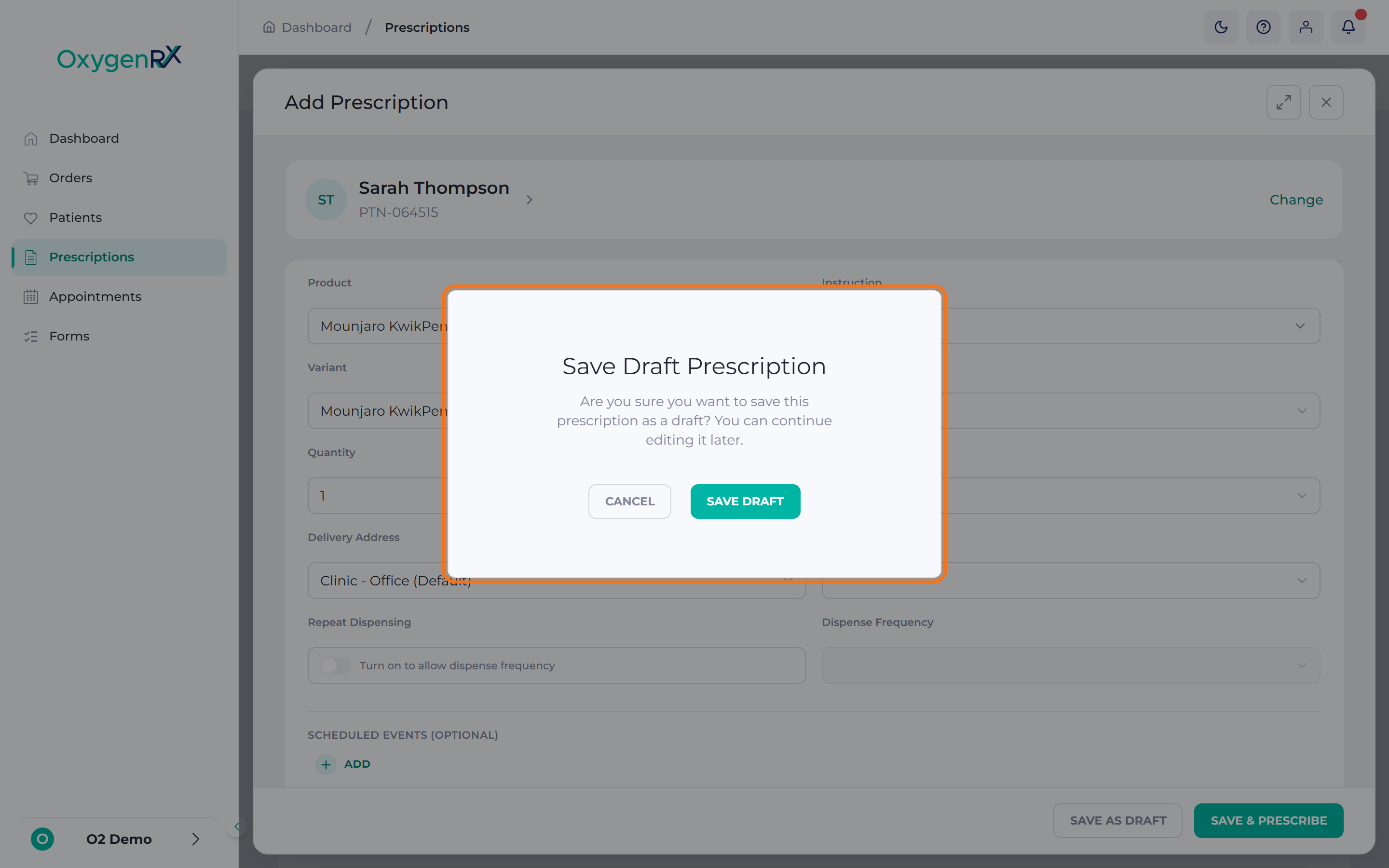
the Save Draft Prescription confirmation window. - Click Save Draft to confirm.
What happens next
Section titled “What happens next”The prescription is saved with Draft status. This shows as an amber badge on the Prescriptions list. It stays fully editable. Come back to it whenever you are ready. Finish the remaining boxes, then click Save & Prescribe to send it. See How to prescribe for that final step.
If something goes wrong
Section titled “If something goes wrong”- “You have an unsaved scheduled event. Save it (✓) or cancel it before saving.” — you left a scheduled event open. Click the tick to save it, or the cross to cancel it, then try again.
- A renewal or refill reminder — a type of scheduled event — saves fine on a draft. But it needs its own requirement met before you can send with Save & Prescribe. A renewal reminder shows “Renewal reminders need a prescription duration.” Add a Duration to the product. A refill reminder shows “Refill reminders need a repeat prescription.” Turn on Repeat Dispensing instead.
- “At least one product is required” — add at least one product before saving.
- If Save as Draft does not seem to respond, check the product boxes. One of them may show a red error message underneath it.