

Create an account: licensed professional
This page shows you how a licensed professional creates their own OxygenRX account.
Who can do this: Any licensed professional setting up a new account. You do not need an existing account to start.
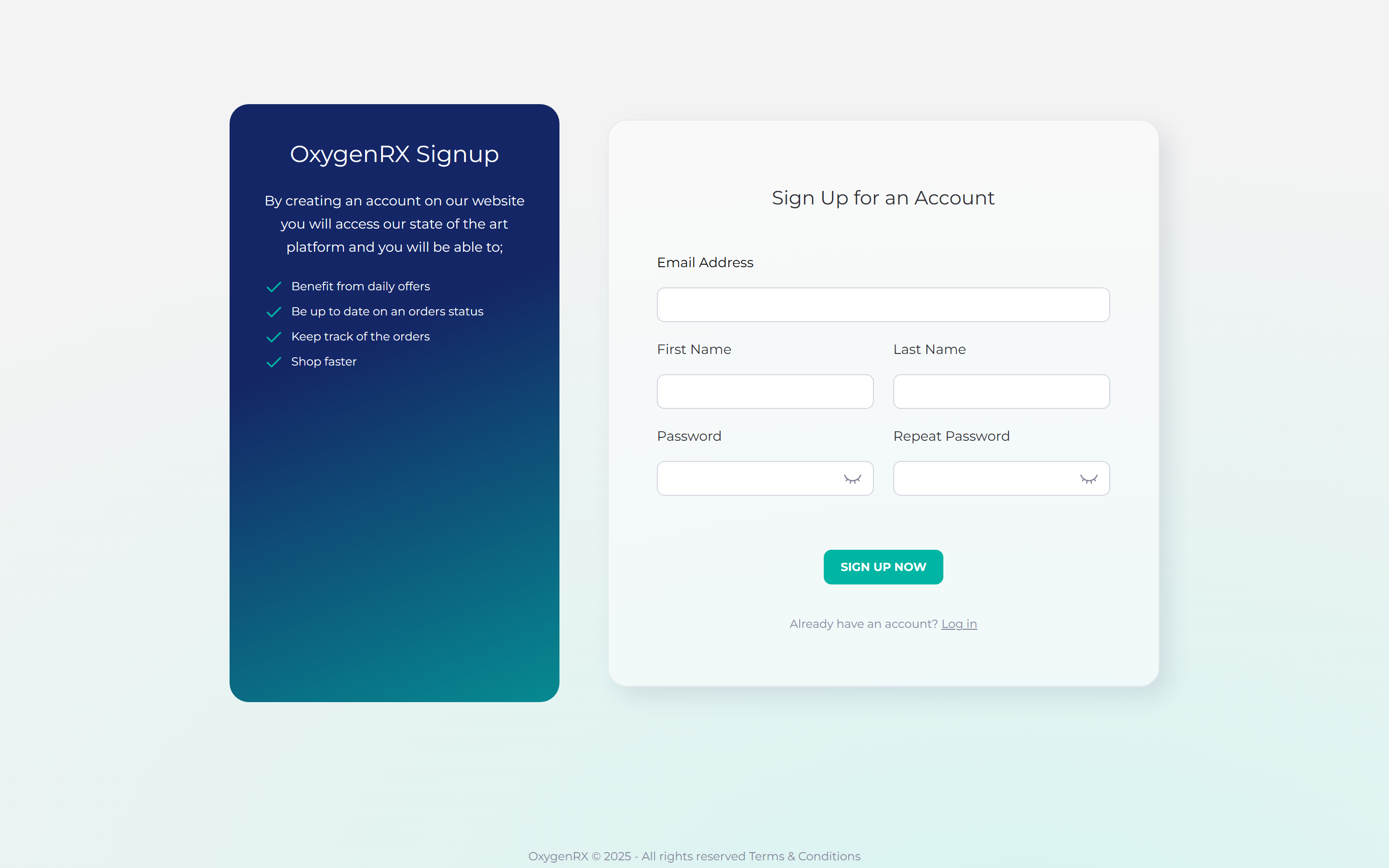
- Go to the sign-up page.
- Enter your email address, first name, and last name.
- Create a password that meets the rules shown on screen.
- Enter the same password again to confirm it.
- Click Sign Up Now.
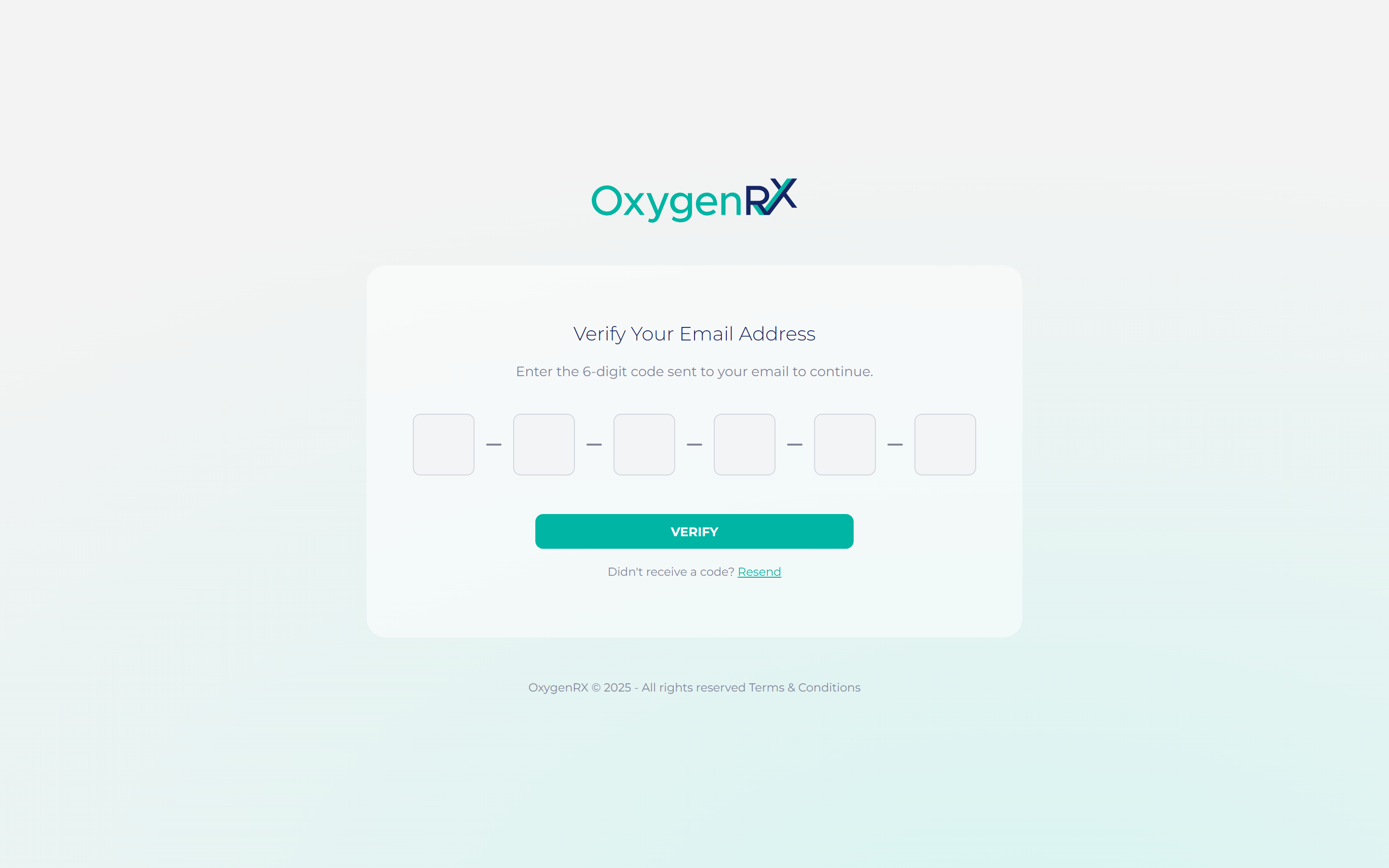
- Open the verification email you receive.
- Enter the 6-digit code from the email.
- Click VERIFY.
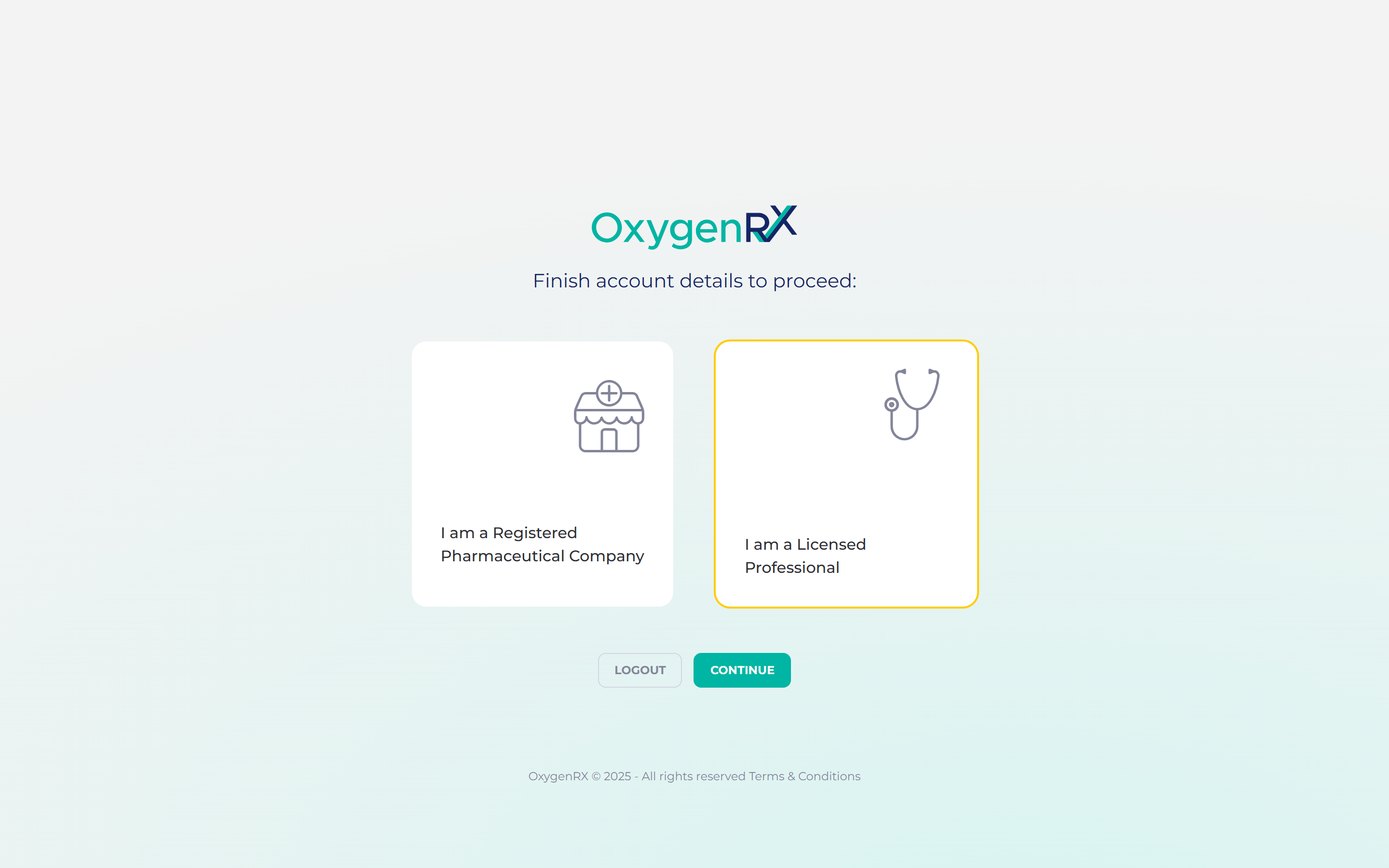
- Select “I am a Licensed Professional”.
- Click Continue.
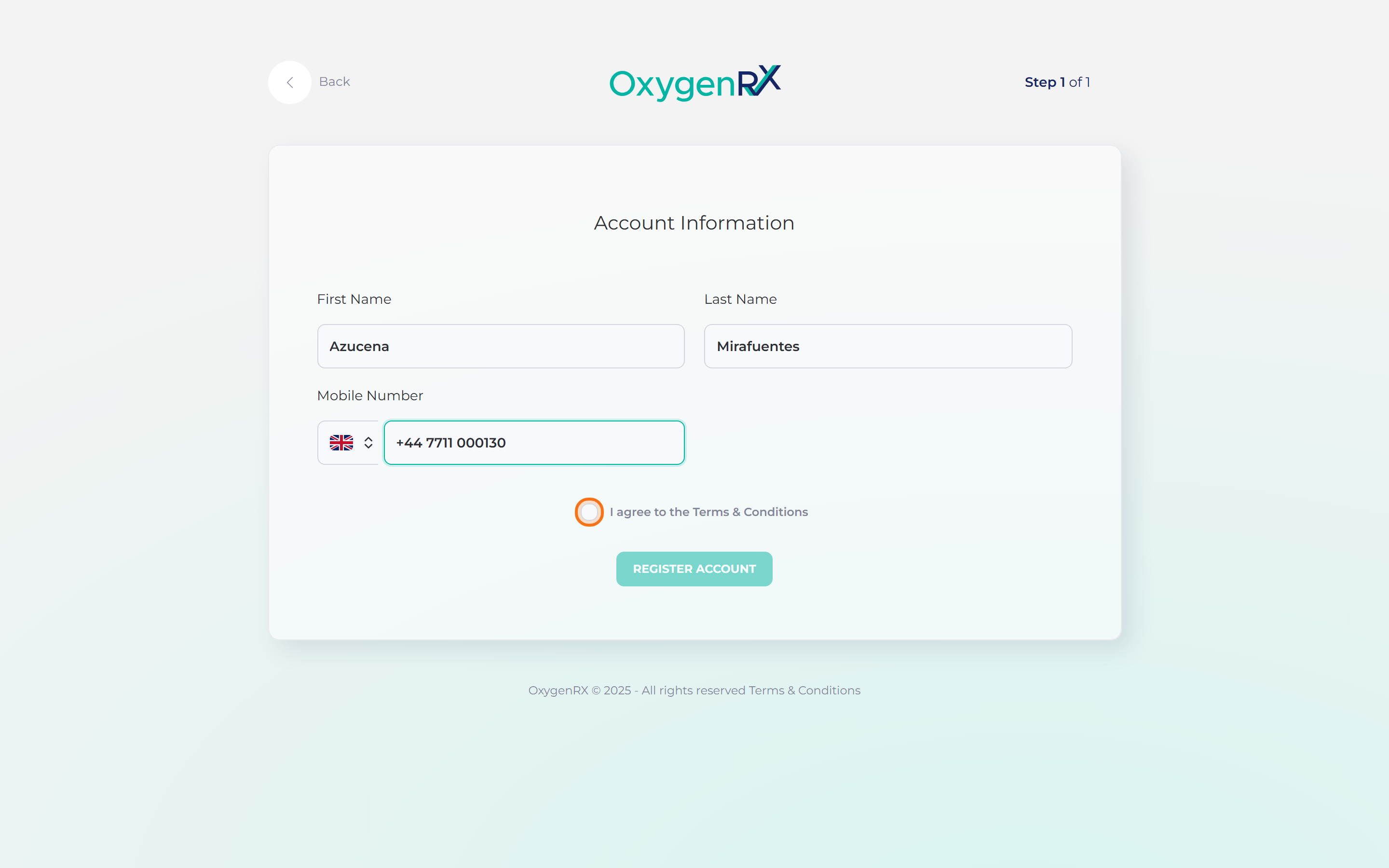
- Enter your first name, last name, and mobile number.
- Tick the box for “I agree to the Terms & Conditions”.
- Click Register Account.
- On your profile page, fill in your professional details.
- Click Save Profile.
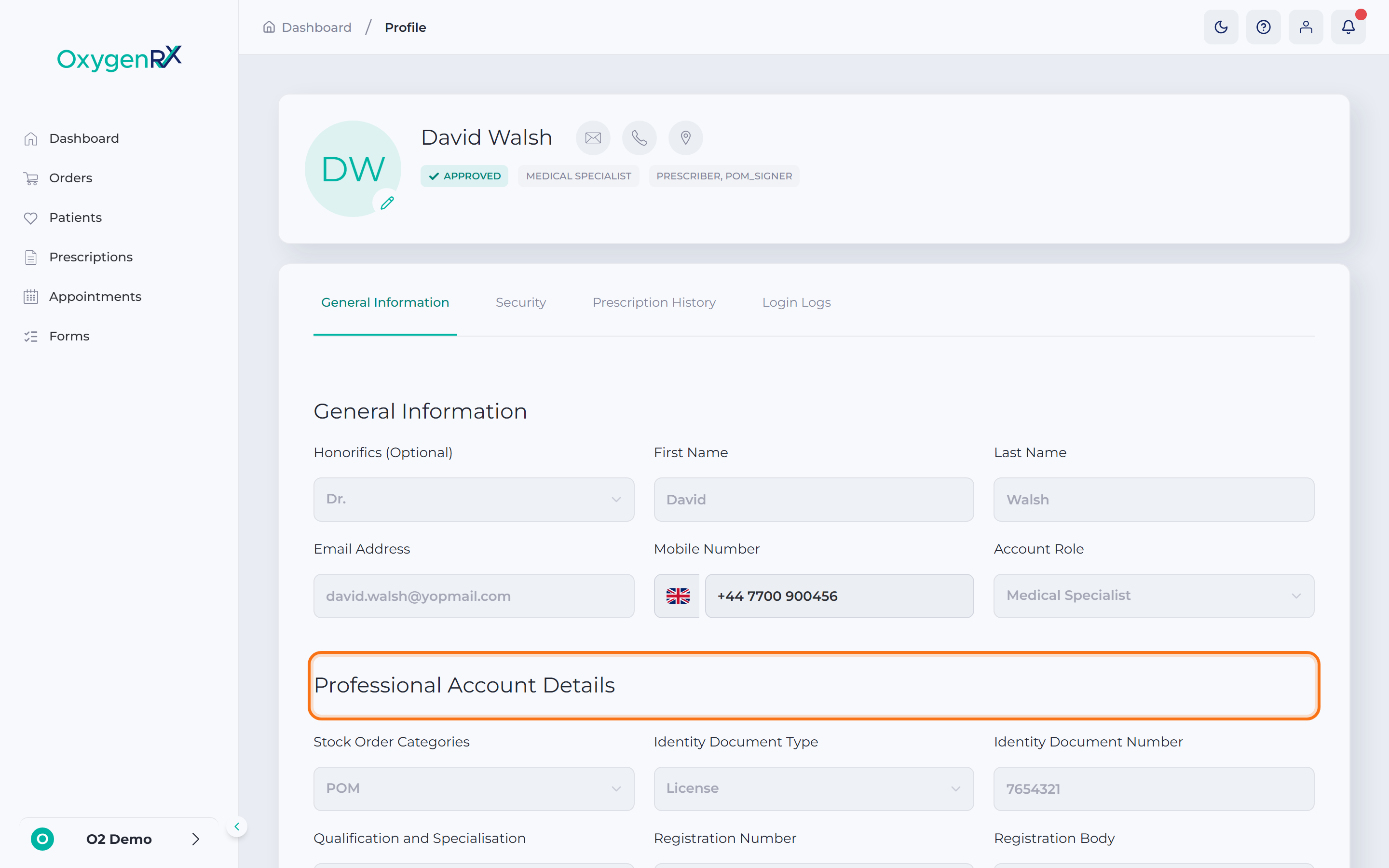
Your professional details include your honorific, identity document, registration body, and registration number. They also include your professional address and phone number. You can upload your certificate, insurance, and ID card here, or add them later.
What happens next
Section titled “What happens next”Your account is created and your professional profile is saved. Your profile stays marked Pending until an admin approves it. You also need to upload your certificate and insurance.
Set up your secure PIN next. A secure PIN is a 6-digit code. You enter it to confirm sensitive actions, like issuing a prescription. See Set your secure PIN.
If something goes wrong
Section titled “If something goes wrong”- “An account with this email already exists. Try signing in instead.” Go to the sign-in page instead of signing up again.
- “Invalid or expired code. You can resend a new one below.” Click Resend to get a fresh code.
- “Identity Document Type is required.” Choose an option from the list of choices.
- “Invalid UK Postcode” Check the postcode format and try again.
- “File must be less than 5MB” or “Unsupported file format”. Use a smaller PDF, JPG, or PNG file.