

Orders overview
This page shows you what you can do on the Orders screen. It also points you to step-by-step guides for each task.
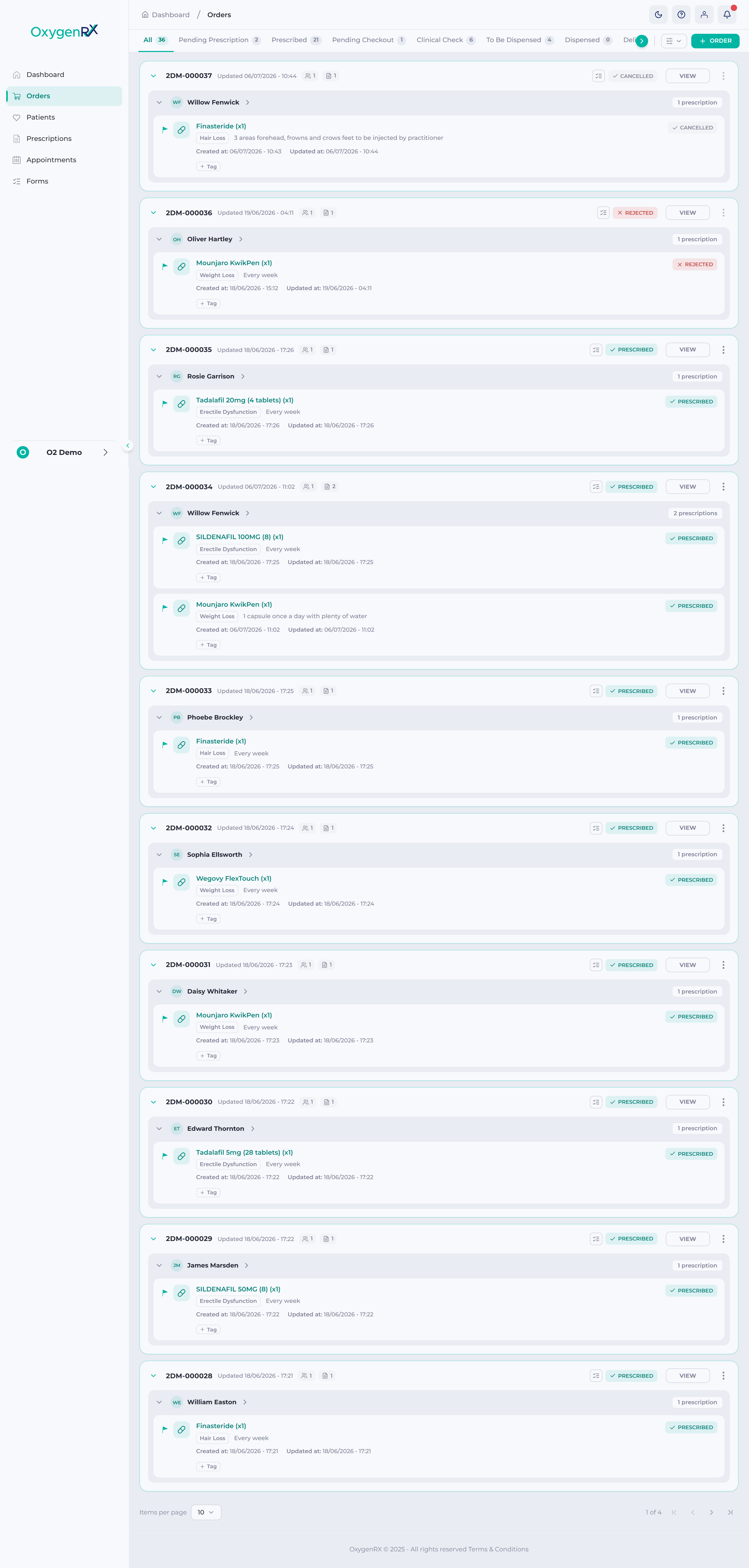
The Orders screen lists every prescription order for your patients. Each order appears as a card showing its reference number and patient’s name.
Every order has an order status. A status tells you what stage the order is at. It ranges from waiting on a prescriber to being delivered.
Status tabs across the top let you jump to orders at a particular stage. You can also search, sort, and filter the list by tag or treatment.
Click any order card to open its details. From there you can prescribe it, check it out, or send the patient a form. You can also reject or cancel it. Which buttons you see depends on the order’s status and your role.
Use these guides for step-by-step instructions: