

Checkout & payment
This page shows you how to check out and pay for an order.
Who can do this: Any portal user. Which checkout buttons you see depends on the order and your organization’s settings.
🎬 Video
The full flow of checking out an order and paying for it.
orders-checkout-and-payment.mp4- Open the order you want to check out.
- Select the prescription lines you want to check out.
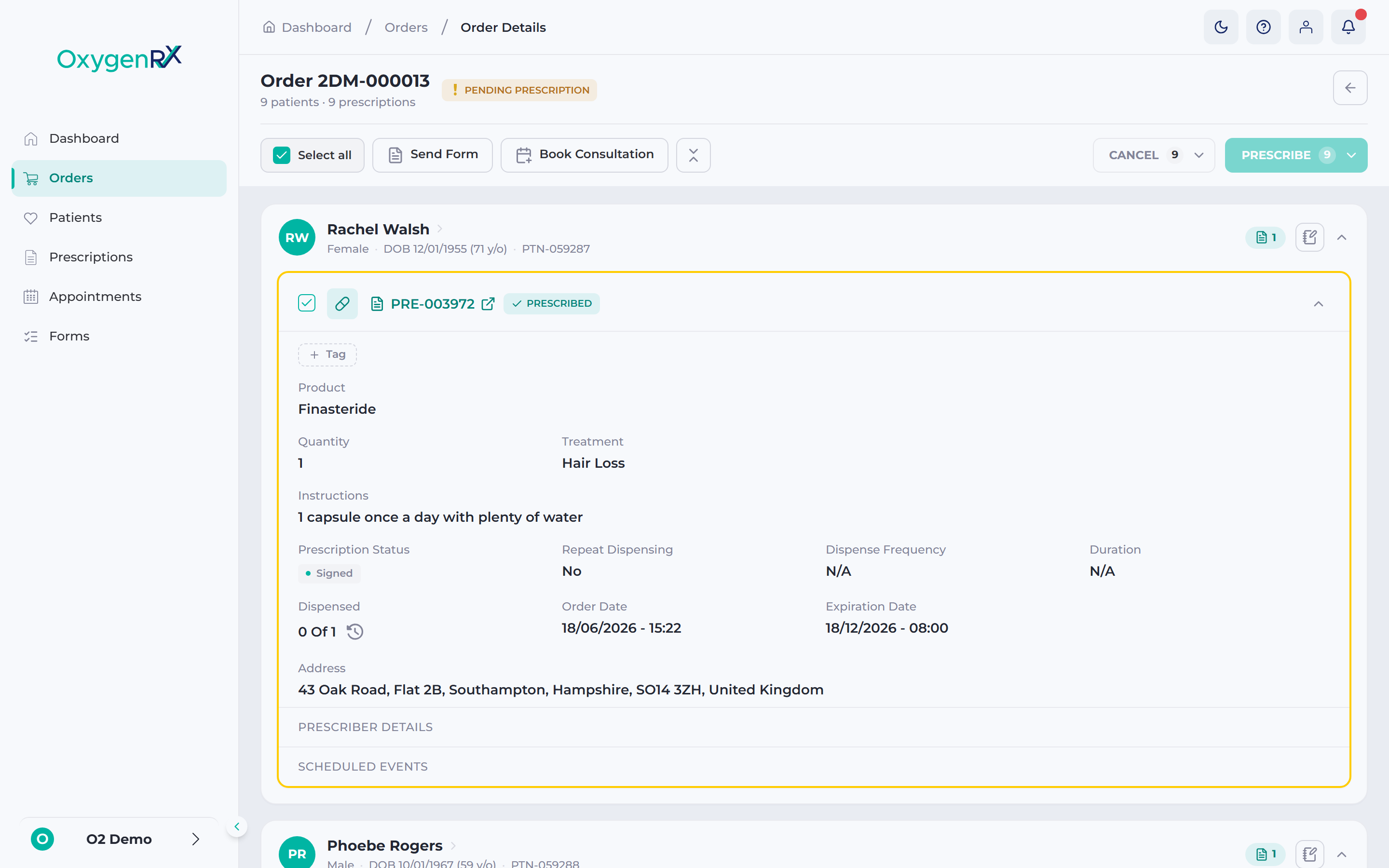
- Click Checkout (or the checkout button shown for that order).
- Checkout is the step where an order gets paid for.
- A window opens. If only one checkout method applies, you’ll see a confirmation window. Skip ahead to step 5.
- If more than one method applies, you’ll see a Choose a checkout method window instead. Continue to step 4.
📷 Screenshot
The Choose a checkout method window listing Checkout, Prescribe & Checkout, and Patient Checkout.
orders/checkout-and-payment-02.png- Click the method you want: Checkout, Prescribe & Checkout, or Patient Checkout.
- Checkout takes payment for the selected lines now.
- Prescribe & Checkout prescribes and takes payment in one step.
- Patient Checkout emails the patient a payment link instead.
- If a 6-digit code box appears, enter your Secure PIN or 2FA code.
- Click Confirm to finish, or Cancel to stop.
What happens next
Section titled “What happens next”A message confirms the order has been checked out. The order’s status updates to show its new stage.
If you chose Patient Checkout, the order waits for the patient. They pay through their link instead.
If something goes wrong
Section titled “If something goes wrong”- “This item has already been paid for.” — You don’t need to check it out again.
- “This item must be prescribed before it can be checked out.” — Prescribe the line first, then try again.
- “This item was rejected and can no longer be checked out.” — A rejected line can’t be paid for. Ask the prescriber to issue a replacement line.
- “This item was refunded and can no longer be checked out.” — A refunded line can’t be checked out again. No further action is needed.
- “This prescription has expired.” — Ask the prescriber to issue a fresh one.
- “The prescription must be signed before patient checkout.” — Wait until the prescription is fully issued.
- “You need prescriber permission for this action.” — Ask a prescriber on your team to check it out.
- “Patient checkout is not enabled for this organization.” — Use Checkout or Prescribe & Checkout instead.
- “This item needs a patient and delivery address first.” — Add these details, then try again.
- “No dispensing destination is available.” — Contact your organization admin to set one up.
- “This action isn’t available for this order.” — Try a different action from the order details screen.