

How to create a patient
This page shows you how to add a new patient record.
Who can do this: Anyone signed in to the portal.
🎬 Video
Full walkthrough of creating a new patient record from start to finish
patients-create-a-patient.mp4- Go to Patients.
- Click Patient. The New Patient screen opens.
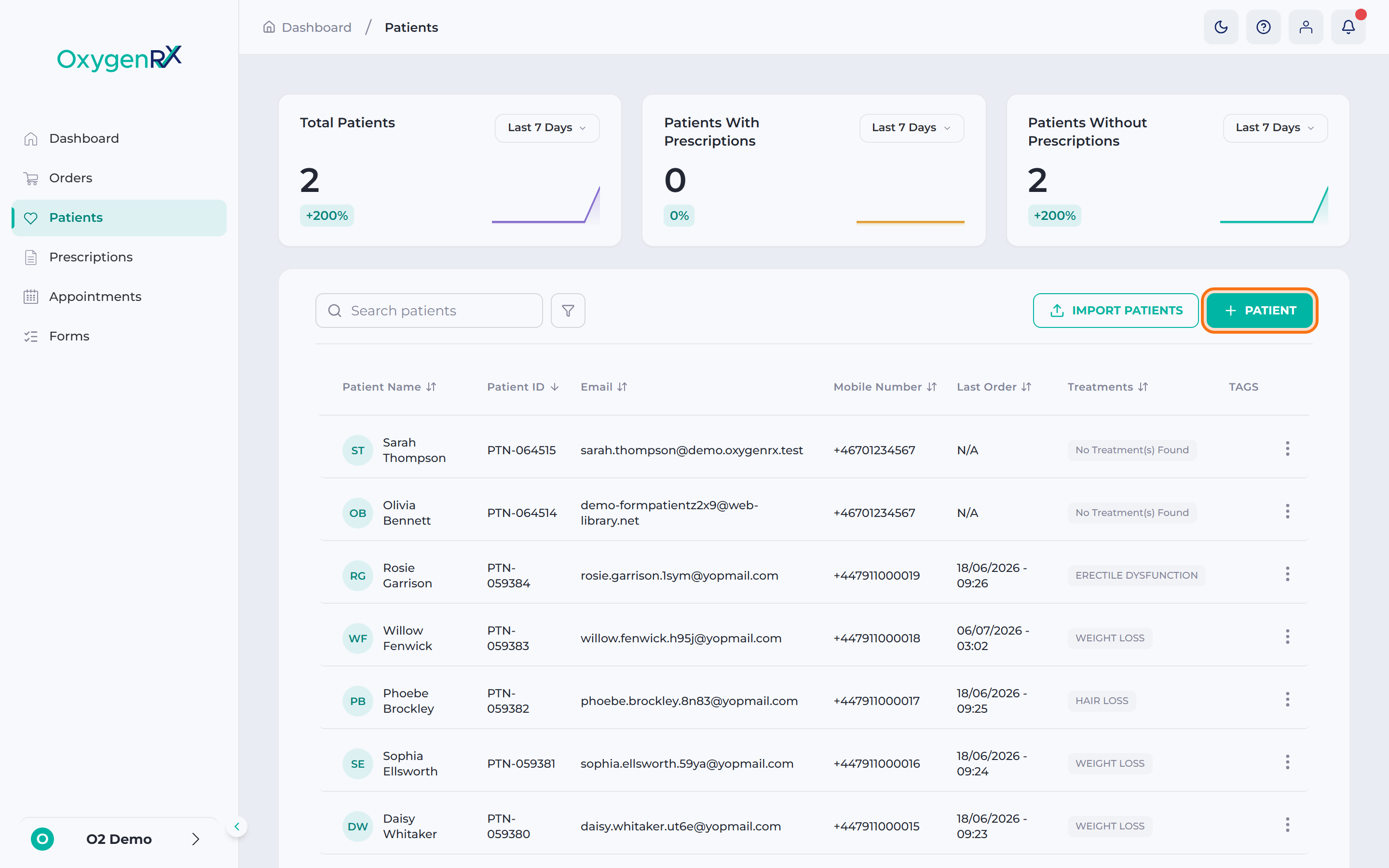
- Fill in First Name and Last Name.
- Choose a Date of Birth.
- Choose Gender: Male or Female.
- Add an Email Address and a Mobile Number.
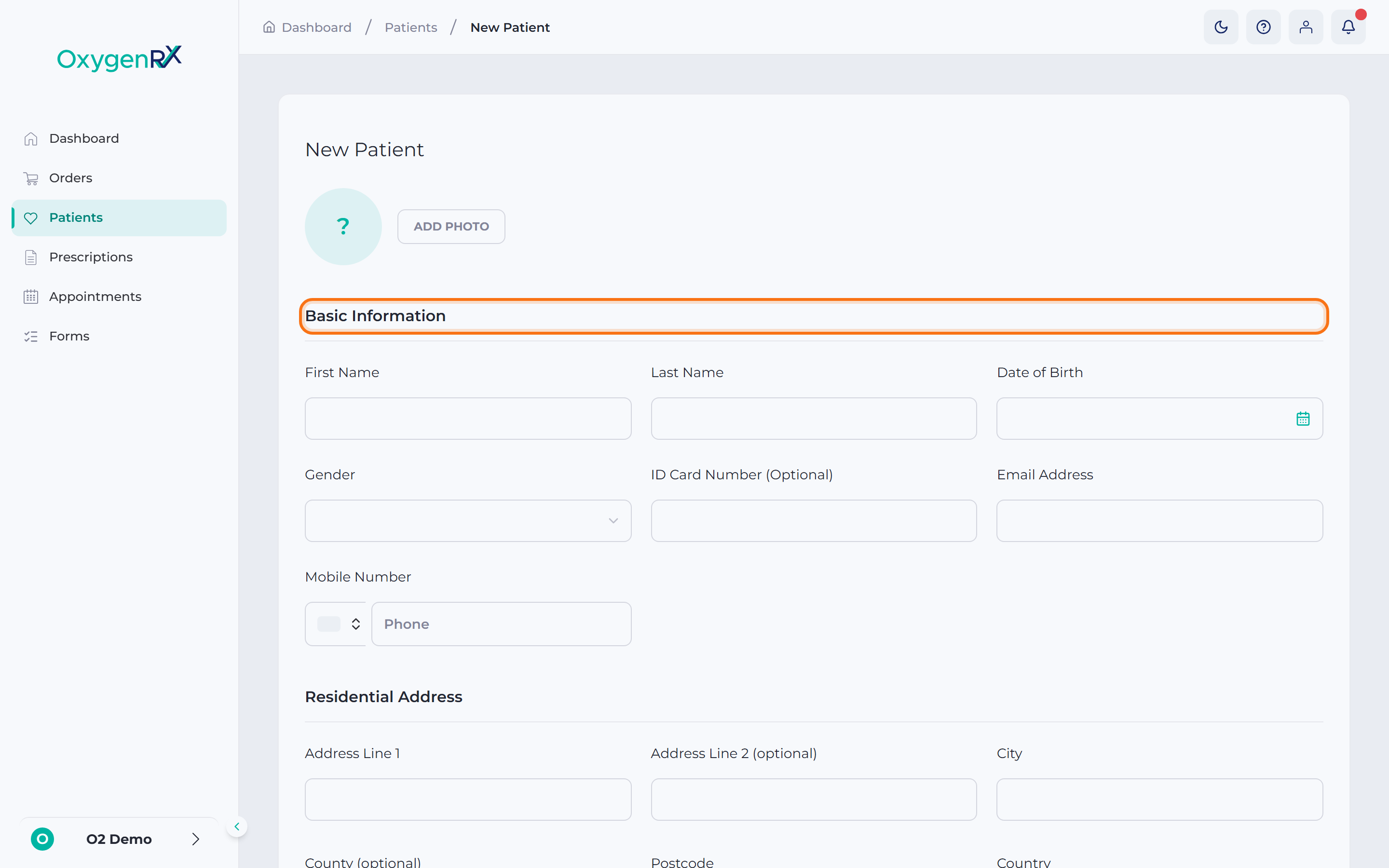
- Fill in the residential address: Address Line 1, City, Postcode, Country.
- Switch on Same as residential address, or fill in a different delivery address.
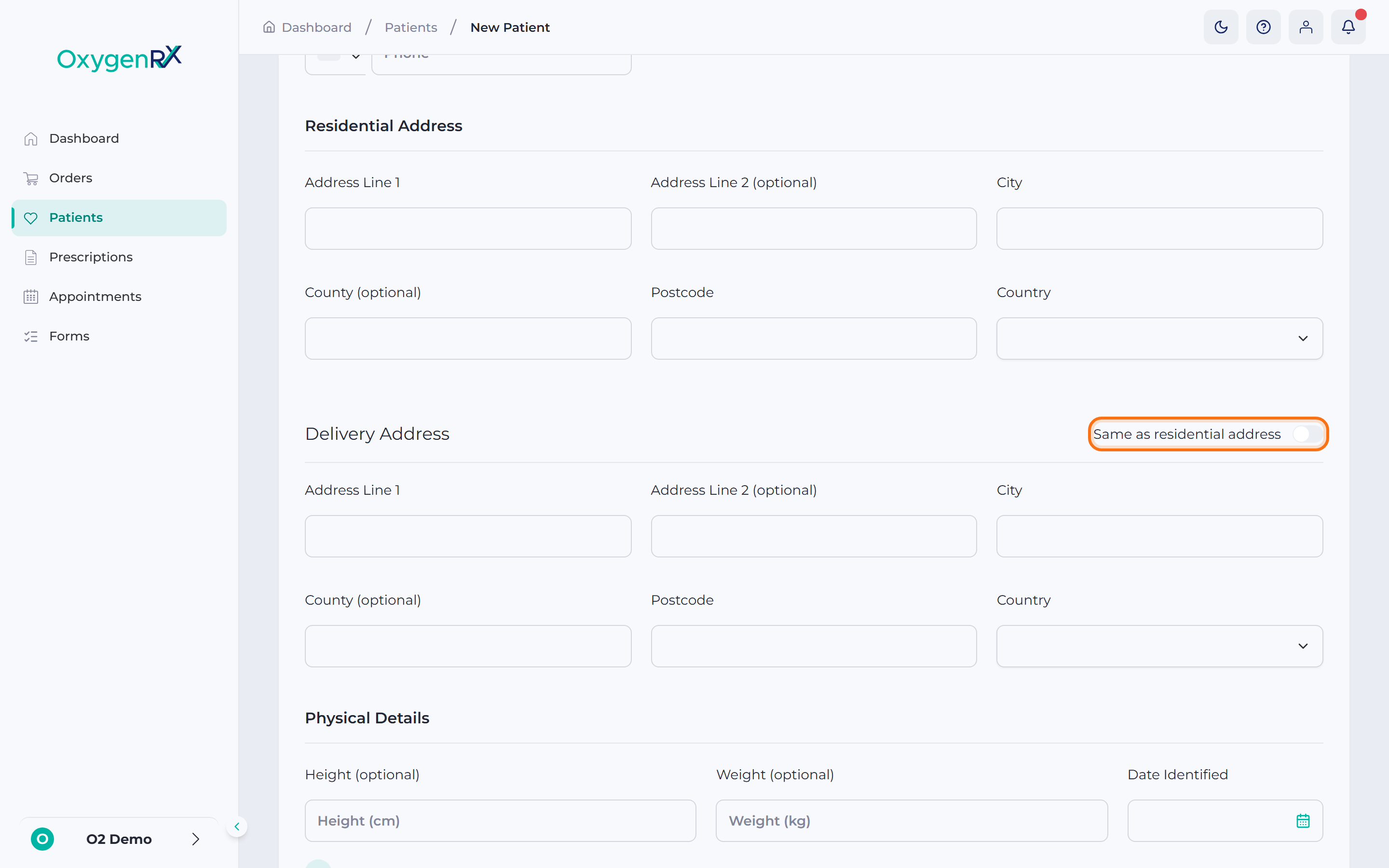
- Add any physical details, allergies, or medication you know about. These are optional.
- Each section has its own button for adding more entries. For example, use Add another allergy.
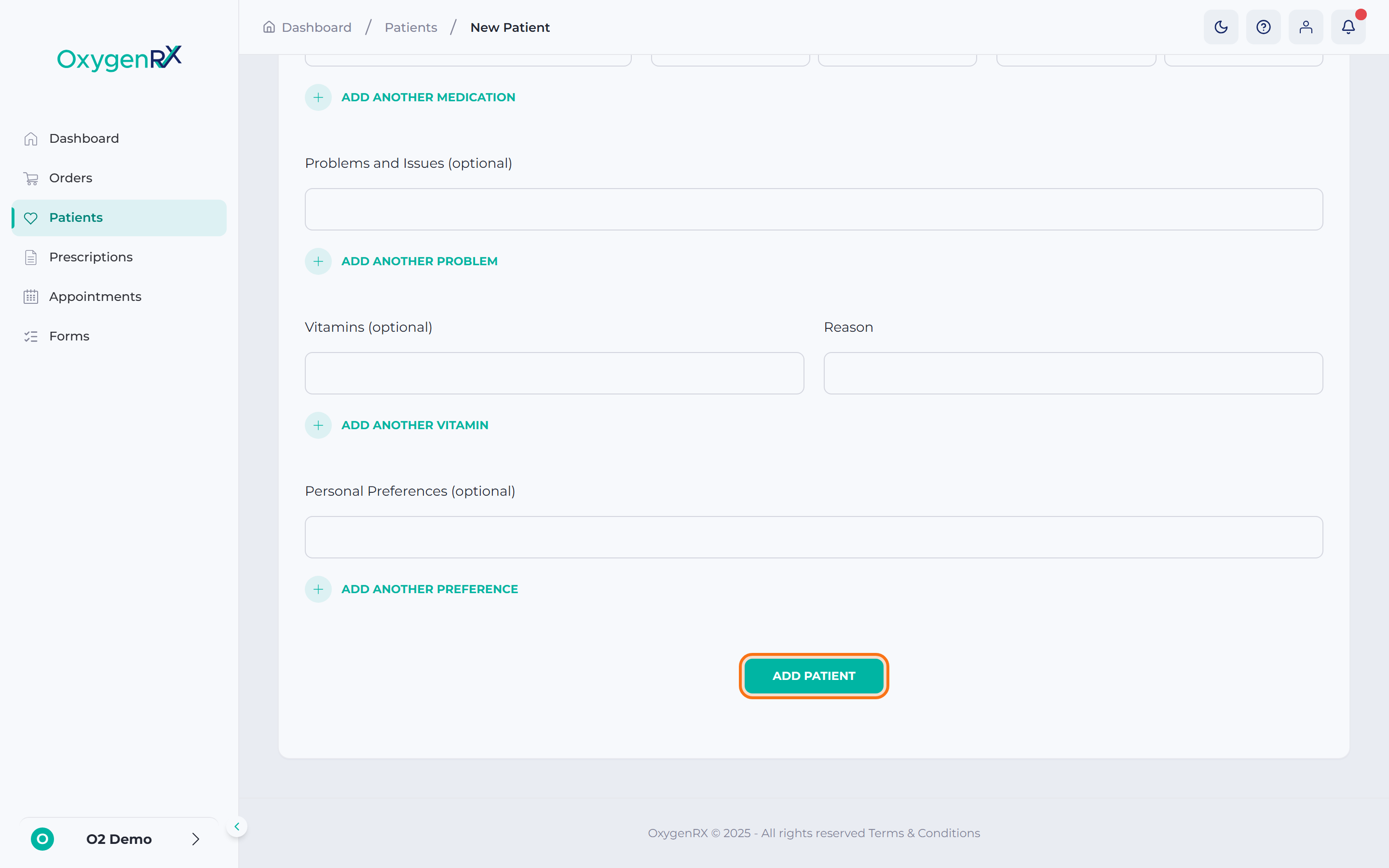
- Click Add Patient to save the record.
What happens next
Section titled “What happens next”OxygenRX saves the patient and takes you back to the Patients list. Open the new record any time to add more details or start a prescription.
If something goes wrong
Section titled “If something goes wrong”- First Name and Last Name: type at least two letters in each.
- Date of Birth: choose a date between 1900 and today.
- Email Address: type a valid email address, like [email protected].
- Postcode: for UK addresses, type a valid UK postcode.
- If you start a medical details row, finish every required box in it. Partly-filled rows won’t save.