

Log in & two-factor authentication
This page shows you how to log in. It also explains how a second code confirms sensitive actions.
Who can do this: Anyone with an OxygenRX account.
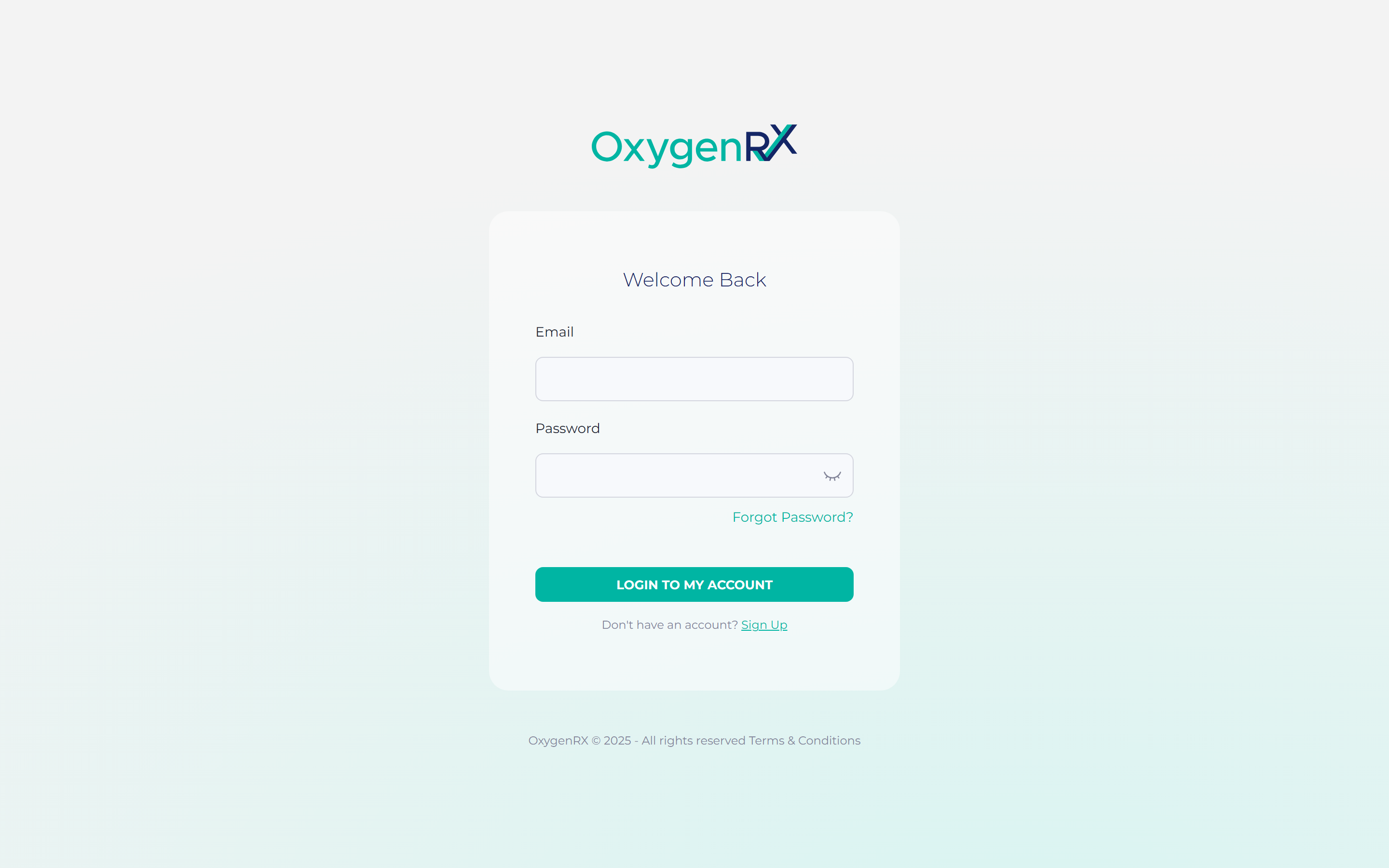
- Go to the sign-in page.
- Enter your email address.
- Enter your password.
- Click LOGIN TO MY ACCOUNT.
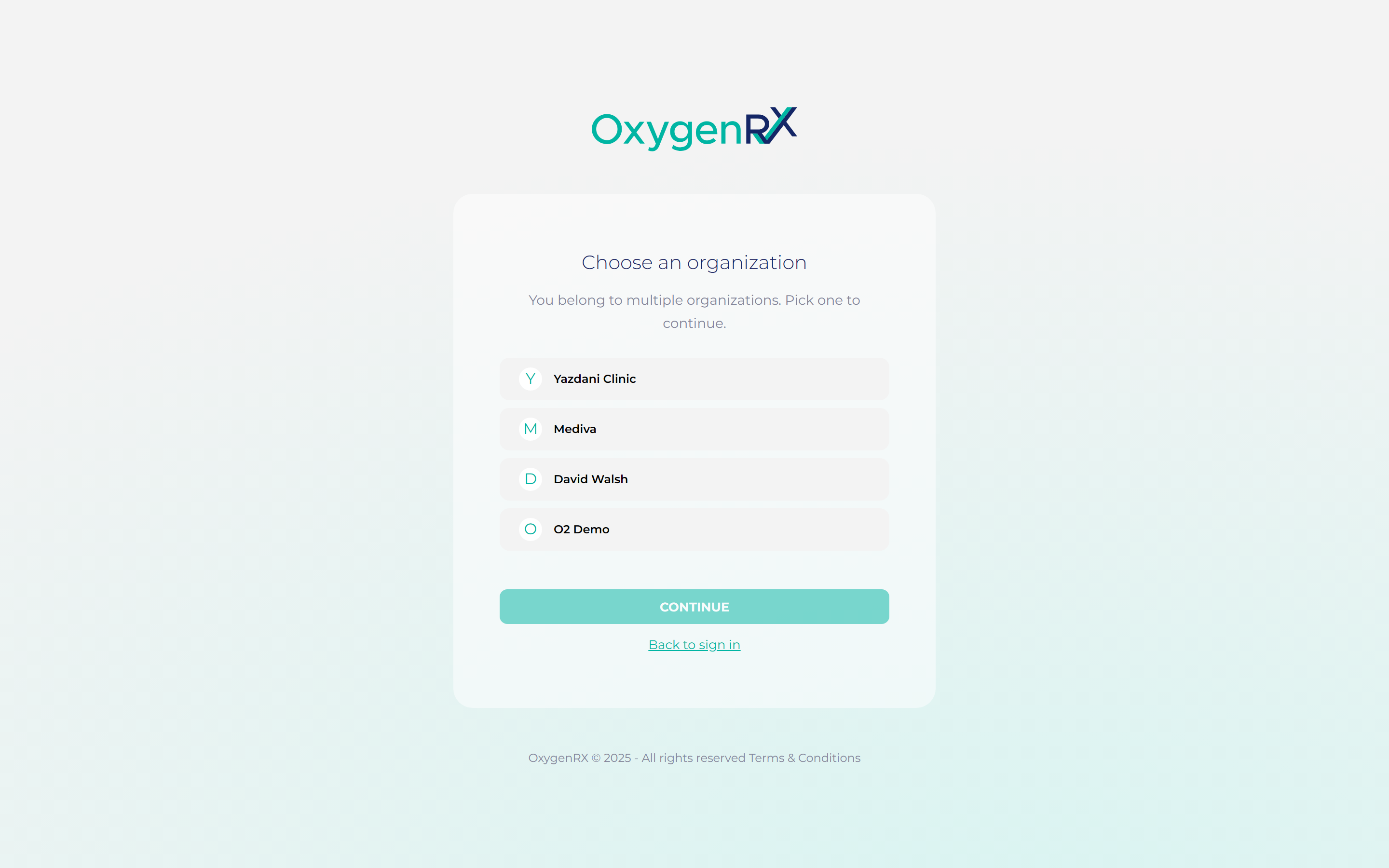
Some accounts belong to more than one organization. An organization is the pharmacy or company your account is filed under.
- If a Choose an organization screen appears, select one from the list.
- Click CONTINUE.
Two-factor authentication
Section titled “Two-factor authentication”Two-factor authentication is a 6-digit code from an authenticator app that confirms sensitive actions. It does not add an extra step to signing in.
Once it is turned on, OxygenRX asks for this code before certain actions. This includes when you prescribe, reject, or cancel an order. Some payment steps also ask for it.
You turn on two-factor authentication from your profile, not from the sign-in page. See Security for the full setup steps.
What happens next
Section titled “What happens next”You land on your dashboard, ready to work. If your account uses two-factor authentication, expect a 6-digit code prompt. This happens when you prescribe, reject, cancel, or check out an order.
If something goes wrong
Section titled “If something goes wrong”- “Email or password is incorrect.” Check both boxes and try again.
- “Your session expired. Please sign in again.” Sign in again to continue.
- “Too many attempts. Try again in a moment.” Wait a short while, then try again.
- “Couldn’t sign you into that organization. Sign in again and choose another.” Sign in again and pick a different organization.
- “Service is temporarily unavailable. Try again.” Wait a short while, then try again.