

How to write consultation notes
This page shows you how to write consultation notes, during a call or afterwards.
Who can do this: Any prescriber or manager with access to the patient’s record. During a live call, only the assigned provider can add notes.
🎬 Video
Opening Consultation Tools during a call to add a note, and adding a note from the patient's Consultation Notes tab.
appointments-consultation-notes.mp4Add notes during a call
Section titled “Add notes during a call”- During the call, click Consultation Tools (the grid icon).
📷 Screenshot
The in-call toolbar with the Consultation Tools icon highlighted.
appointments/consultation-notes-01.png - Click Add Consultation Notes.
- Choose a Consultation Type from the list.
- If you chose Video Call, type your note in Add Note. If you chose any other type, choose a Form and a treatment instead. Then answer the form’s questions before saving.
- Attach a file if you need to.
- Choose a Priority Type.
- Click SAVE.
Add notes from the patient record
Section titled “Add notes from the patient record”- Open the patient’s record.
- Click the Consultation Notes tab.
- Click the round + button.
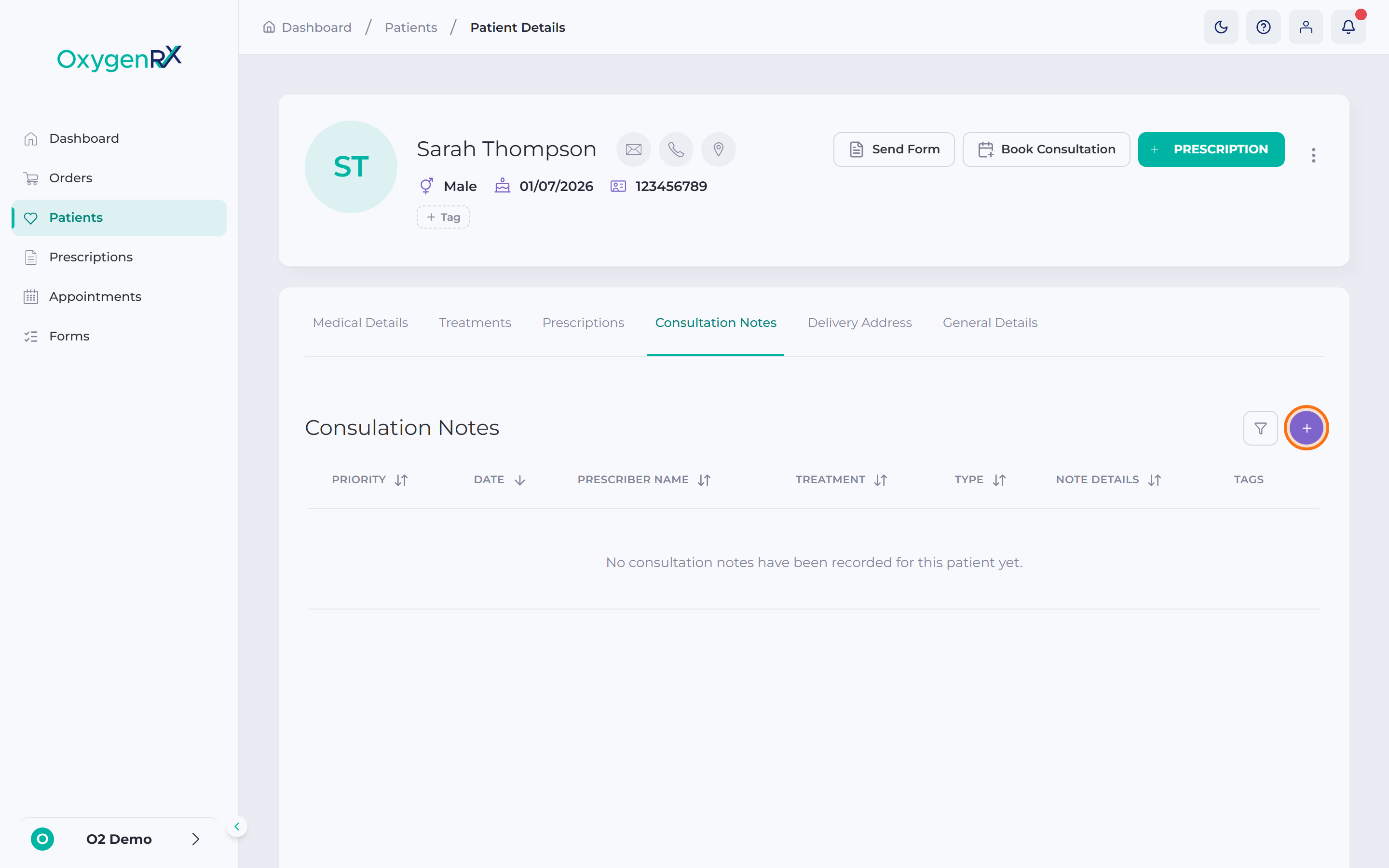
The patient's Consultation Notes tab with the add note button highlighted. - Follow steps 3 to 7 above to fill in and save the note.
What happens next
Section titled “What happens next”- Your note is saved and appears at the top of the patient’s Consultation Notes list.
- Each note shows its priority, date, your name, treatment, and type.
- From the Consultation Tools panel you can also click View Patient Notes to browse earlier notes.
- You can click Create Prescription to write a prescription during the call. See How to prescribe.
If something goes wrong
Section titled “If something goes wrong”- “This appointment is not linked to a PMR patient record.” — this means the booking isn’t connected to a patient record in the portal. Check you opened the right booking. If notes still won’t save, ask an admin to link the patient to it.
- “Please select a form”, “Please select a treatment”, or “Please answer all required questions in the form” — fill in the missing box before saving.
- Switching form or consultation type mid-way — a window warns that your answers will be reset. Only continue if you’re sure.
- “UPLOADING…” stays on the SAVE button while a file uploads. Wait for it to finish before leaving the page.