

How to create a new order
This page shows you how to start a new order for a patient.
Who can do this: Any portal user.
🎬 Video
The full flow of starting a new order, searching for a patient, and saving a prescription.
orders-create-a-new-order.mp4- Go to Orders.
- Click + Order.
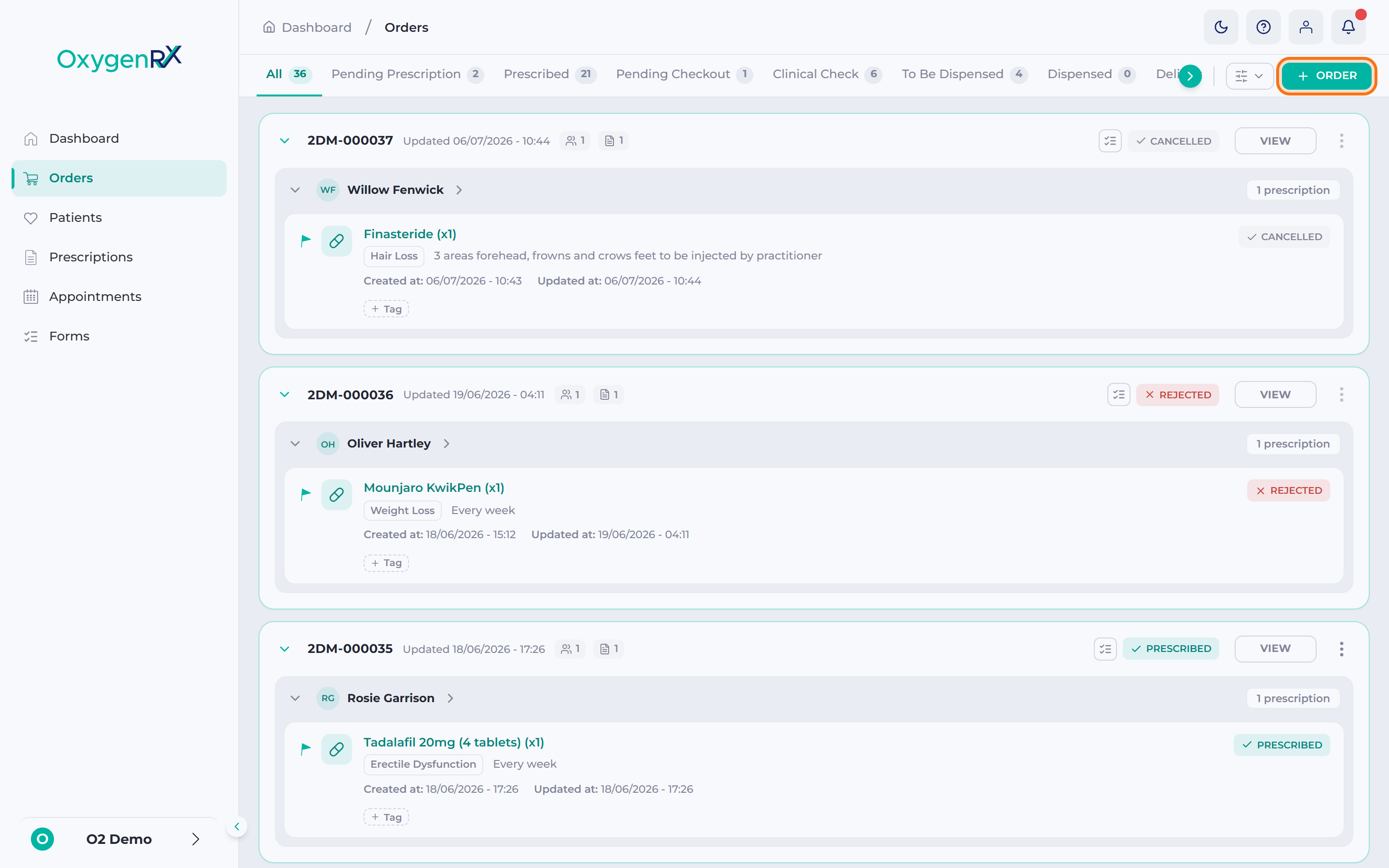
- In the New Order window, type the patient’s name in the search box.
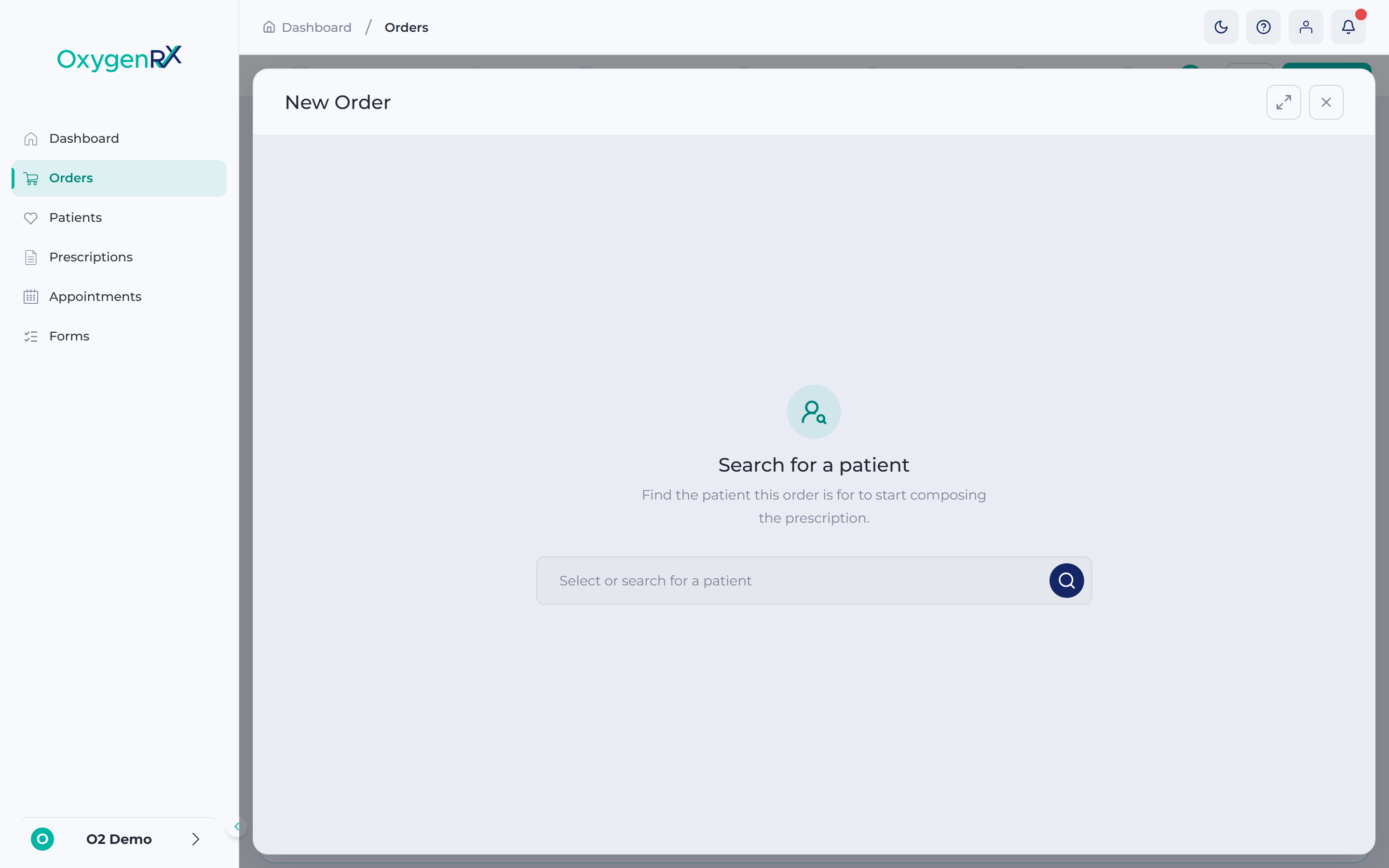
- Click the patient’s name in the results list.
- If no match appears, click Patient not found, add patient now.
- This takes you to add a patient.
- Check the patient’s details, which now appear at the top of the window.
- Picked the wrong person? Click Change to search again.
- Fill in the prescription details below the patient’s name.
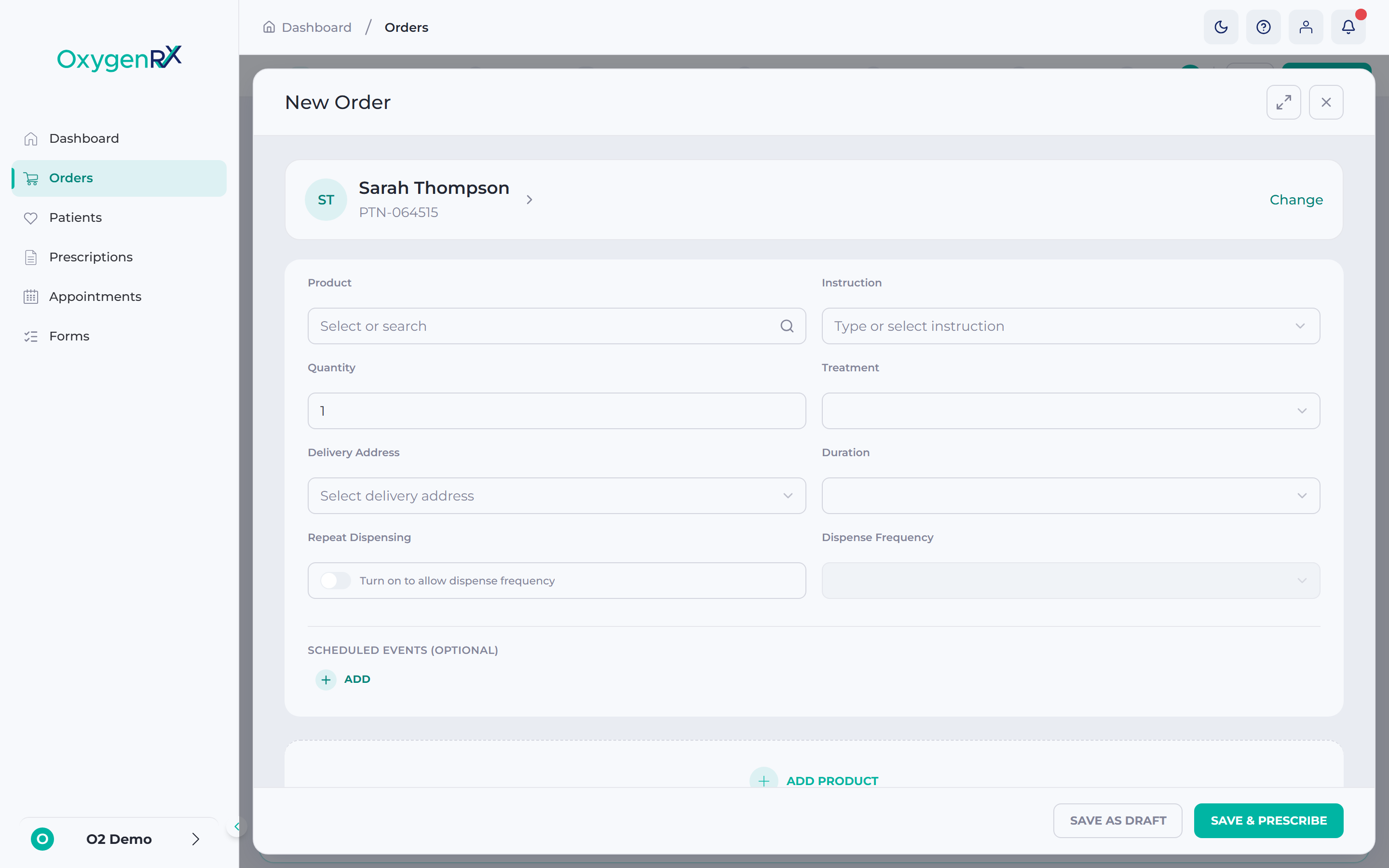
- To save without prescribing, click Save as Draft.
- A draft is a prescription you’ve saved but haven’t issued yet.
- To issue the prescription now, click Save & Prescribe instead.
- This asks for your Secure PIN, a 6-digit code that confirms the action.
- In the window that opens, enter your Secure PIN if asked.
- Click Save Draft or Save & Prescribe to confirm.
What happens next
Section titled “What happens next”The small window closes and the new order appears in the Orders list.
A draft saves at Pending Prescription status, ready for you to finish later. Save & Prescribe issues it right away.
If something goes wrong
Section titled “If something goes wrong”- If you close the window before saving, your changes are lost. Start the order again from + Order.
- If no patient matches your search, click Patient not found, add patient now.
- If you click Change to pick a different patient, your in-progress prescription details are cleared. Fill them in again for the new patient.