

Prescriptions overview
This page shows you how to find your way around the Prescriptions screen. It also shows how a prescription moves from a first draft to delivery.
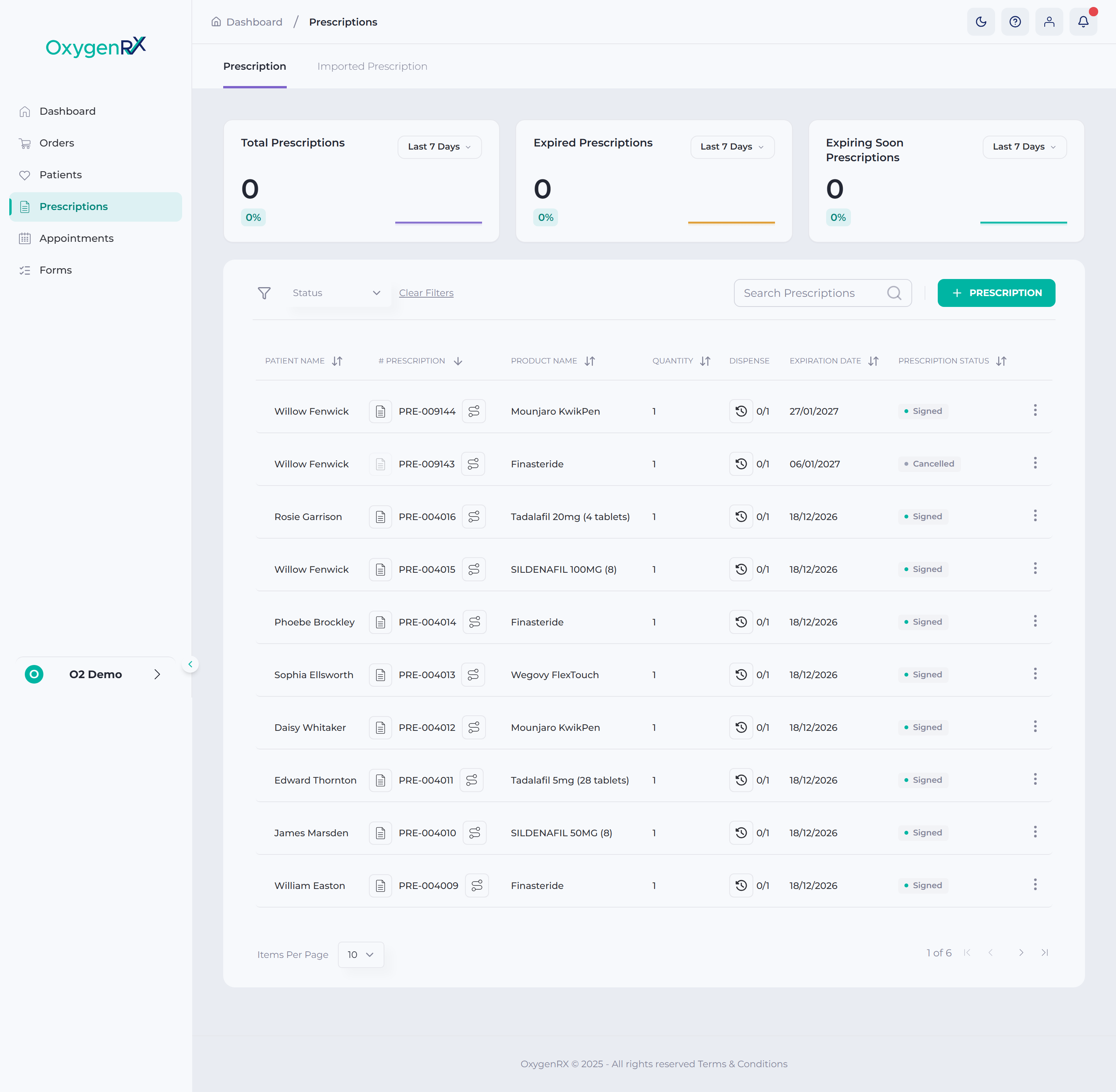
Click Prescriptions in the main menu to see every prescription for your organization. Use the search box to find one by patient or product name. Use the status list of choices to show only drafts, signed prescriptions, or other stages. Click Prescription to start a new one.
A prescription moves through several stages before it reaches the patient. It starts as a draft — a saved prescription you can still edit. Once you send it, it is pending review, then it is prescribed once signed. The patient then completes checkout, the screen where they pay. A dispenser runs a clinical check on the order. The pharmacy then dispenses it, and it is delivered to the patient. Each of these stages also shows as an order status. That’s a label showing where an order sits in this journey. See the full prescription lifecycle in the glossary.
Anyone with access to the portal can view prescriptions. Only users with the Prescriber role can prescribe, renew, or approve product changes.
Learn how to: