

How to send a form to a patient
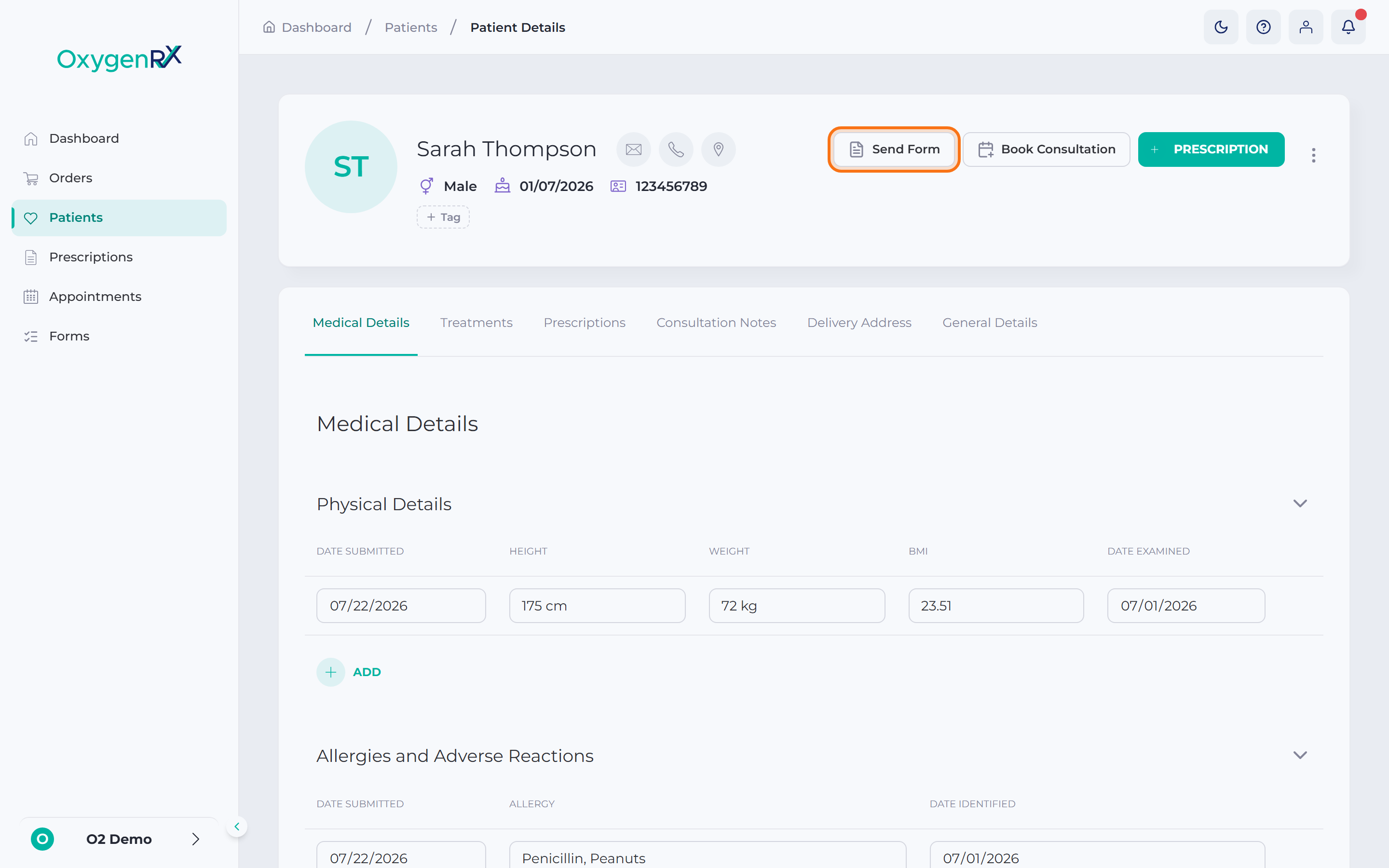
This page shows you how to send a form to a patient.
Who can do this: Anyone signed in to the portal, for patients in your organization.
🎬 Video
Full walkthrough of sending a form to a patient
patients-send-a-form.mp4- Open the patient’s record.
- Click Send Form. The Send Form window opens.
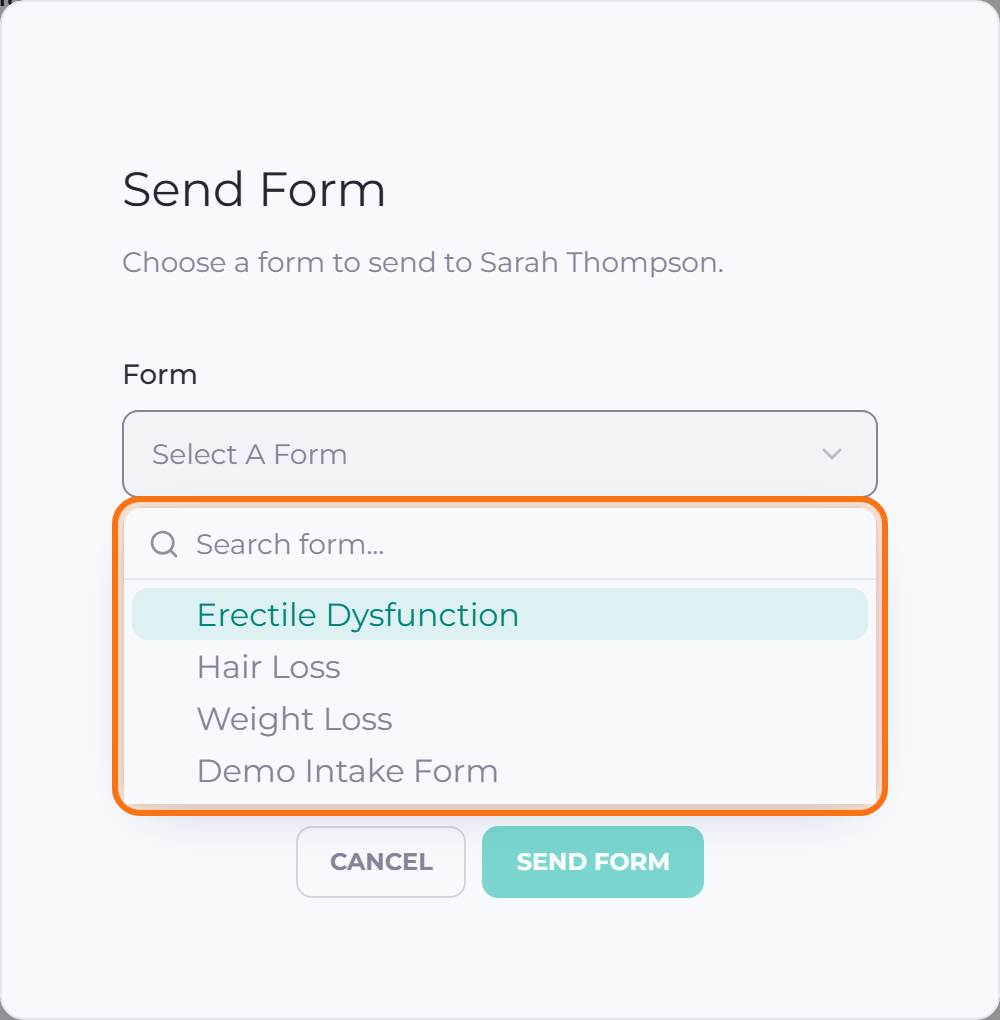
- Under Form, choose the form you want to send. Type to search.
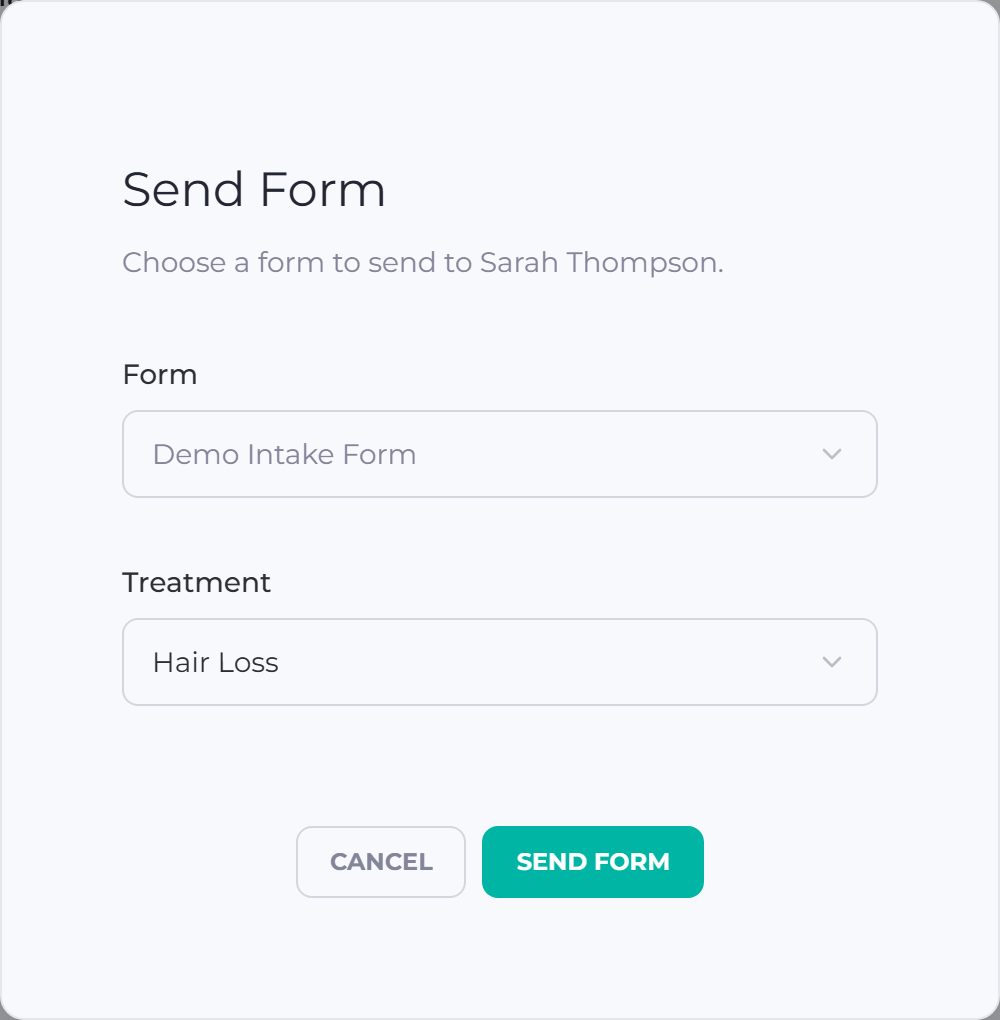
- Under Treatment, choose the treatment — the course of care this form relates to (see treatment).
- Click Send Form to send it.
What happens next
Section titled “What happens next”OxygenRX emails the patient a link to the form. They fill it in without signing in to the portal.
If something goes wrong
Section titled “If something goes wrong”- If no forms match your search, you’ll see No form found. Check the spelling, or try a different search term.
- Send Form stays grayed out until you’ve chosen a form and a treatment. Choose both, then try again.
- The button is grayed out if the patient is outside your organization. Ask someone in the patient’s own organization to send it instead.