

Product change requests
This page shows you how to request a product change on a prescription. It also covers how to approve or reject one someone else requested. A product change request is a proposed swap of the product on an existing prescription.
Who can do this: Prescribers. See roles for what each role can do.
Request a product change
Section titled “Request a product change”- Open the prescription you want to change.
- Click Cancel. A menu opens.
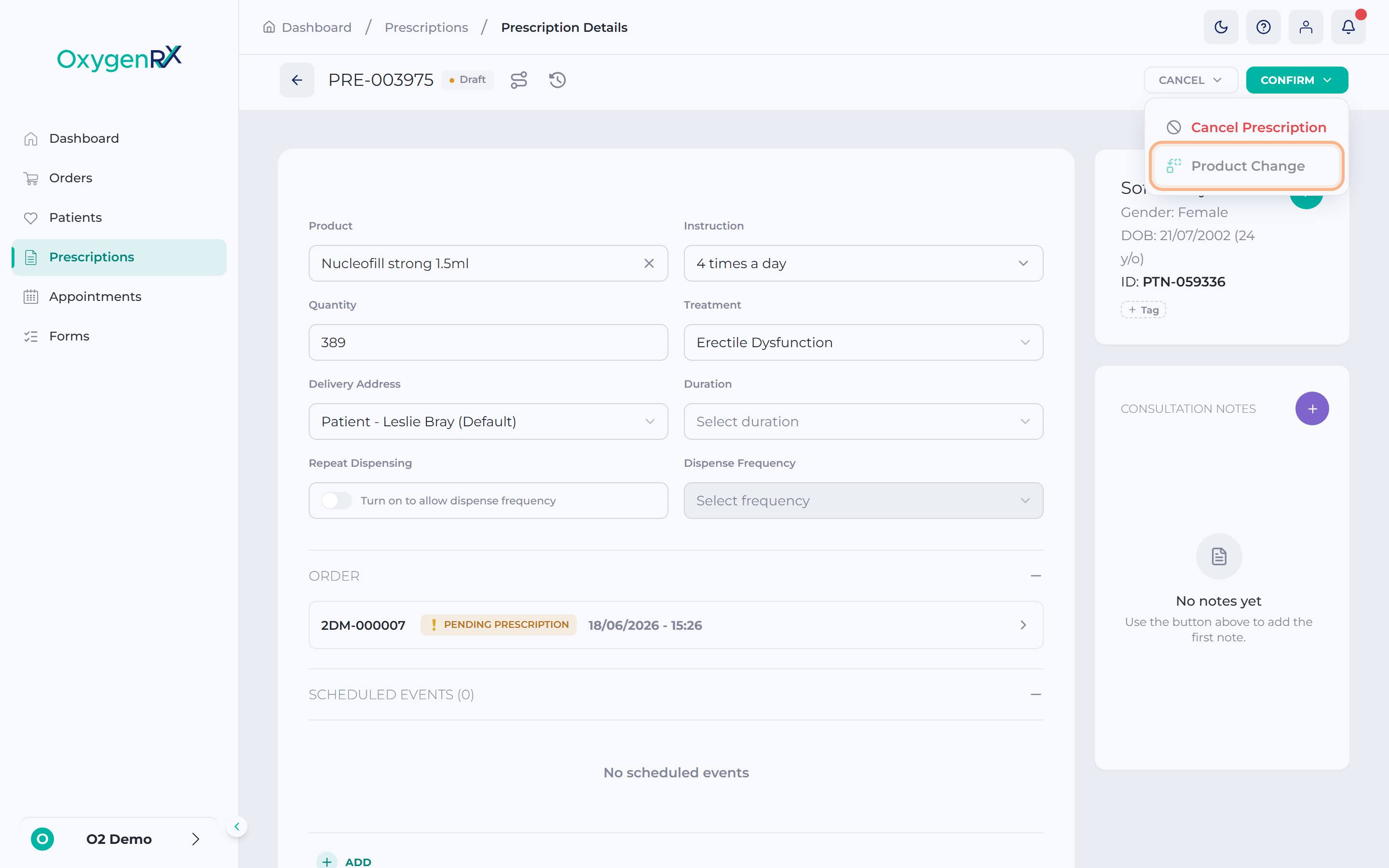
the Cancel menu open, showing the Product Change option. - Click Product Change in the menu. The product boxes unlock and turn teal.
📷 Screenshot
the prescription detail page in Product Change mode, with the product boxes unlocked and highlighted teal.
prescriptions/product-change-requests-02.png - Update the Product, Variant, Quantity, Instruction, Treatment, Delivery Address, or Duration.
- Click Cancel. A menu opens.
- Click Confirm Product Change in the menu.
- In the confirmation window, enter your 6-digit Secure PIN.
- Click Confirm to submit the request.
If you change your mind, click Cancel, then click Cancel Product Change in the menu. This leaves Product Change mode without saving.
Respond to a product change request
Section titled “Respond to a product change request”- Open the prescription with the request.
- Scroll to the Product Change Requests section. Each request is shown as a card.
📷 Screenshot
a Product Change Requests card showing the proposed product, its status badge, and the Approve/Reject buttons.
prescriptions/product-change-requests-03.png - To accept it:
- Click Approve.
- Enter your Secure PIN in the confirmation window.
- Click Approve to confirm.
- To decline it:
- Click Reject.
- Type your reason.
- Click Reject to confirm.
What happens next
Section titled “What happens next”A request moves through Pending Patient Approval, then Pending Prescriber Approval, before it is decided. Once you approve a request, it is marked Approved and a new prescription is issued. Click the New Reference link on the card to open it. A rejected request is marked Rejected and stays on the card with your reason attached.
If something goes wrong
Section titled “If something goes wrong”- Product Change may be greyed out or missing from the menu. If so, this prescription cannot be changed right now. It might also belong to a different organization. Hover over the option to see why.
- A request with no Approve or Reject buttons is not waiting on you yet. It may still be Pending Patient Approval, or it may already be decided. Check the status badge on the card to see where it stands.
- A rejection needs a reason. If Reject will not confirm, type a reason in the box, then try again.