

How to reject or cancel an order
This page shows you how to reject or cancel an order.
Who can do this: Any signed-in portal user. Both actions ask for your 2FA code if it’s turned on.
🎬 Video
The full flow of rejecting an order and the full flow of cancelling an order.
orders-reject-or-cancel.mp4Reject an order
Section titled “Reject an order”- Open the order, or click its three-dot menu on the Orders list.
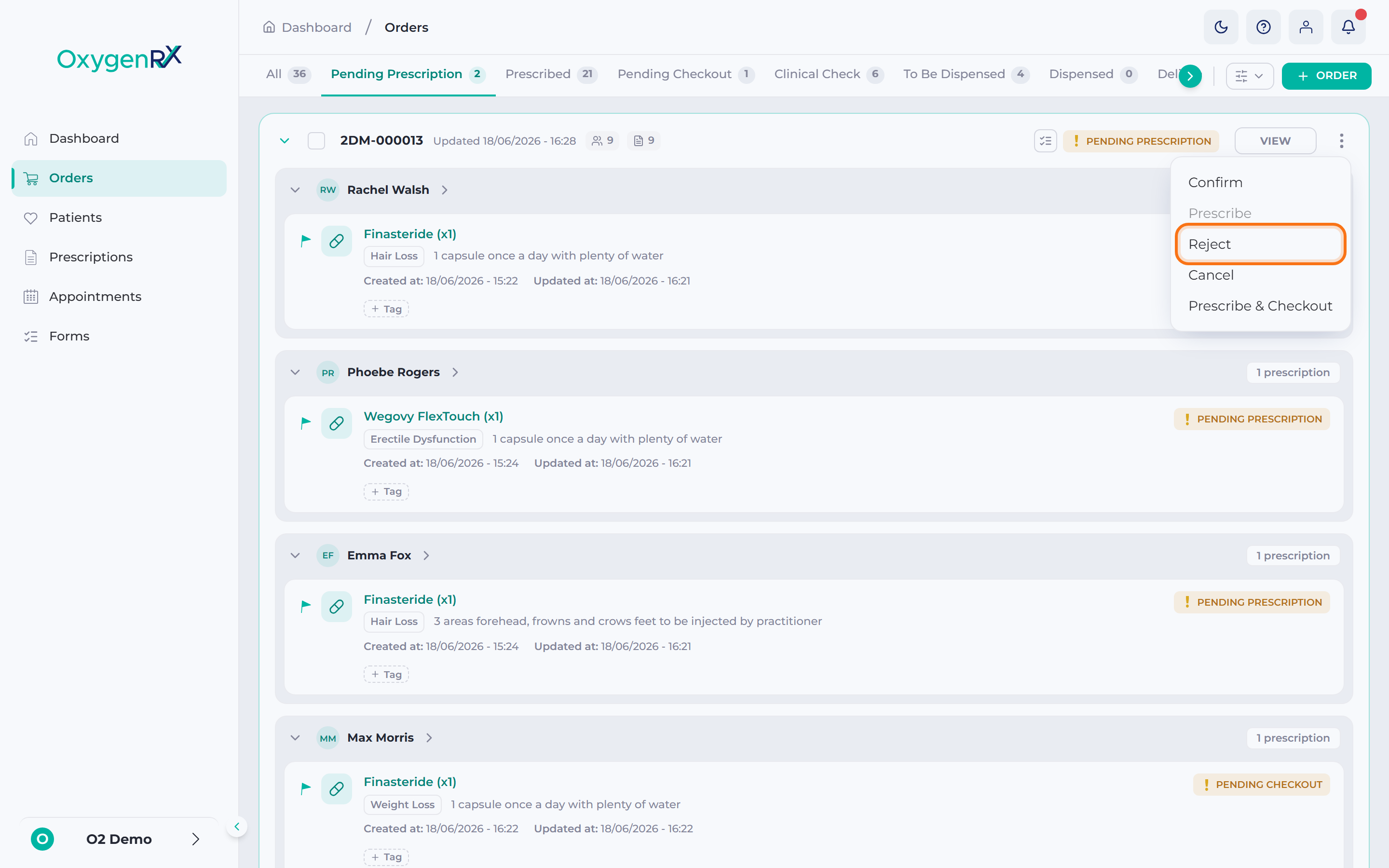
- Click Reject.
- In the Reject Order window, type your reason in the Reason box.
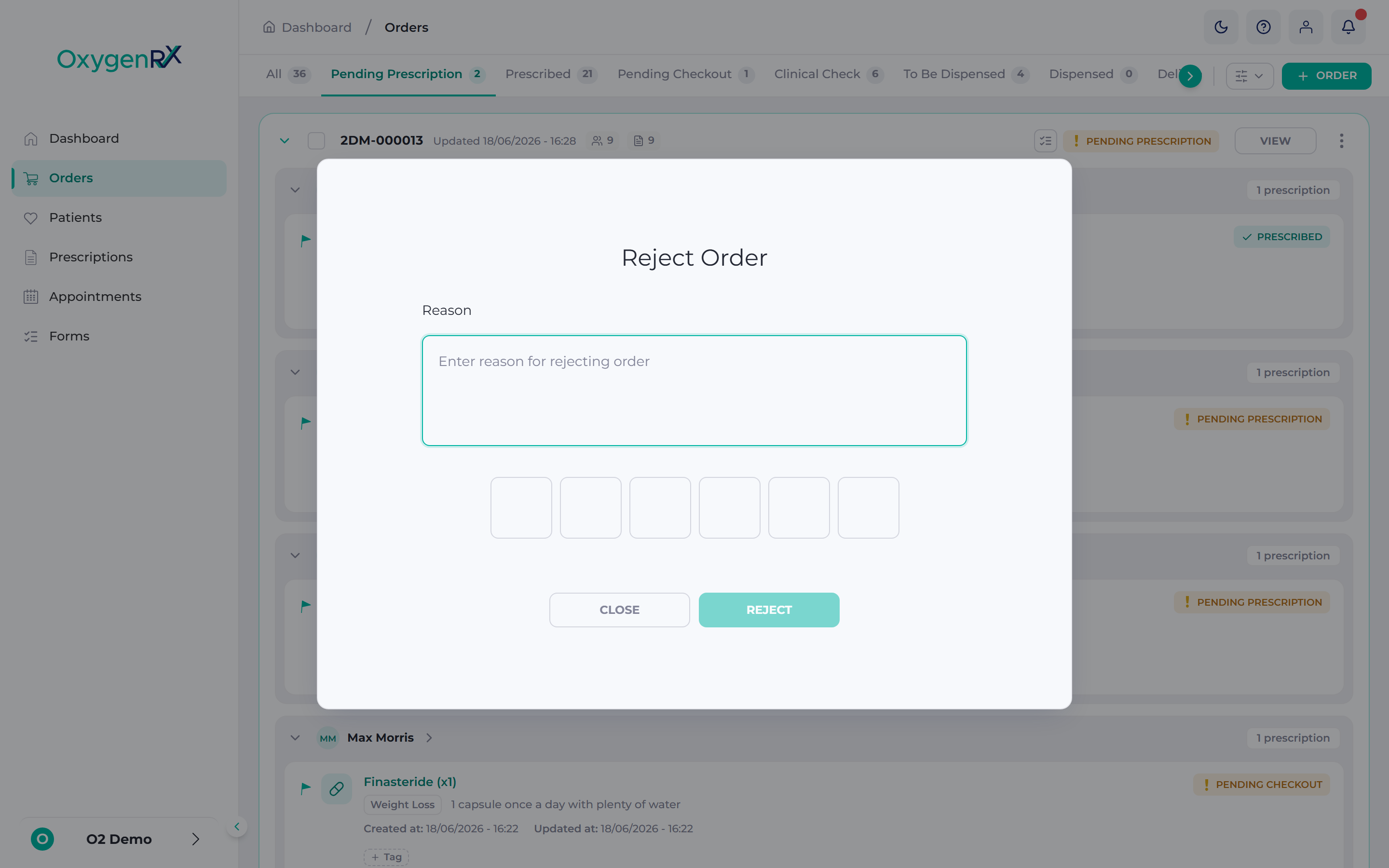
- If asked, enter your 6-digit code.
- Click Reject to confirm, or Close to stop.
Cancel an order
Section titled “Cancel an order”- Open the order, or click its three-dot menu on the Orders list.
- Click Cancel.
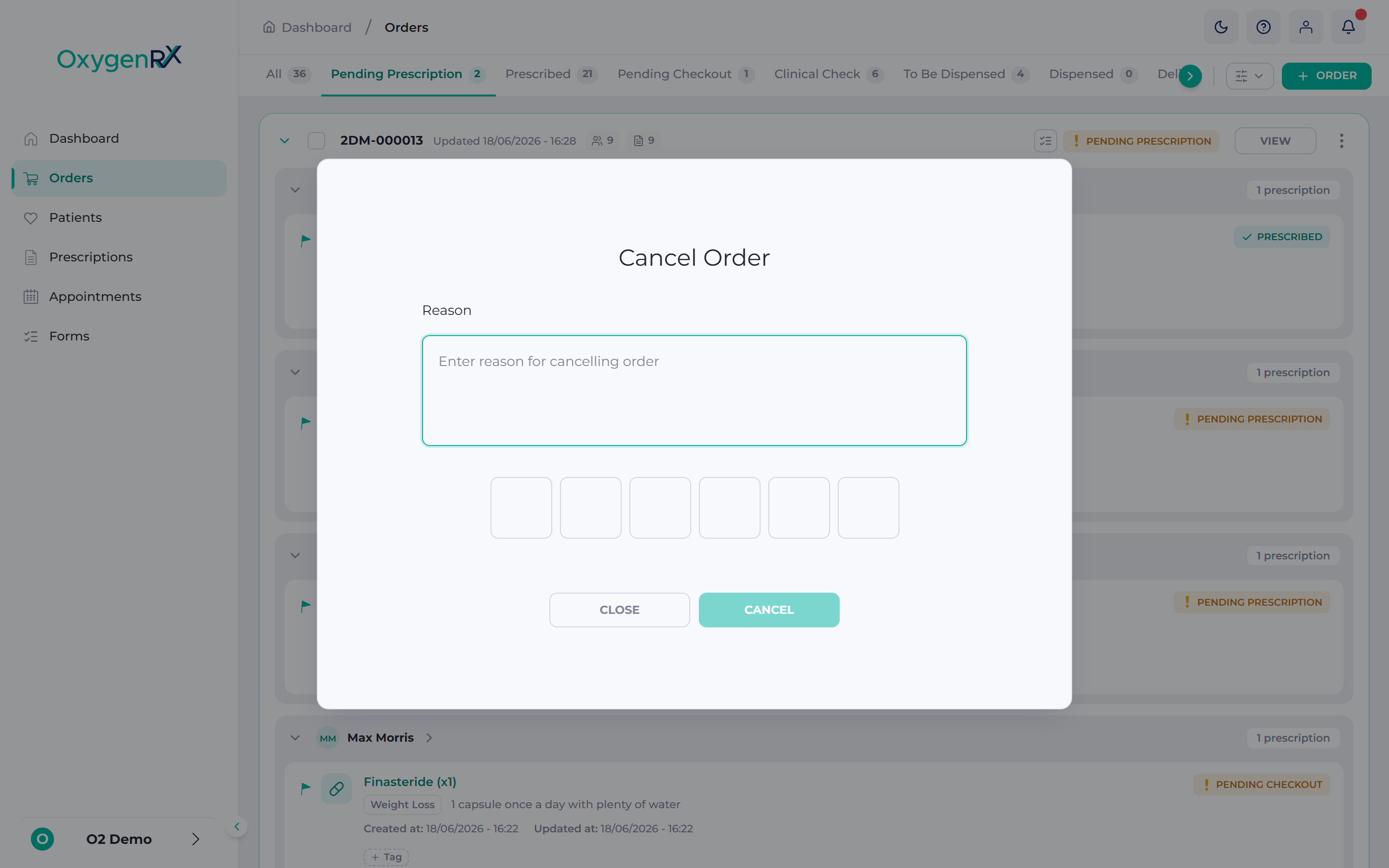
- In the Cancel Order window, type your reason in the Reason box.
- If asked, enter your 6-digit code.
- Click Cancel to confirm, or Close to stop.
What happens next
Section titled “What happens next”Rejecting moves the order to Rejected status. Cancelling moves it to Cancelled status.
Neither action can be undone.
If something goes wrong
Section titled “If something goes wrong”- “Reason is required.” — Type a reason before you continue.
- The Reject or Cancel button is greyed out — Fill in the Reason box to turn it on. Enter your code too, if asked.
- You can’t reject an order once it’s past Pending Prescription status. Use Cancel instead, if the order is still eligible.
- You can’t cancel an order that’s already paid for or sitting in a patient’s cart. Contact your organization admin if you need help stopping it.