

Notifications
This page shows you how to use the notification bell. It also explains what triggers an alert, and what doesn’t.
Who can do this: Any signed-in portal user.
What triggers a notification
Section titled “What triggers a notification”You’ll see a notification in the bell when:
- A patient’s checkout payment link is sent. Checkout is the step where a patient pays for their order.
- A patient submits a form you sent them.
- A product change is requested on a prescription or order.
- A requested product change is accepted.
- A requested product change is rejected.
- A repeat order is created.
A product change request suggests swapping an item on a prescription or order. A form you send a patient is often an intake form. It’s a set of questions they answer before treatment. A repeat order happens automatically for prescriptions marked to repeat.
What you see
Section titled “What you see”- A bell icon sits in the top-right corner, on every page.
- A red dot appears on the bell when you have unread notifications.

Open your notifications
Section titled “Open your notifications”- Click the bell icon in the top-right corner.
The Notifications panel opens on the right. It lists each notification with its date and message. Unread ones are highlighted. Opening a notification, or acting on it, marks it as read.
Filter your notifications
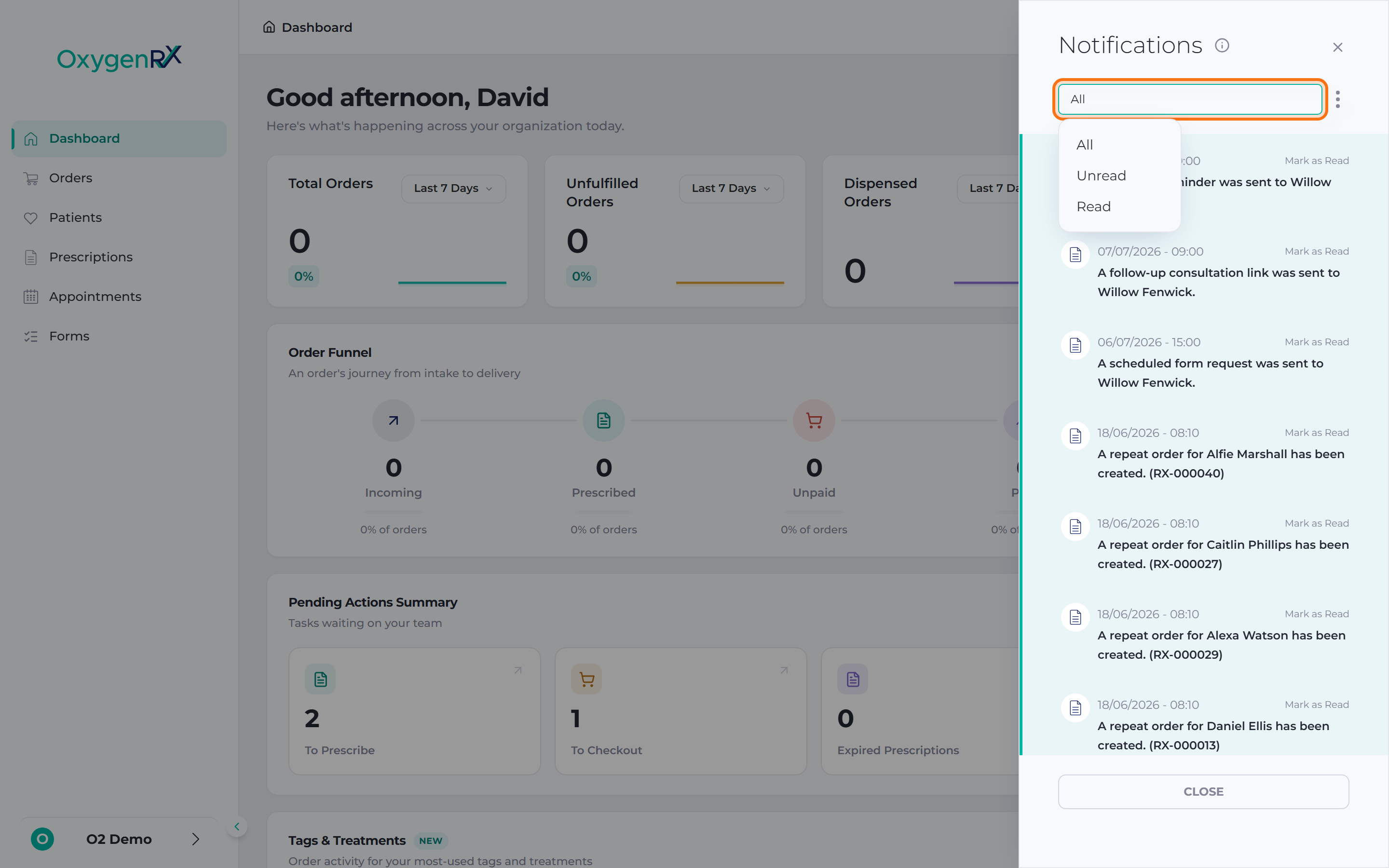
Section titled “Filter your notifications”- Click the filter menu at the top of the panel.
- Choose All, Unread, or Read.
The panel opens on Unread by default.
Mark a single notification as read or unread
Section titled “Mark a single notification as read or unread”- Find the notification in the list.
- Click Mark as Read or Mark as Unread next to it.
Mark all notifications as read or unread
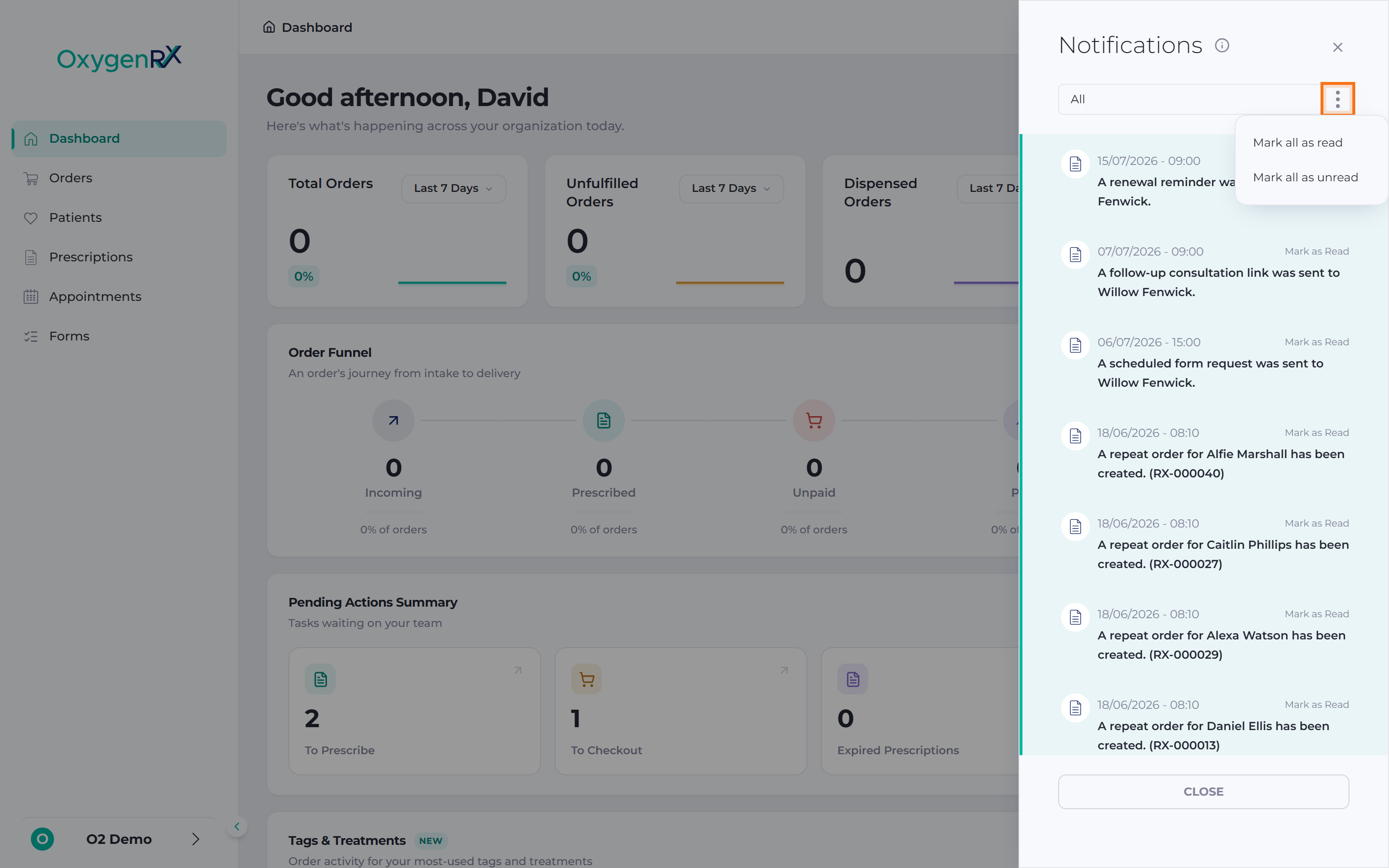
Section titled “Mark all notifications as read or unread”- Click the ⋮ (more options) button at the top of the panel.
- Choose Mark all as read or Mark all as unread.
This applies only to the notifications currently loaded in the list.
See older notifications
Section titled “See older notifications”- Scroll to the bottom of the list.
- Click Load more to load 10 older notifications.
Open the record behind a notification
Section titled “Open the record behind a notification”- Click a notification to go to what it’s about.
What opens depends on the notification type:
- Order or checkout notifications open the order.
- Prescription or product-change notifications open the prescription.
- Form-request notifications open the patient’s profile, on the Consultation Notes tab.
What happens next
Section titled “What happens next”Clicking a notification, or acting on it, marks it as read. Click CLOSE at the bottom when you’re done.
If something goes wrong
Section titled “If something goes wrong”- The panel says “Your notification inbox is empty.” You have no notifications matching the current filter. Try switching to All.
- You expected an appointment alert and didn’t get one. The bell does not cover appointments. See Appointments instead.
- You switched organizations and your notifications changed. This is normal — no action is needed. The bell only shows notifications for your active organization.
- A patient says they never got an email, but you got a bell notification. The bell and patient emails are separate. Email appearance and sender settings live under Organization → Email Notifications. See Organization settings.