

View the PDF and audit trail
This page shows you how to view a prescription’s PDF copy. It also shows the audit trail — the full history of changes made to it.
Who can do this: Anyone with permission to view prescriptions.
View the PDF
Section titled “View the PDF”- On the Prescriptions list, find the prescription you want.
- Click the file icon next to its reference. The PDF opens.
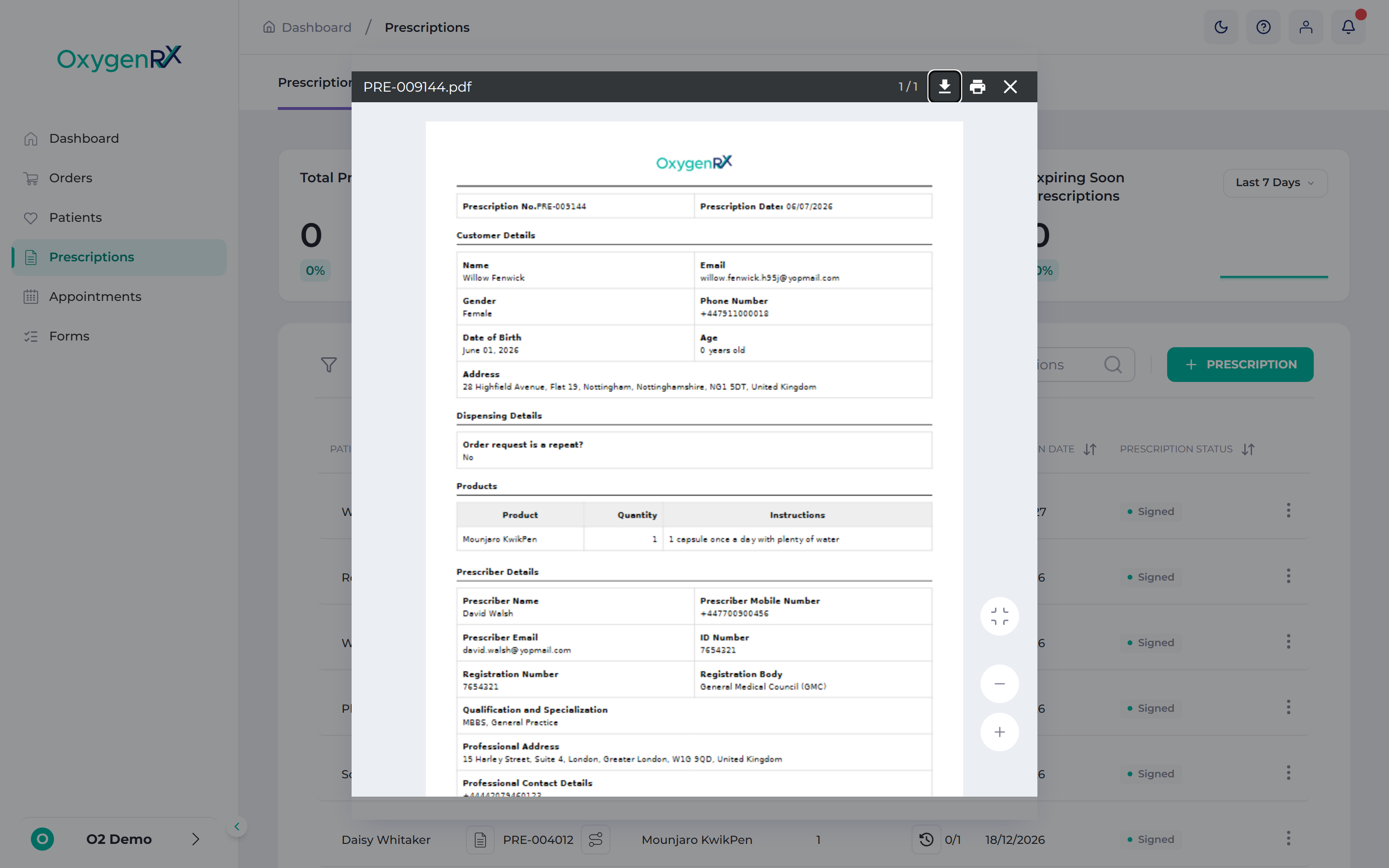
the PDF viewer showing the prescription document, page controls, and zoom buttons. - Use the arrow keys, or the on-screen buttons, to move between pages.
- Use the − and + buttons to zoom out or in.
- Click Download to save the PDF, or Print to print it.
- Click Close when you are done.
You can also open the PDF from a prescription’s detail page. Use the file icon in the Prescriber Details section.
View the audit trail
Section titled “View the audit trail”- On the Prescriptions list, click the route icon next to the prescription’s reference. The Prescription Audit Trail panel opens.
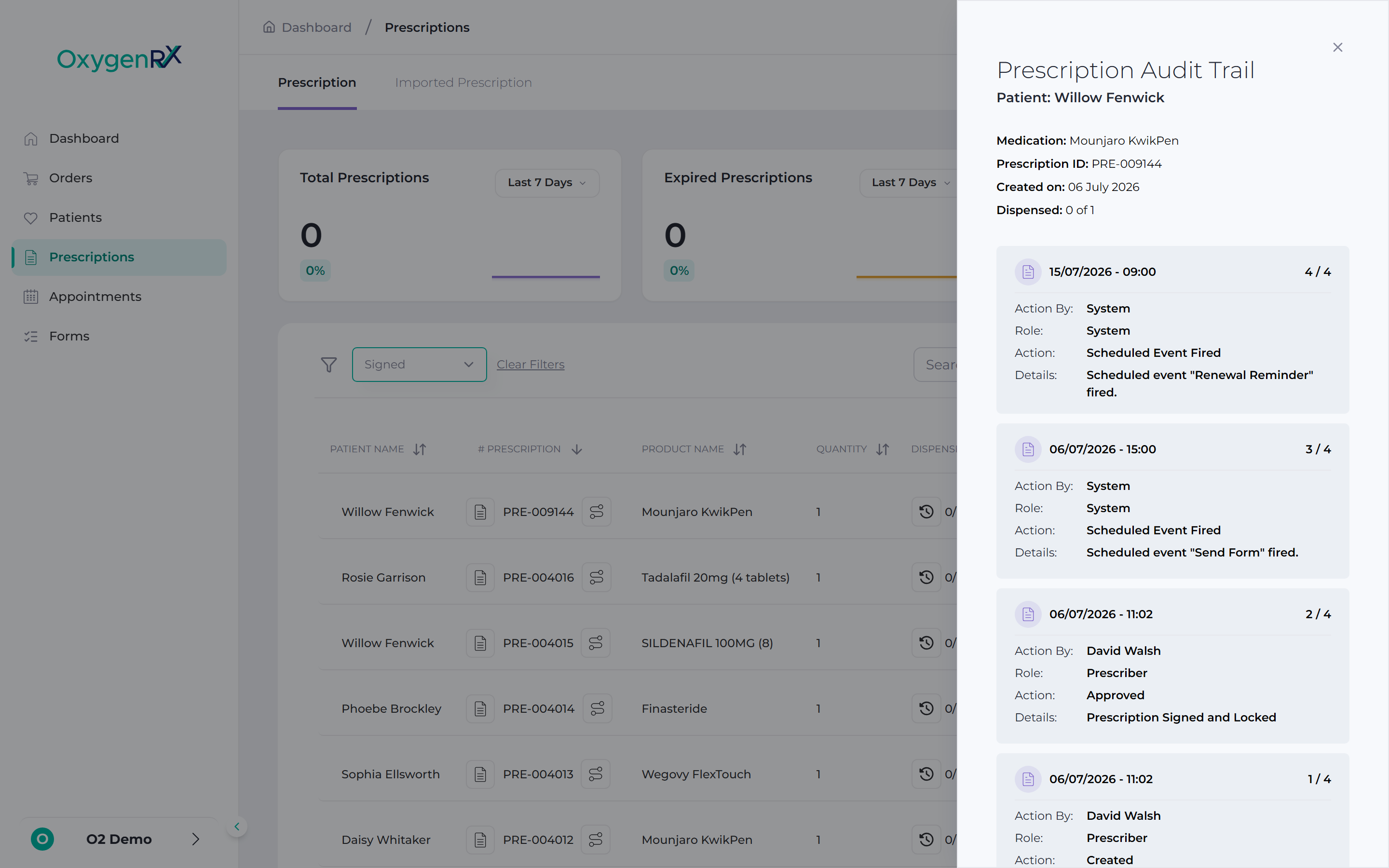
the Prescription Audit Trail panel with the summary at the top and a list of history cards below. - Read the summary at the top: Medication, Prescription ID, and Created on. It also shows how many items have been dispensed.
- Scroll through the cards below. Each one is a single change. It shows the date, who made it, their role, and the action taken.
You can also open this panel from a prescription’s detail page. Use the route icon in the subheader.
View the dispensed audit trail
Section titled “View the dispensed audit trail”To see dispense history on its own, click the clock icon in the Dispense column. This opens the Dispensed Audit Trail panel. It lists each dispense’s date, prescriber, and status.
What happens next
Section titled “What happens next”Viewing the PDF or an audit trail does not change the prescription. These are read-only records you can check at any time.
If something goes wrong
Section titled “If something goes wrong”- “Prescription is not yet prescribed.” The PDF icon is disabled until the prescription has been sent. Wait until it is Signed.
- The PDF icon is also disabled for Cancelled prescriptions — there is no PDF to view once it’s cancelled.
- “No audit trail found for this prescription.” This just means nothing has happened on this prescription yet.
- “No dispense audit trail found for this prescription.” — no dispenses have happened yet.
- “Failed to print prescription” — the print attempt did not work. Wait a moment and click Print again.