

General information
This page shows you how to view and update your personal, professional, and company details.
Who can do this: Any portal user.
- Go to your Profile page.
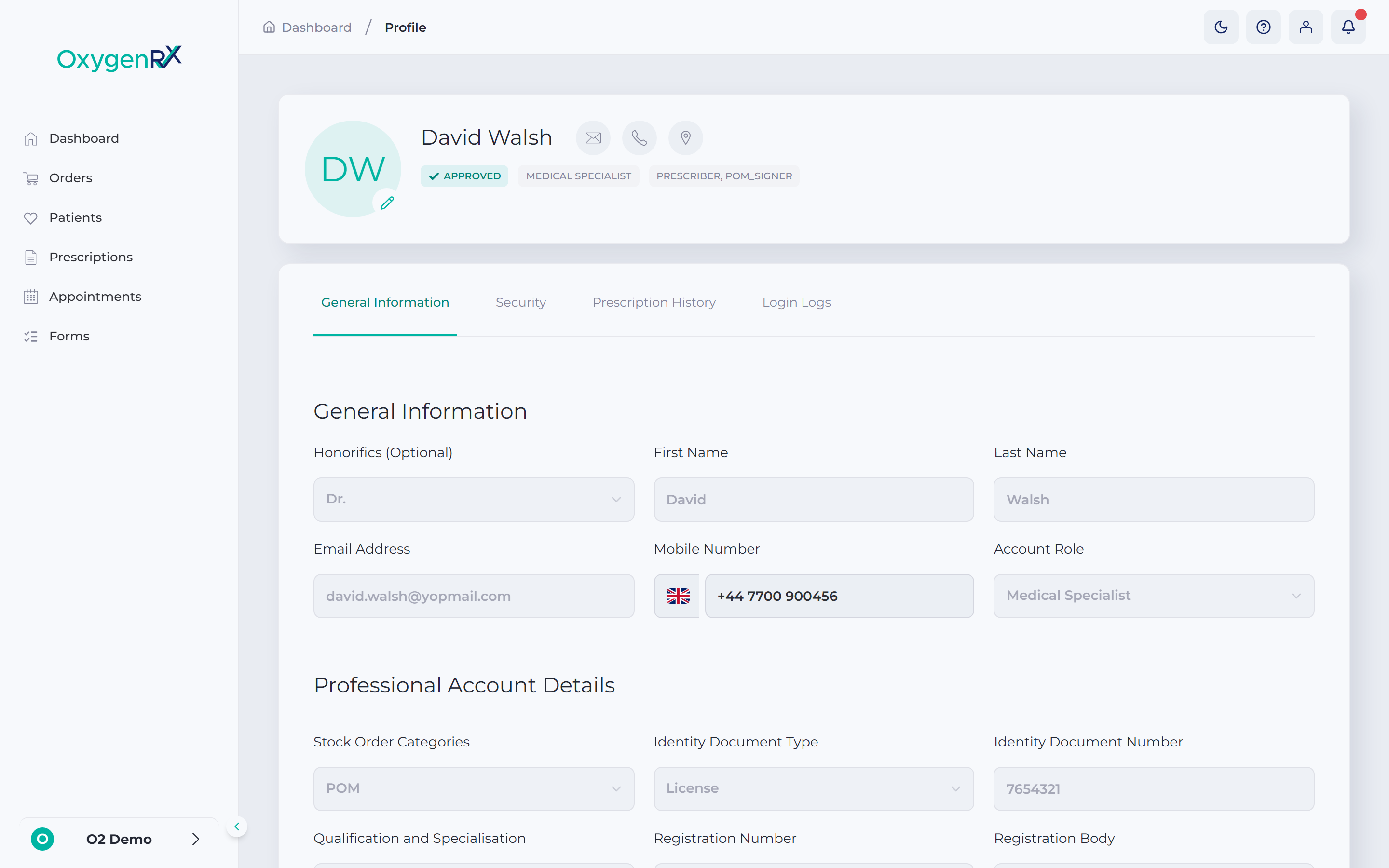
- Click the General Information tab. On a small screen, pick General Information from the list of choices instead.
- Check your personal details. Everyone sees this section.
- Update your First Name, Last Name, or Mobile Number as needed. Your Email Address is always locked. You can’t change it here.
- If you’re a prescriber, fill in the Professional Account Details section. Add your identity document, registration details, and professional address.
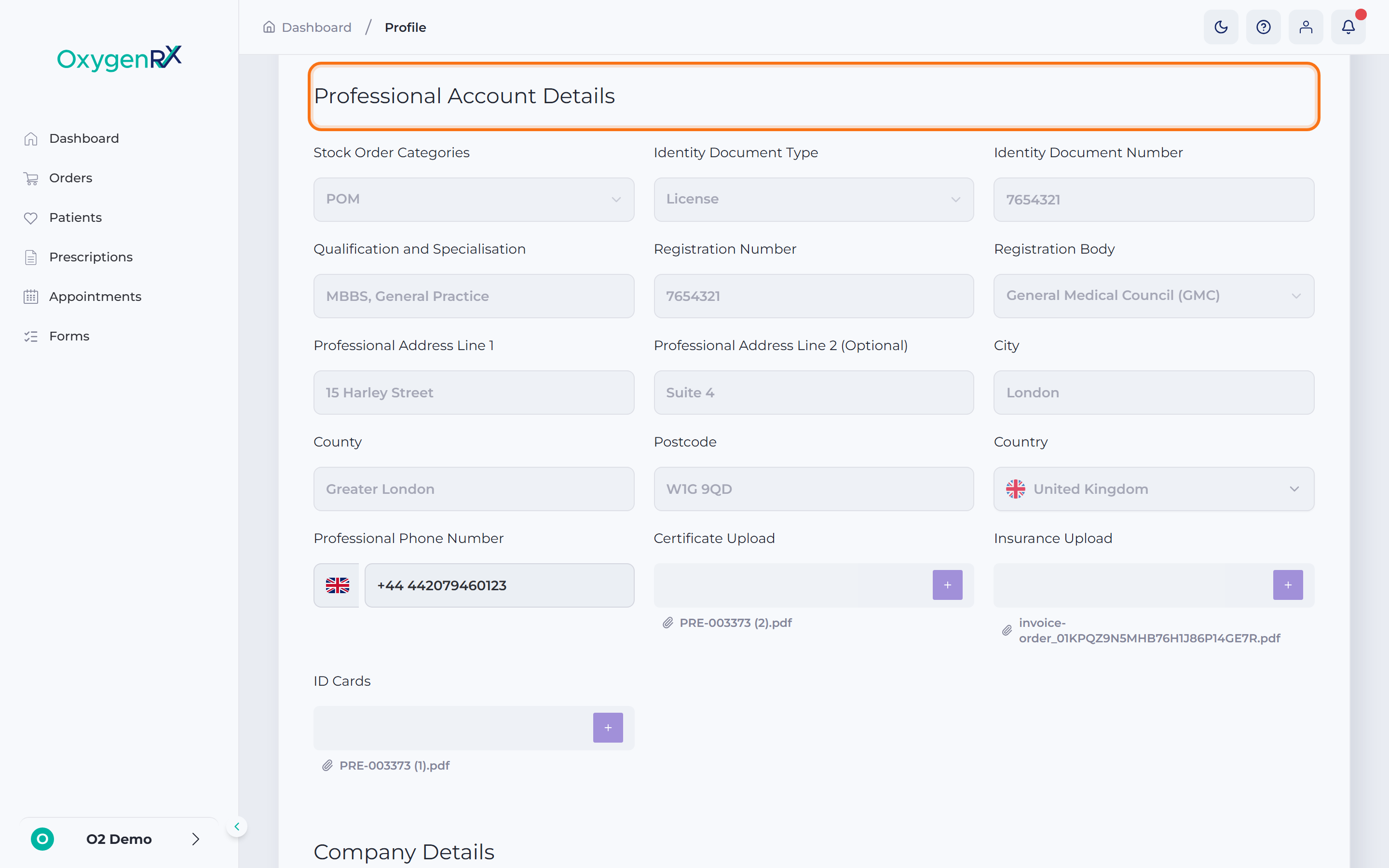
- To upload a certificate or insurance document, click the + button next to that box.
- Choose a file to upload. Use a PDF, JPEG, JPG, or PNG file under 5 MB.
- If you have a company account, fill in the Company Details section. Add your company address, registration number, and VAT number.
- Click Save Profile.
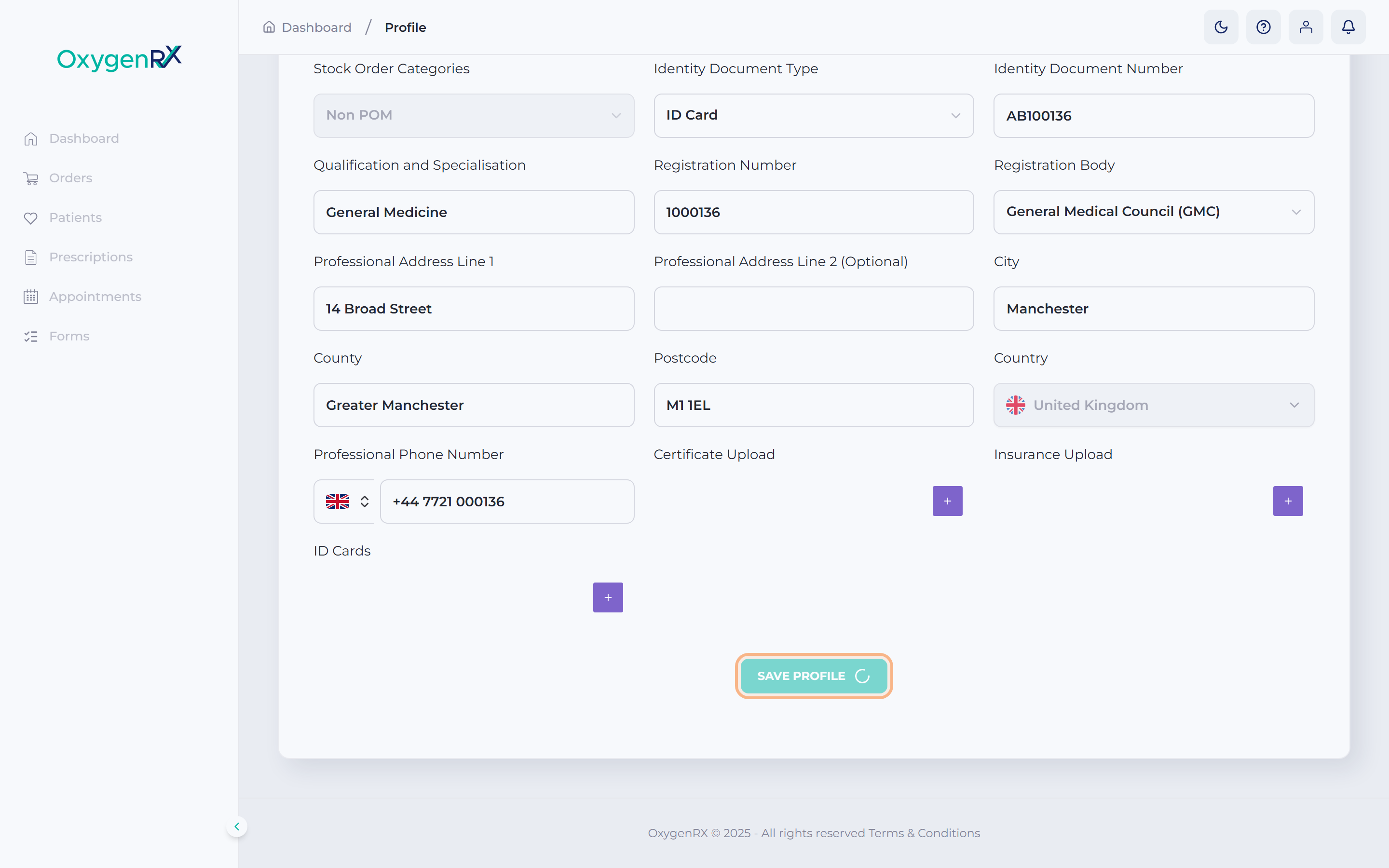
What happens next
Section titled “What happens next”Your changes are saved and shown back in the form. Any files you uploaded appear as links below their box, with a paperclip icon. Click a link to download that file again.
If your account is still Pending, a box titled “Pending Profile” stays above the form. It reads: “Kindly complete all required profile details before your account can be approved.” It disappears once your account is approved.
If something goes wrong
Section titled “If something goes wrong”- “Unsupported file format” — your file isn’t a PDF, JPEG, JPG, or PNG. Save it in one of those formats and try again.
- “File must be less than 5MB” — your file is too large. Choose a smaller file or compress it first.
- Postcode not accepted — check your postcode for typos. It must be a valid UK postcode.
- Everything is locked and Save Profile won’t click — your account is already Approved. Ask an admin to make changes for you.