

Set your secure PIN
This page shows you how to set your secure PIN.
A secure PIN is a 6-digit code you enter to confirm sensitive actions.
Who can do this: Anyone with an OxygenRX account.
- Go to your profile page.
- Click the Security tab.
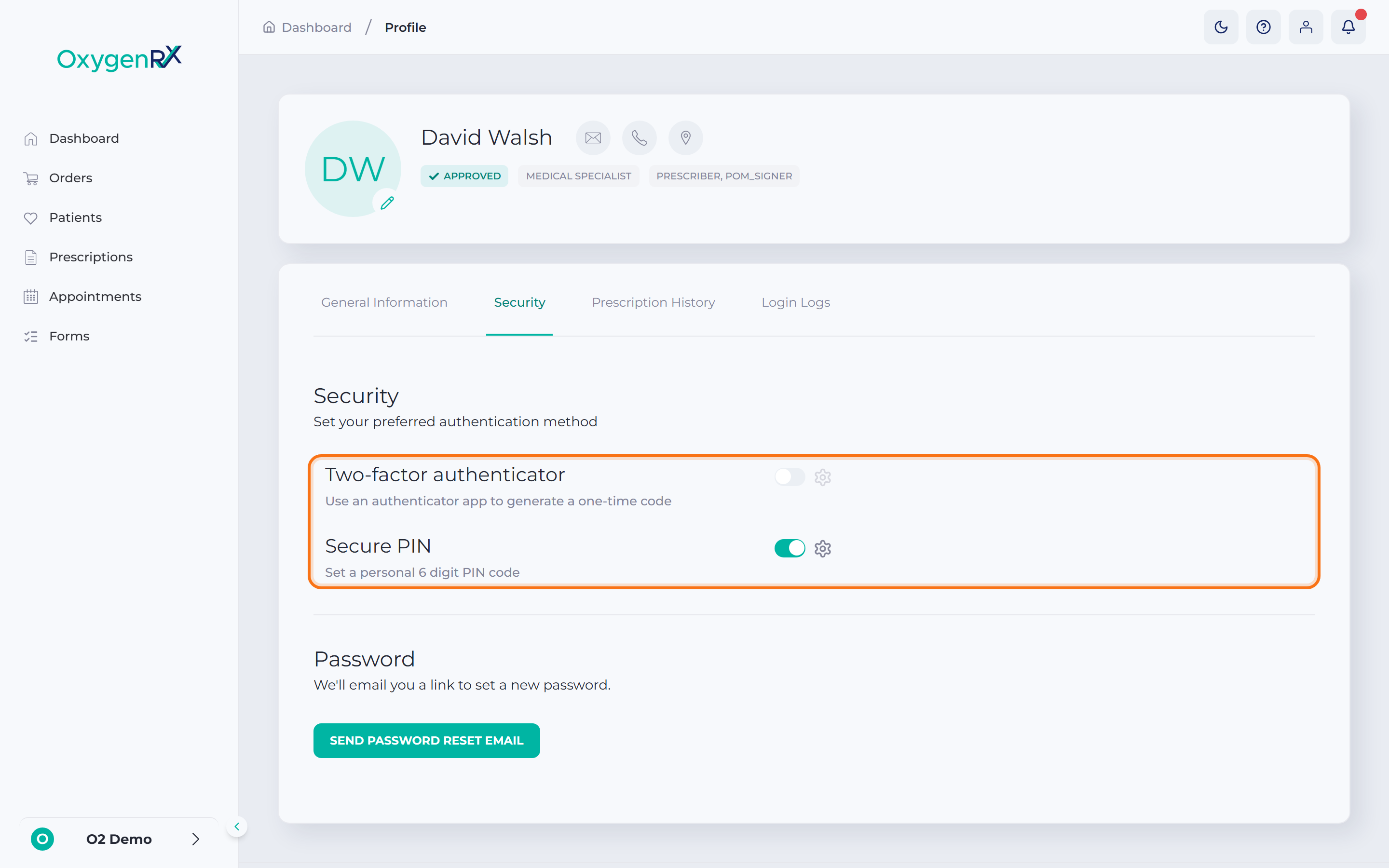
- Turn on the second switch, labeled Secure PIN.
A small window titled Set PIN opens.
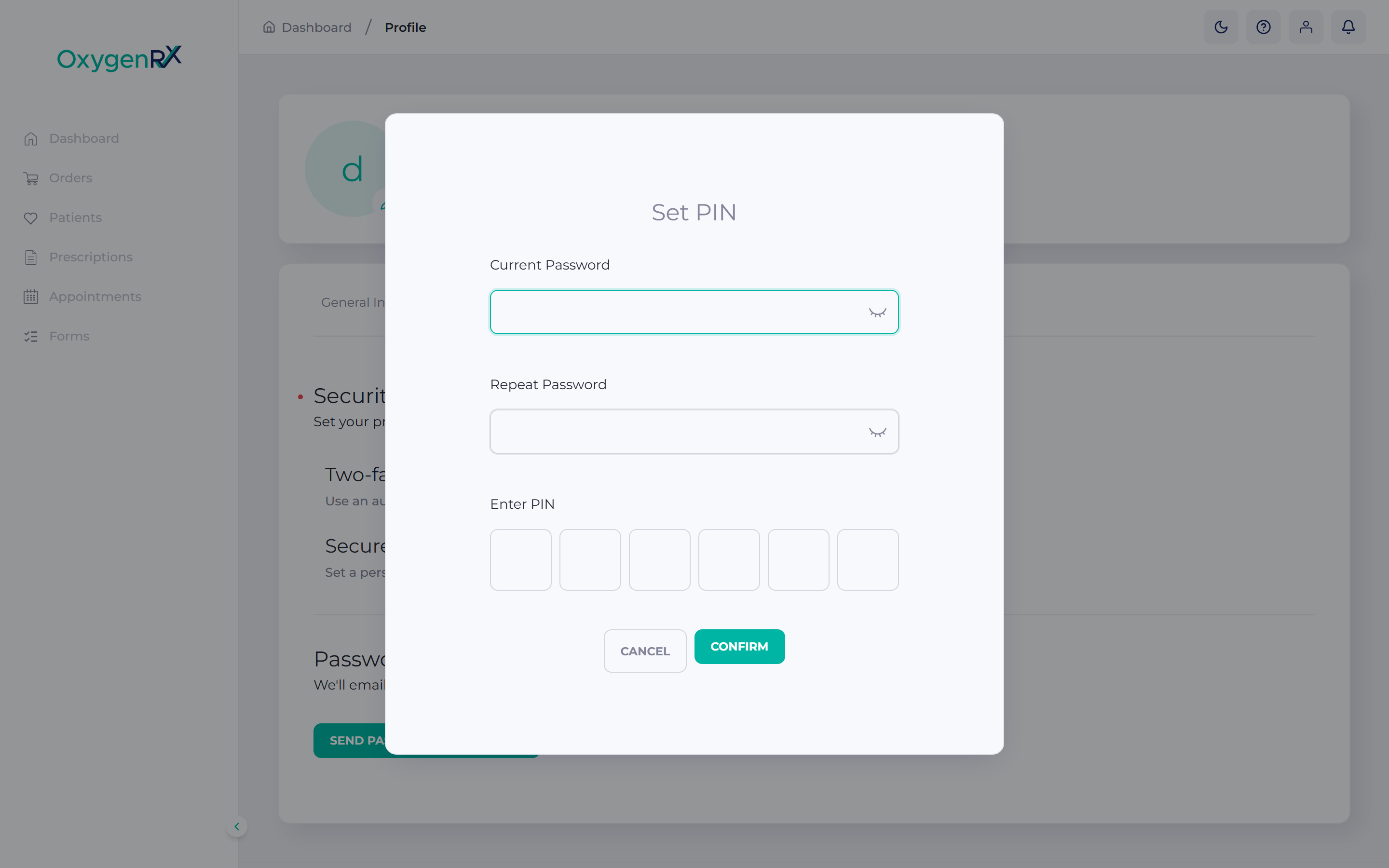
- Enter your Current Password.
- Enter your password again in Repeat Password.
- Enter your new 6-digit PIN.
- Click Confirm.
What happens next
Section titled “What happens next”Your secure PIN is saved. OxygenRX asks for it when you confirm sensitive actions, like issuing a prescription.
You can change, view, or reset your PIN later from the same Security tab.
If something goes wrong
Section titled “If something goes wrong”- “The PIN must be exactly six characters in length.” Enter exactly 6 digits and try again.