

How to invite a user
Invite a new person to join your organization and choose their role.
Who can do this: Admin, Manager.
🎬 Video
the full invite flow from the Users list to the pending status
users-and-organization-invite-a-user.mp4- Click Users in the sidebar.
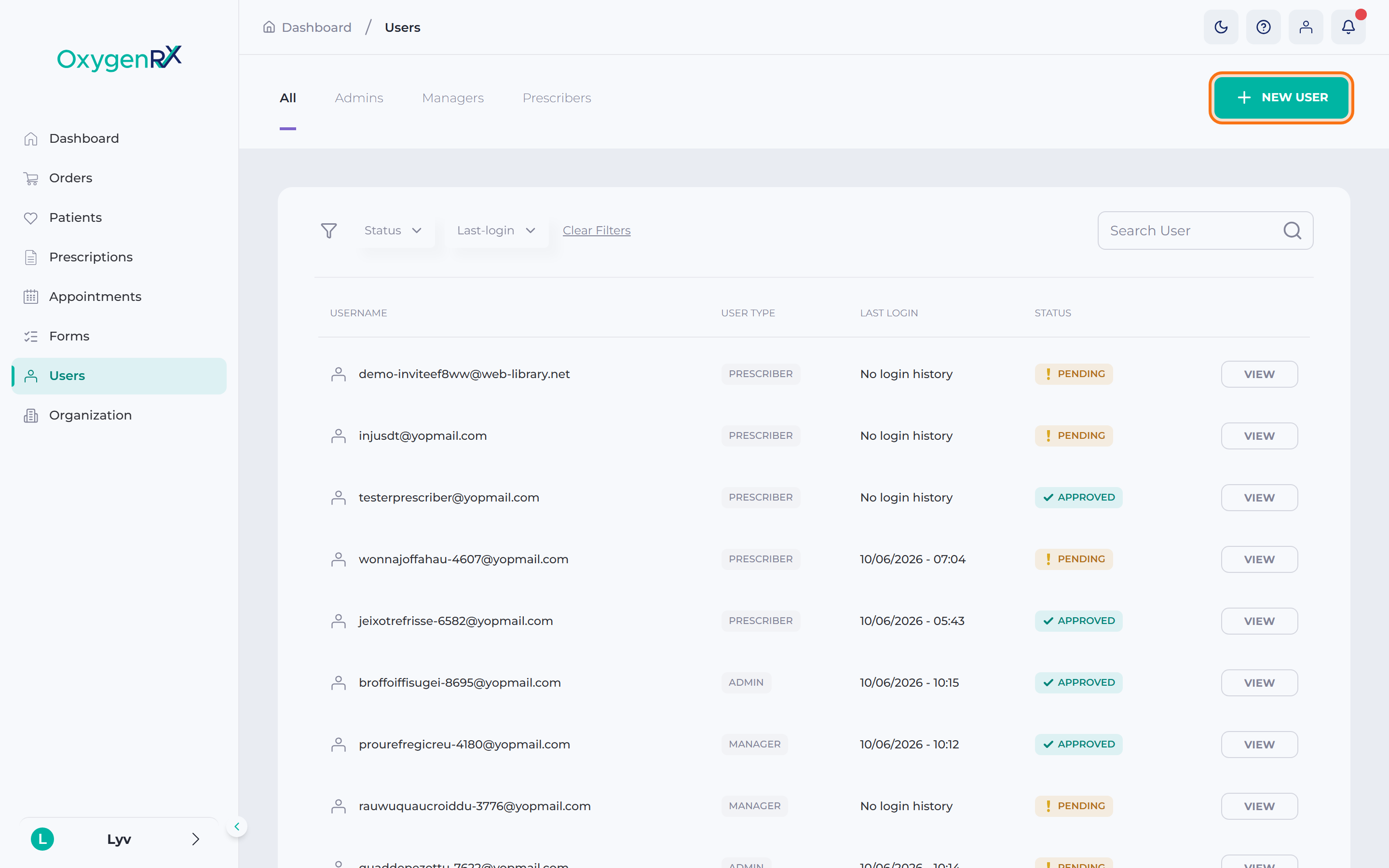
- Click New User in the top-right corner. A small window titled Add a new user opens.
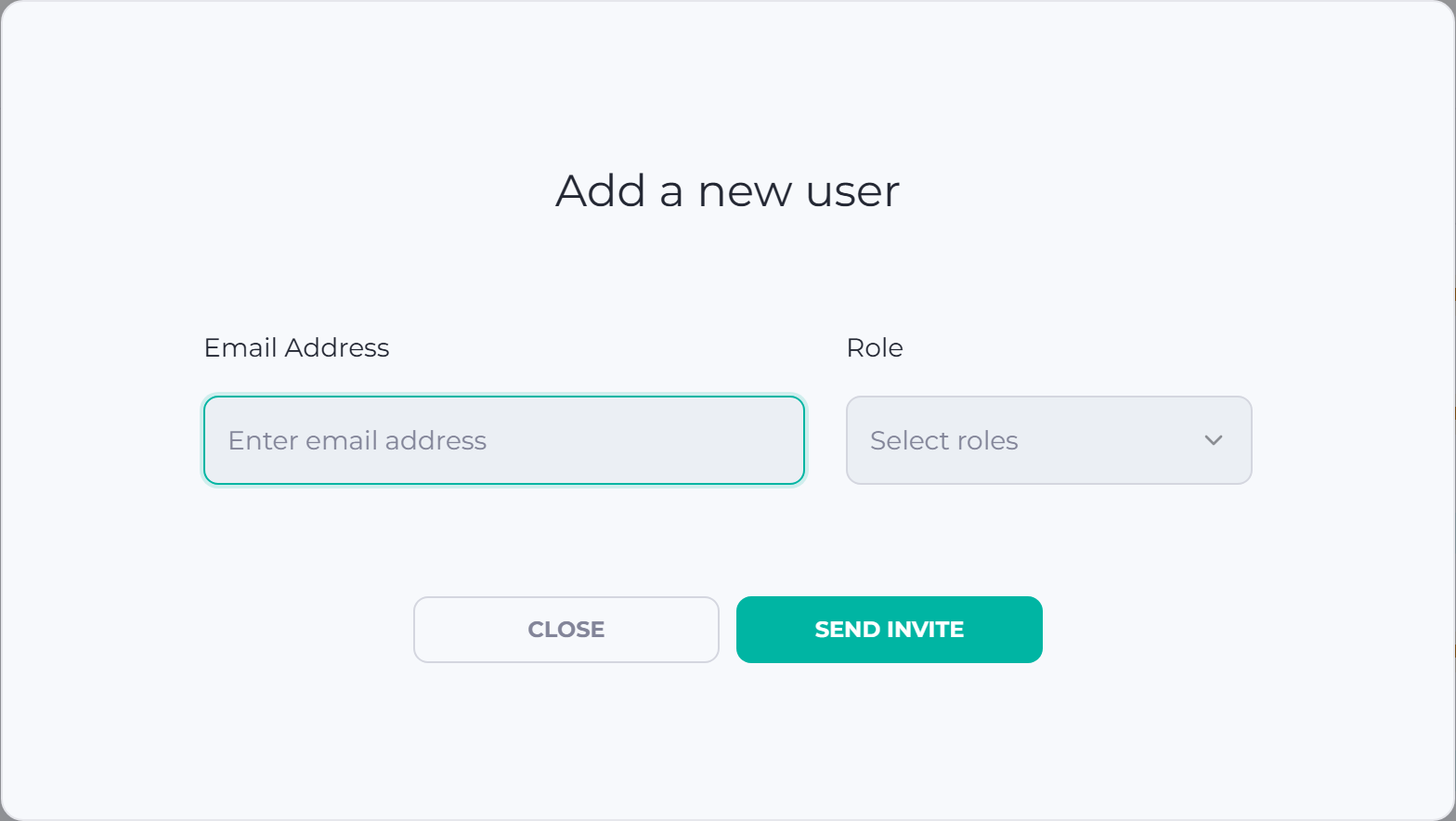
- Type the person’s email in the Email Address box.
- Click the Select roles list of choices.
- Tick one or more roles: Admin, Manager, Prescriber. Roles control what a user can do — see the roles glossary entry.
- Click Send invite.
The button reads Inviting… for a moment while Oxygen sends the email.
What happens next
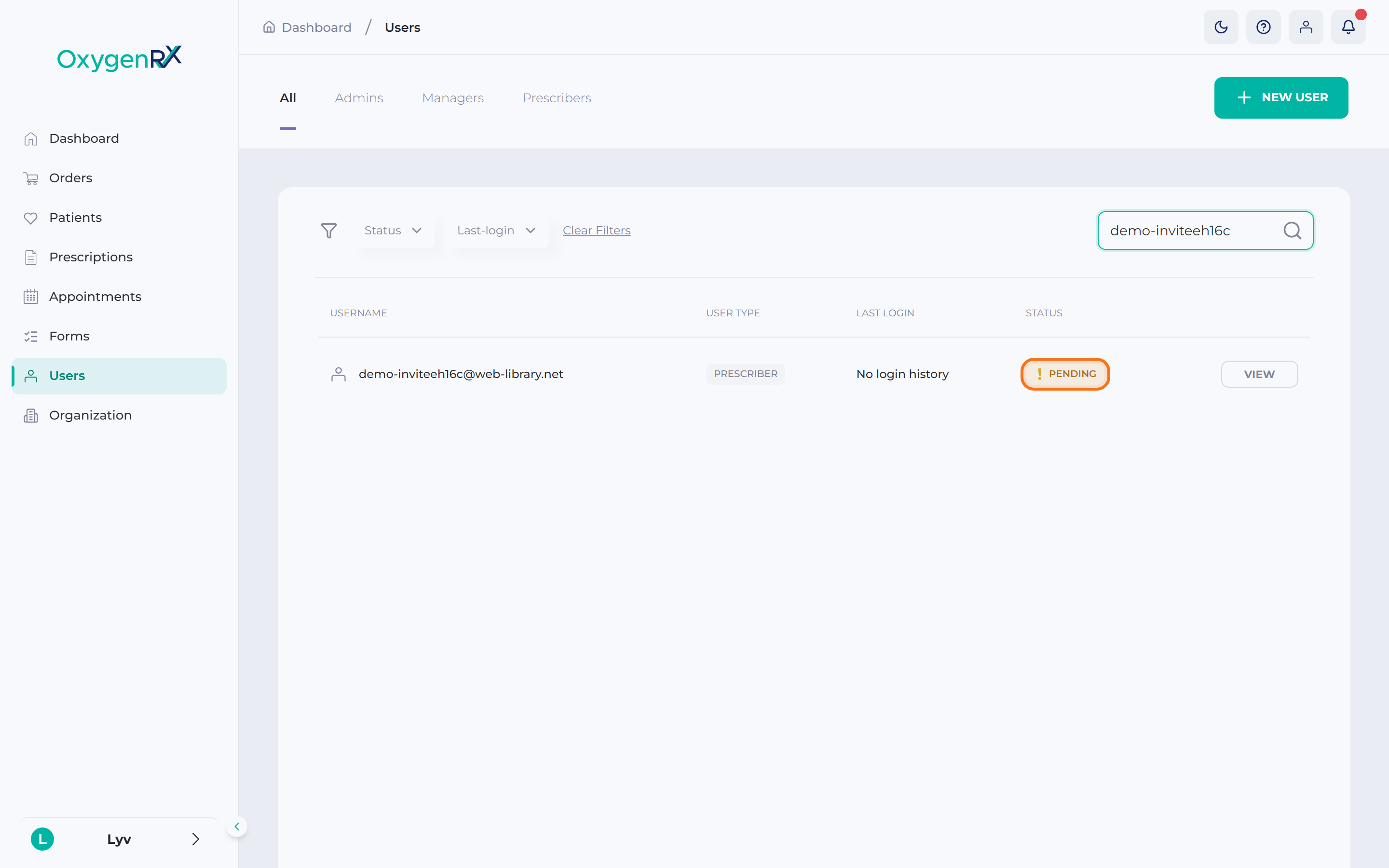
Section titled “What happens next”The small window closes. The new user appears in your Users list with status pending. Oxygen emails them an Accept invitation link from [email protected]. Once they accept, their status changes to Approved.
If something goes wrong
Section titled “If something goes wrong”- “Please enter a valid email address” — check the email for typos and try again.
- “Please select at least one role” — tick at least one role before sending.
- If you close the window before sending, the email and role selection are cleared. Start again from step 2.
- A pending invite can’t be resent. Ask the person to check their inbox, including spam, for the original invite. The link stops working after 6 days. If it expired, remove the pending user and send a new invite.