

Scheduled events
This page shows you how to set up scheduled events. These are automatic reminders and follow-ups sent at a chosen time for a prescription.
Who can do this: Prescribers can add, edit, or cancel scheduled events. Anyone with view access can see them. See roles.
- Go to the Scheduled Events section, in the prescription panel or a prescription’s detail page.
- Click Add. An editor row opens.
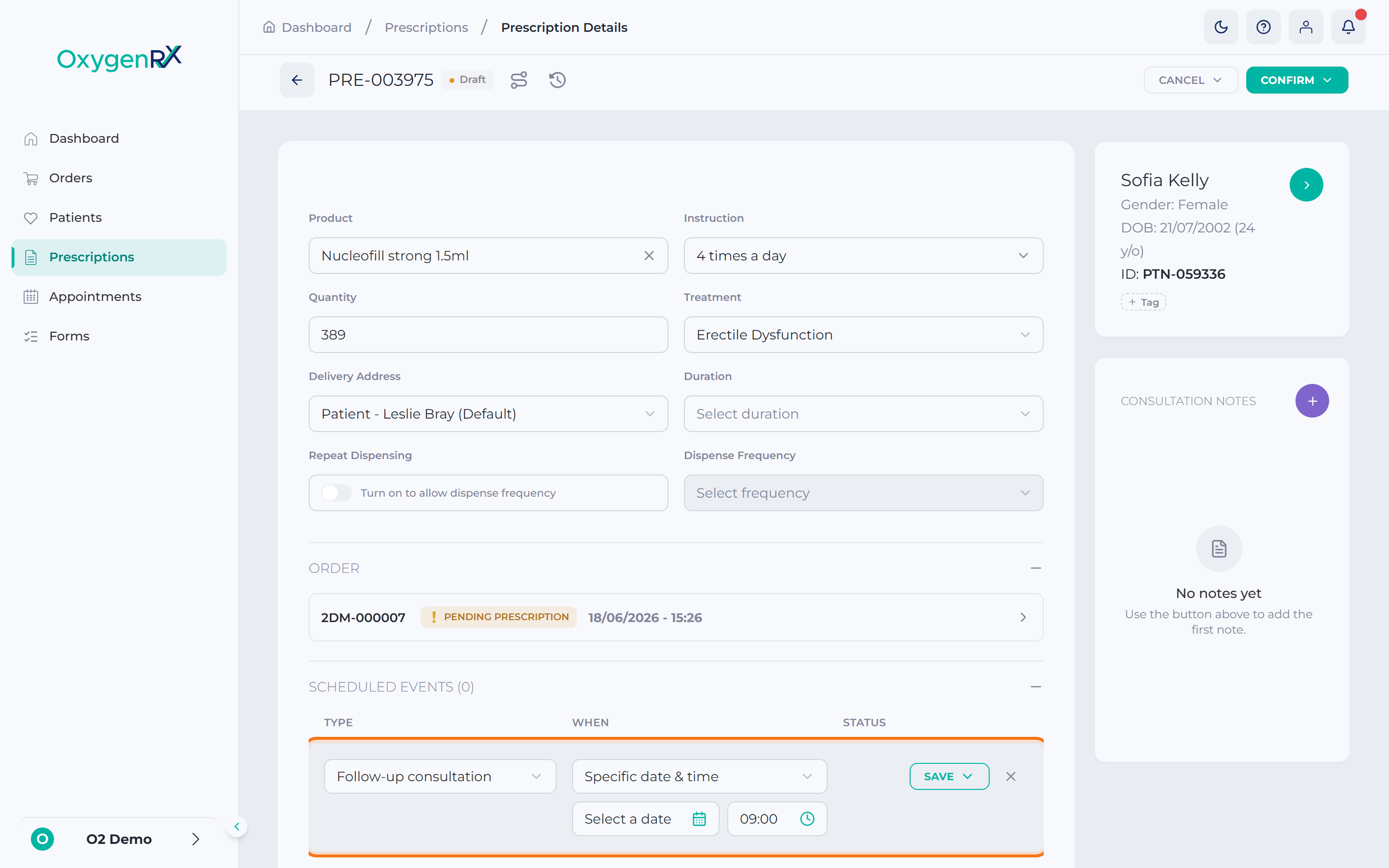
the Scheduled Events section with the inline editor row open, showing Type and When boxes. - Select a Type: Send form, Follow-up consultation, Renewal reminder, or Refill reminder.
- If you chose Send form, also select which form to send.
- Choose when it should happen. Pick a specific date and time, or a date relative to another point.
- For a specific date and time:
- Pick a date from the calendar.
- Pick a time from the list.
- For a relative date:
- Enter a number of days.
- Choose before or after.
- Pick a starting point, such as the prescribe date or expiration date.
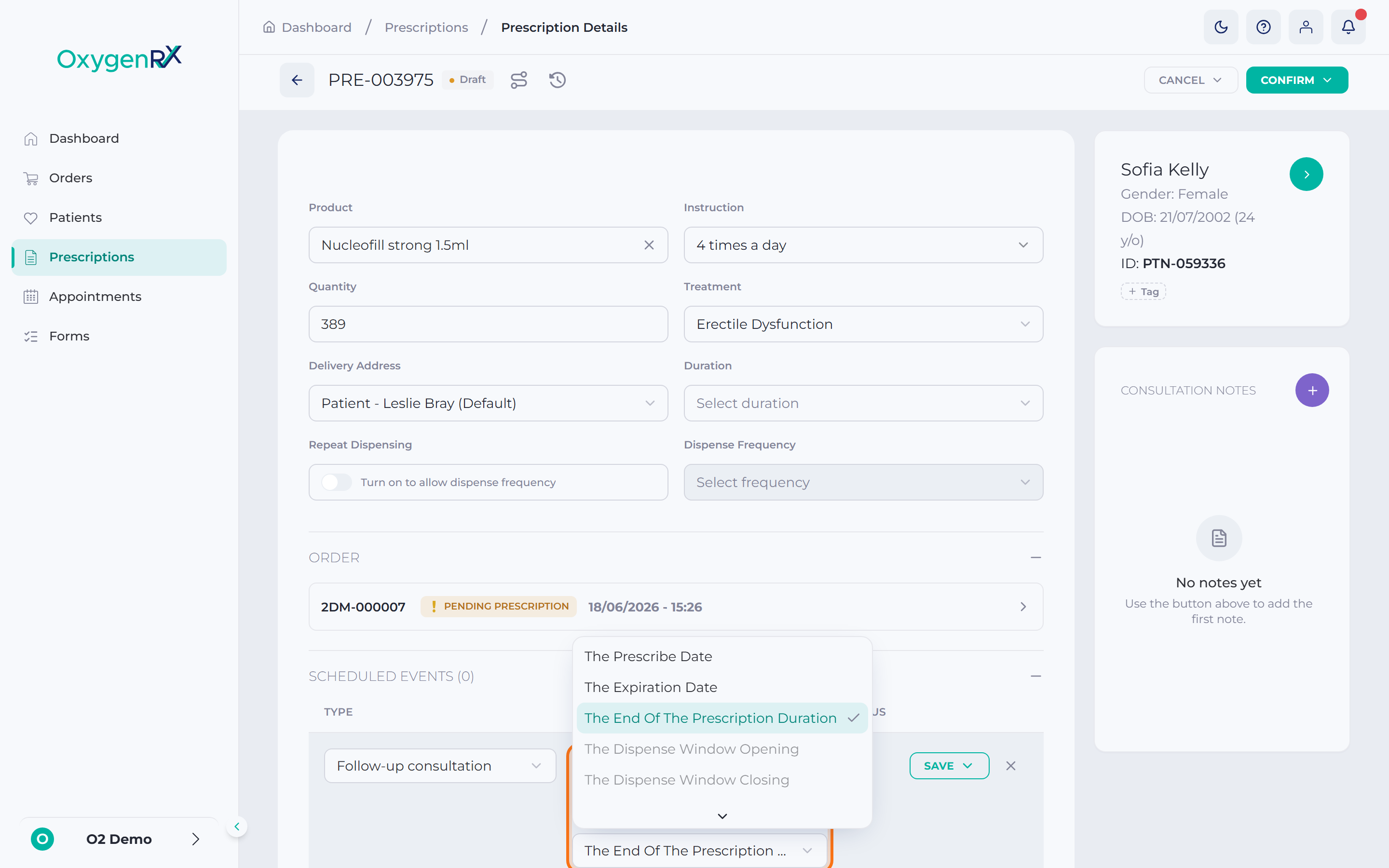
the relative-date option, showing the days box, before/after choice, and anchor list. - If you’re adding a new event on a saved prescription’s detail page, click Save.
- Then click Save draft to keep it inactive, or Schedule to activate it.
- Click the tick (✓) to save it. This applies when you’re editing an existing event, or adding one in the prescription panel.
What happens next
Section titled “What happens next”The event is added to the list with a status. This can be Pending, Processing, Processed, Failed, or Cancelled. A failed event shows the reason and a Reschedule button. An event waiting on a dispense shows “Waiting for dispense” until it happens. In the prescription panel, events are saved together with the prescription itself. This happens whether you save it as a draft or send it.
If something goes wrong
Section titled “If something goes wrong”- “Scheduling is unavailable for cancelled or expired prescriptions.” You cannot add or edit events once a prescription is Cancelled or Expired. There’s no way to change this.
- “No scheduled events” — this just means nothing has been scheduled yet on this prescription.
- “You have an unsaved scheduled event. Save it (✓) or cancel it before saving.” You left the editor row open while saving the prescription. Click the tick to save it, or the cross to cancel it.
- “Renewal reminders need a prescription duration.” — this renewal reminder can’t turn on yet. Add a Duration to the product, or remove the reminder.
- “Refill reminders need a repeat prescription.” — this refill reminder can’t turn on yet. Turn on Repeat Dispensing, or remove the reminder.
- “Dispense-anchored events can only fire on or after the dispense — direction is locked to “after”.” For this one starting point, you cannot choose “before”. Choose “after” instead.
- To cancel a saved event, click its X. Then click Cancel event to confirm, or Keep event to back out. This cannot be undone.