

Prescription history & login logs
This page shows you how to view your past prescriptions and your sign-in history.
Who can do this: Any portal user.
View your prescription history
Section titled “View your prescription history”- Go to your Profile page.
- Click the Prescription History tab.
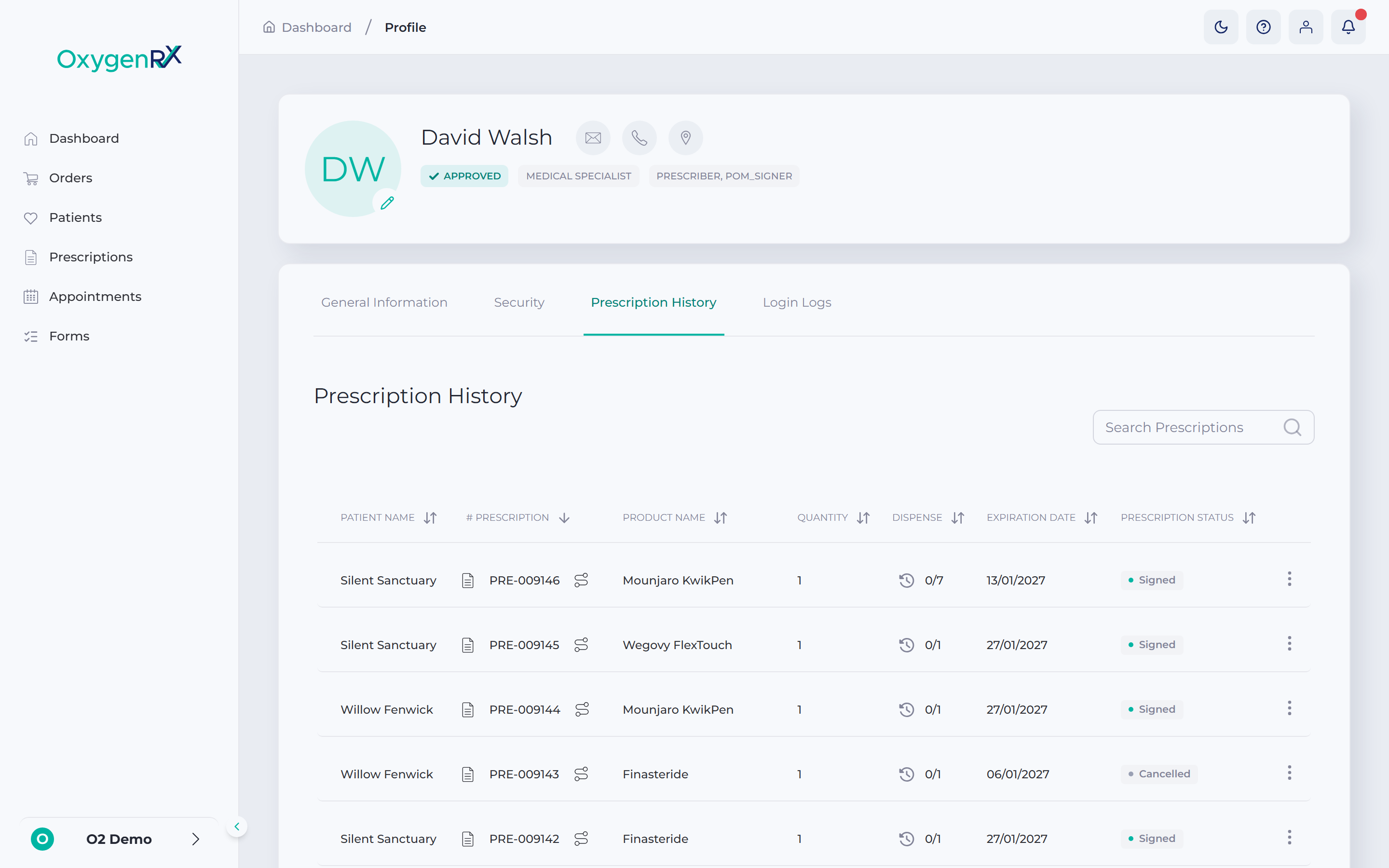
- Look along each row for the patient, product, quantity, dispense info, and expiration date.
- Type in the Search Prescriptions box to find one by name.
- Click a column heading to sort the table by that column.
- Click the file icon next to a prescription reference to open its PDF.
- Click the audit-trail icon to see that prescription’s history of changes.
- Click the actions menu on a row for more choices.
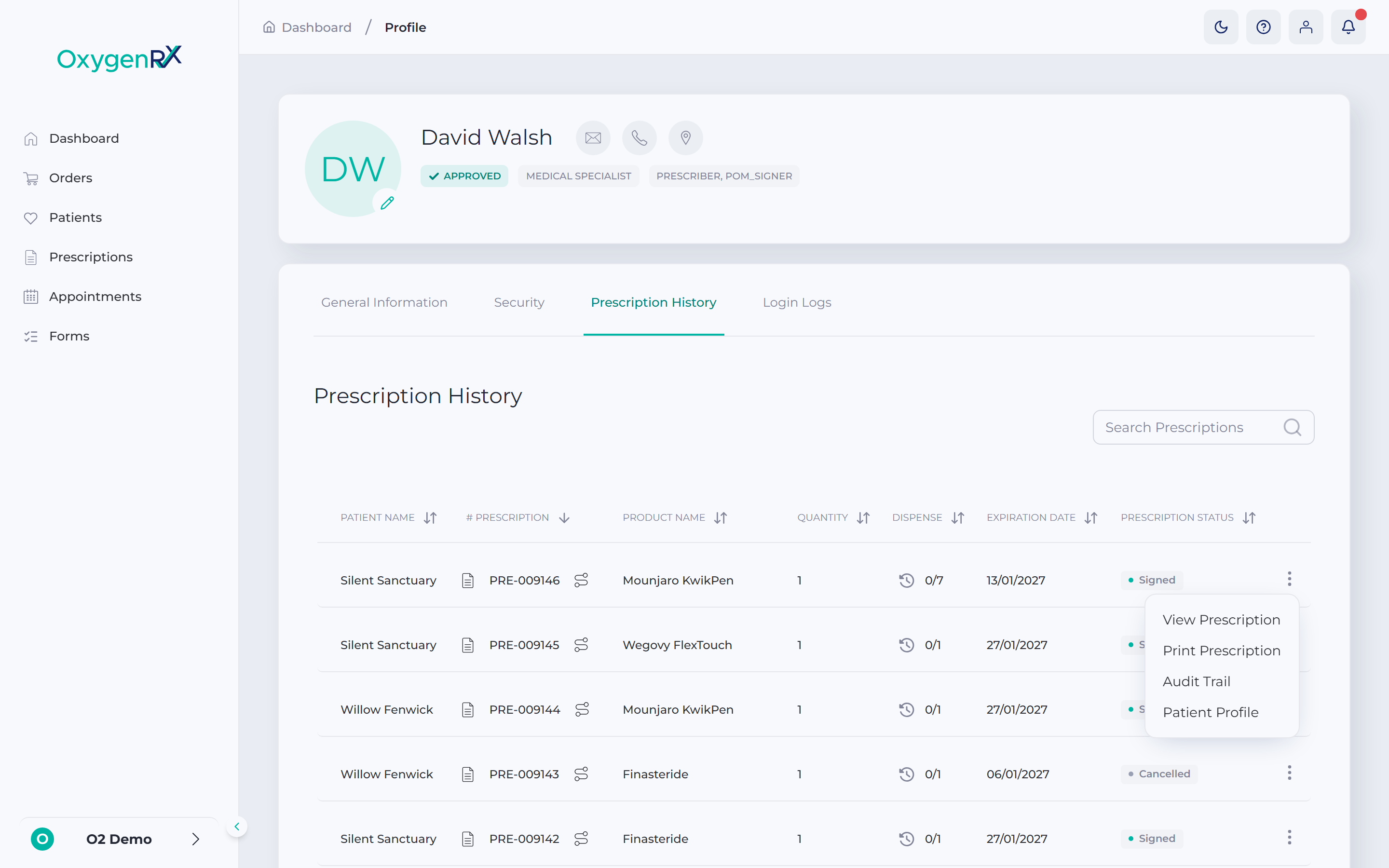
- Click anywhere else on the row to open the full prescription page.
A prescription’s Prescription Status can show Draft, meaning it’s saved but not finished yet. Read more in the glossary.
View Prescription and Print Prescription aren’t offered while the status is Reviewed or Draft.
View your login logs
Section titled “View your login logs”- On the Profile page, click the Login Logs tab.
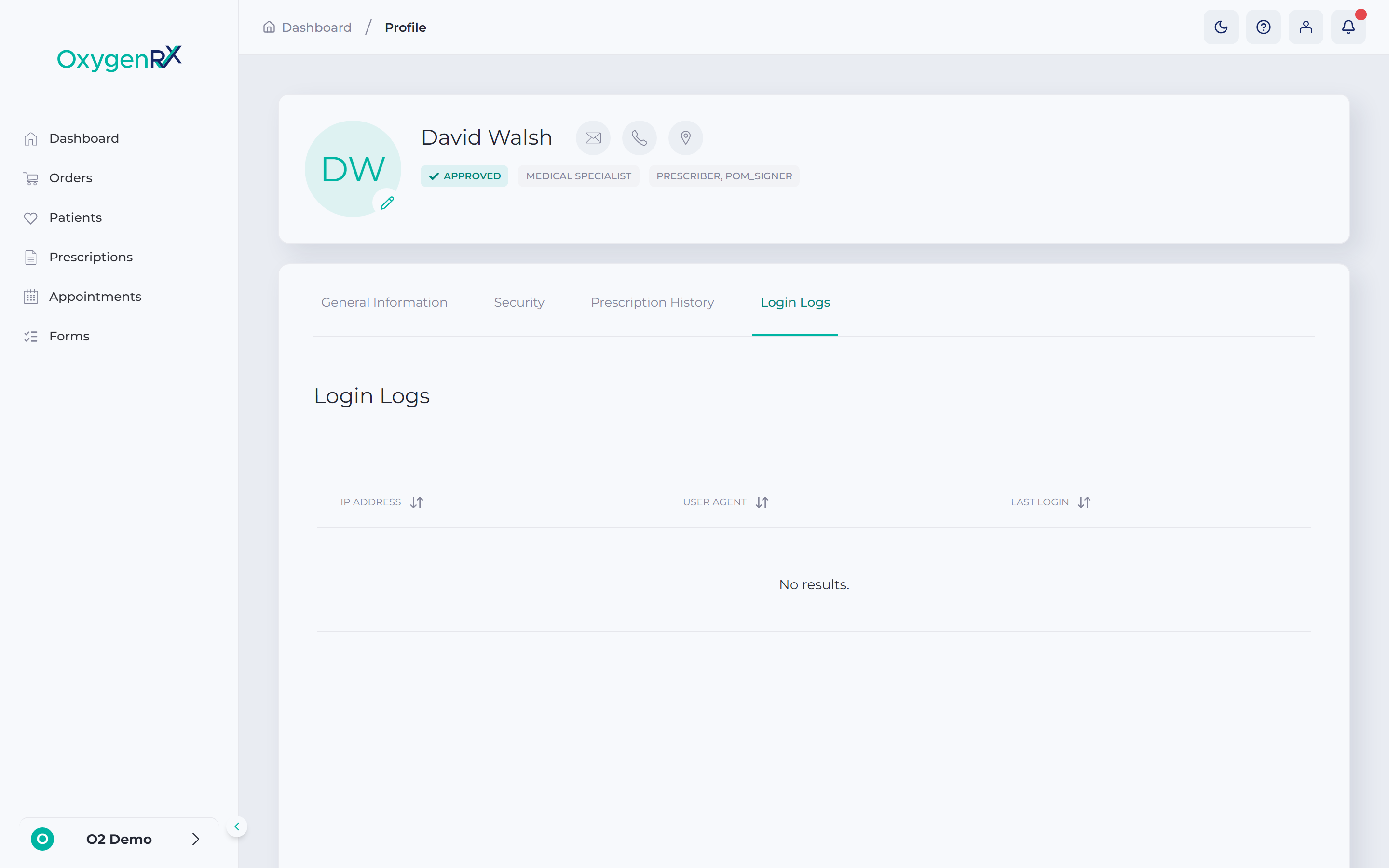
- Check the IP Address, User Agent, and Last Login columns for each entry.
- Click a column heading to sort the table by that column.
Move through longer lists
Section titled “Move through longer lists”Below either table, use the Items Per Page list of choices. Show 10, 25, 50, or 100 rows. Use the first, previous, next, and last page buttons to move through the rest.
What happens next
Section titled “What happens next”The table updates as you search or sort. Clicking the file icon opens the prescription’s PDF. Clicking the audit-trail icon opens that record’s history.
If something goes wrong
Section titled “If something goes wrong”- “Prescription is not yet prescribed.” — you clicked the file icon on an unfinished prescription. Finish and sign it first.
- “Please wait downloading prescription” — shows briefly while a PDF downloads. Wait for it to finish.
- “Failed to print prescription” — printing didn’t work. Wait a moment and try again.
- “No results.” — shows on either tab when you have no prescriptions or no logins yet. Check back after you prescribe or sign in again.