

Understanding the patient record
This page shows you how to find what you need in a patient’s record.
Who can do this: Anyone signed in to the portal can view a record. What you can do inside it depends on your role. See roles for the permissions your account has.
🎬 Video
Tour of a patient record showing each tab
patients-patient-record-tabs.mp4- Open a patient from the Patients list.
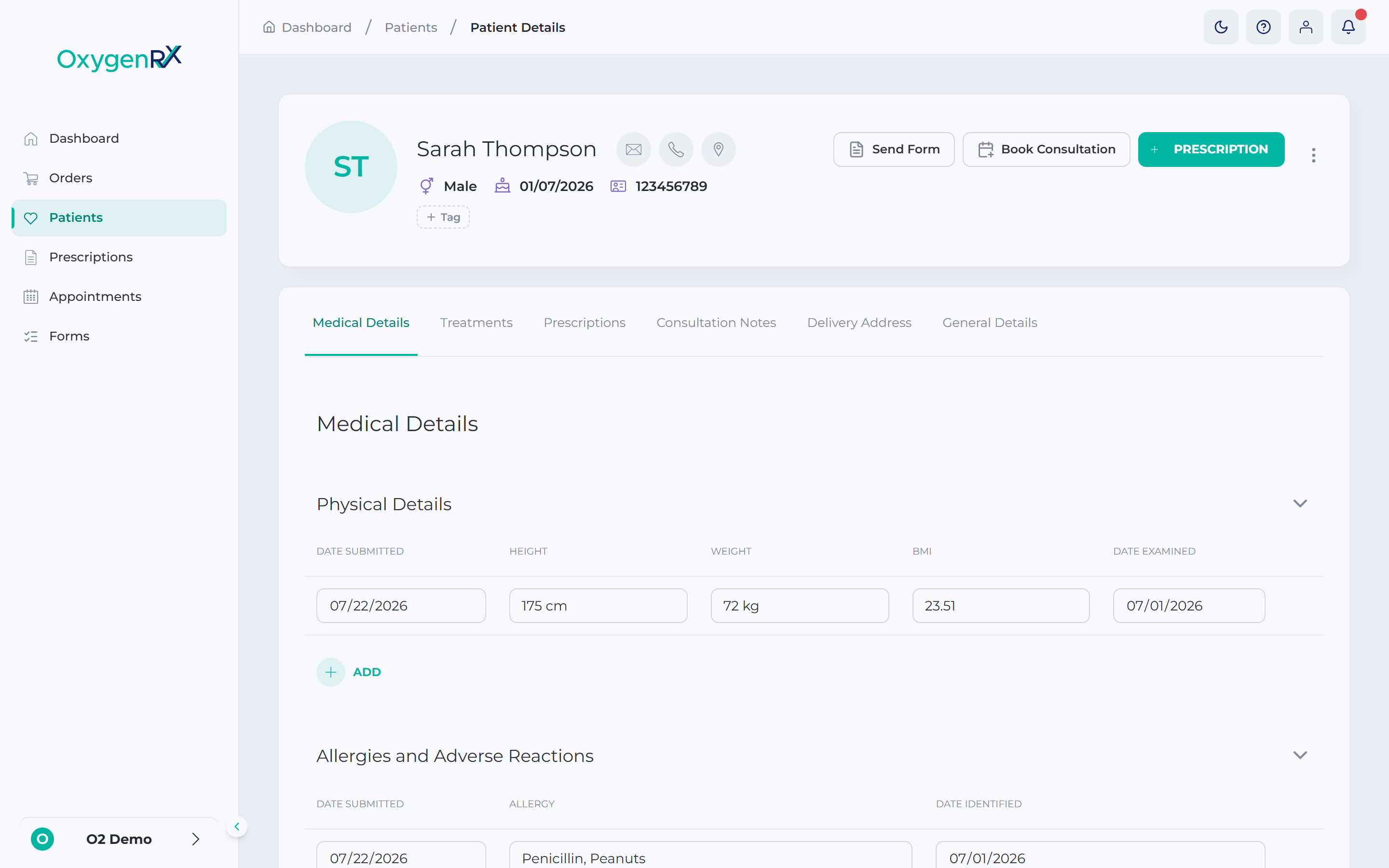
- Check the name, contact details, and basic details at the top.
- Click Medical Details to see physical details, allergies, medication, and more.
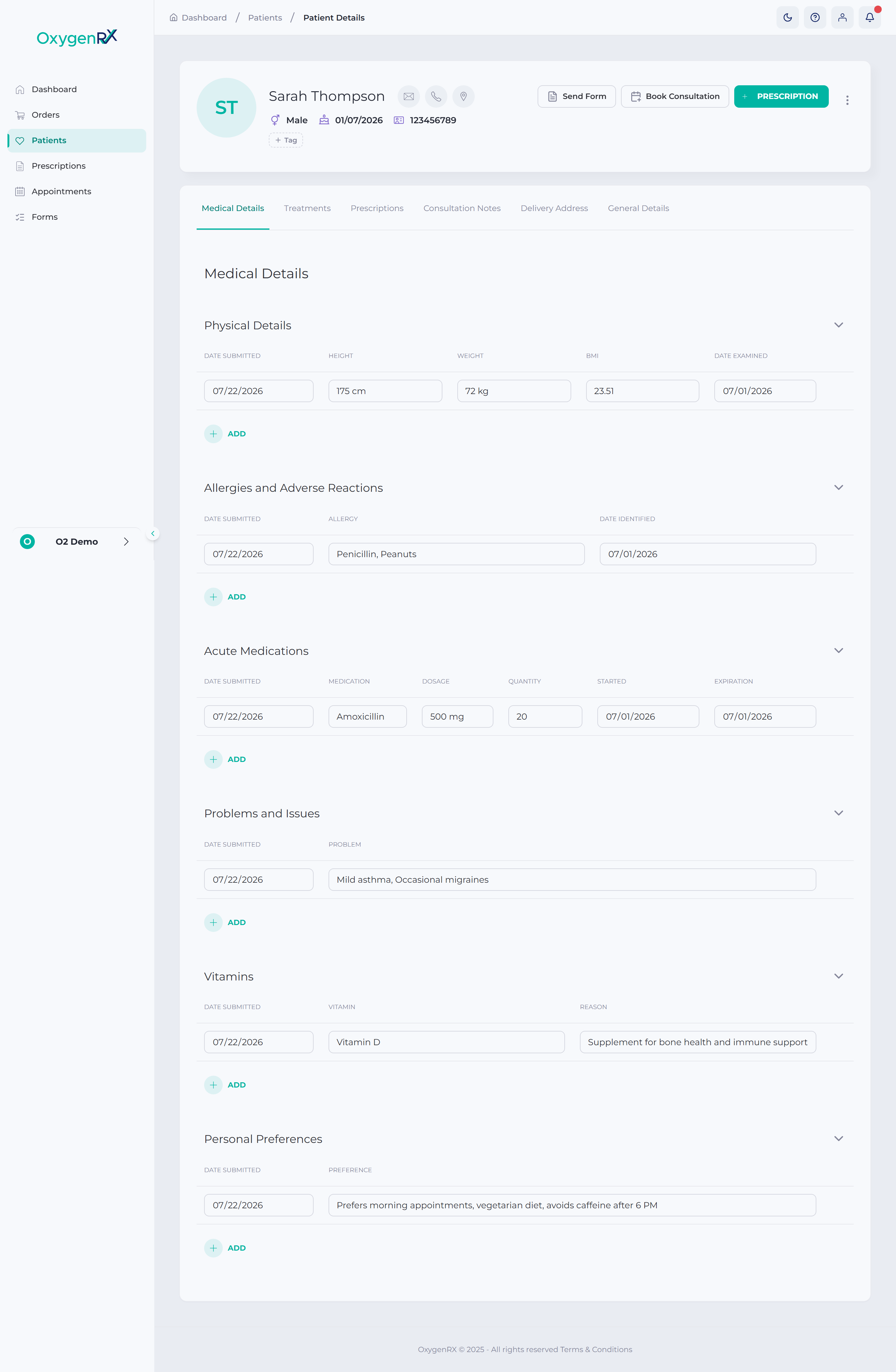
- Click Treatments to see the patient’s treatments — courses of care they’re on (see treatment).
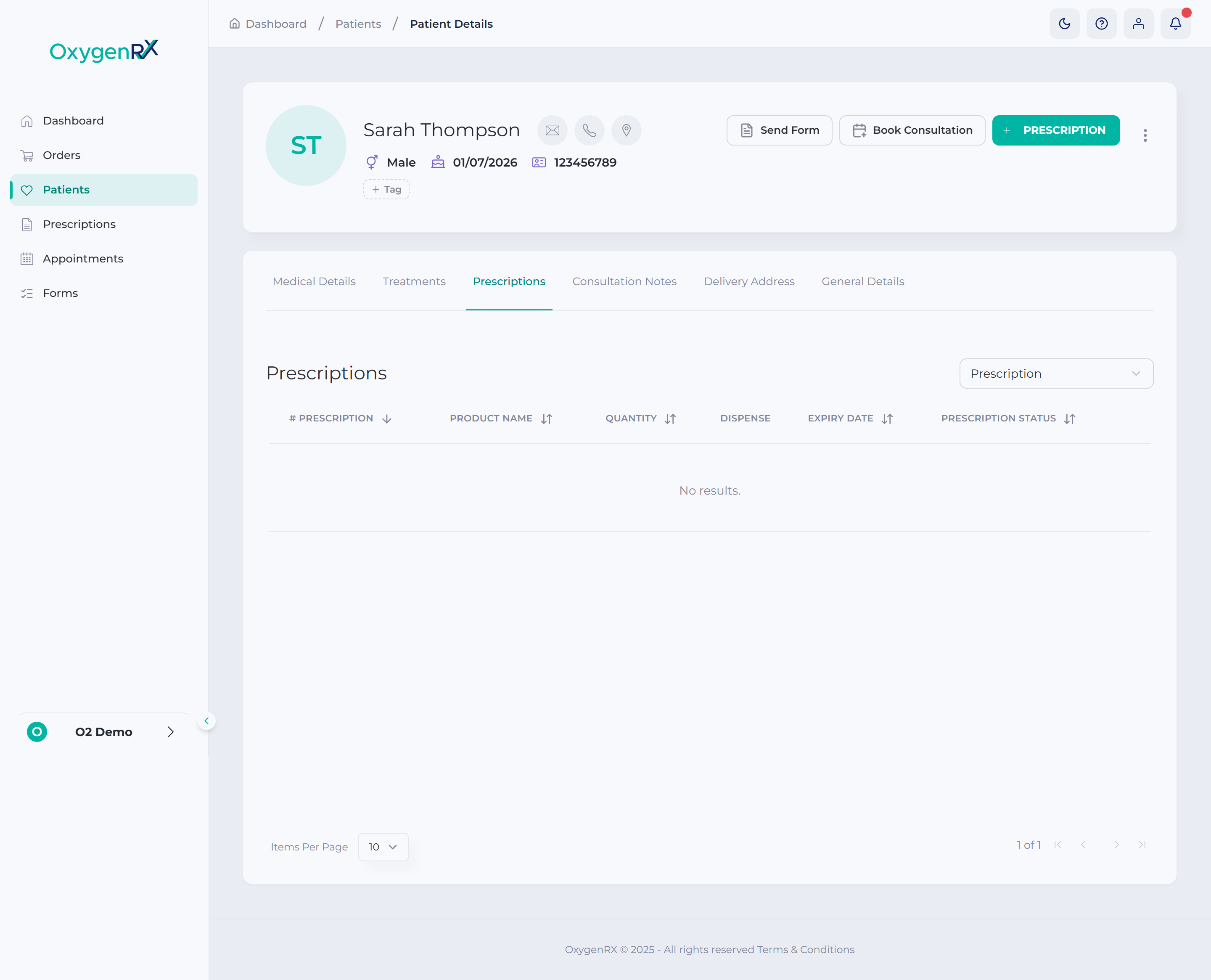
- Click Prescriptions to see the patient’s prescriptions. This includes imported ones — prescriptions brought in from outside the portal. Each one shows a status badge from the prescription lifecycle (see prescription lifecycle).
- Click Consultation Notes to read past notes.
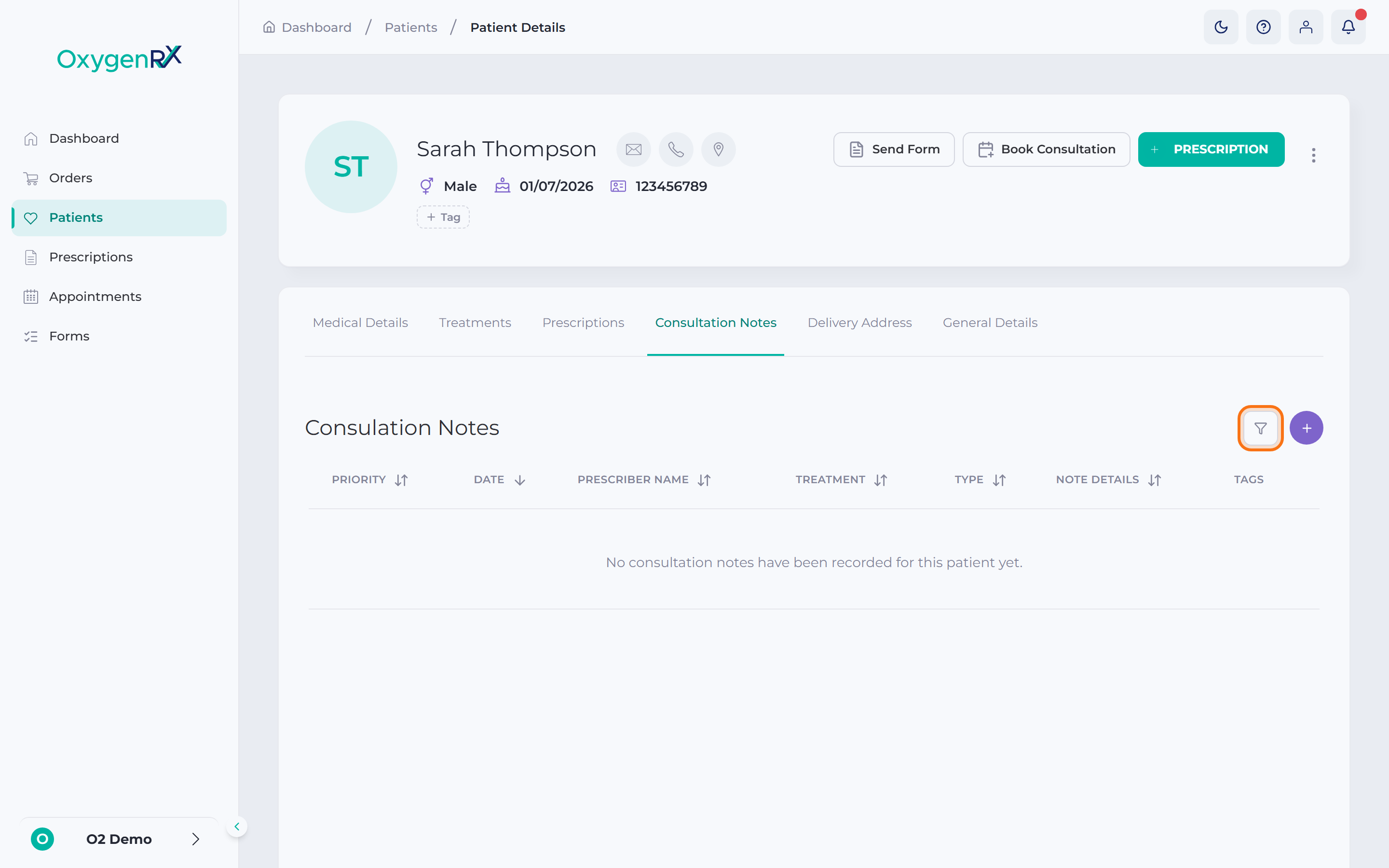
- Click the round + button to add a new note.
- Click Delivery Address to see and manage saved delivery addresses.
- Click General Details for a read-only view of the patient’s basic information.
- To change any of the patient’s information, click the three-dots button (⋮) on the patient card.
- Click Edit Details in the small menu that opens.
- Use Send Form, Book Consultation, or Prescription at the top to start those tasks.
What happens next
Section titled “What happens next”You can switch between tabs any time. OxygenRX remembers which tab you’re on, so a refresh keeps you in the same place.
See how to send a form or book a consultation for those buttons. Also see how to prescribe.
If something goes wrong
Section titled “If something goes wrong”- If a tab shows No results found. or N/A, nothing has been recorded yet. Add details there if you have them.
- If a prescription hasn’t been prescribed yet, opening it shows Prescription is not yet prescribed. Prescribe it first, then open it again.
- You can’t delete a patient’s default delivery address. Set a different one as default first.
- Buttons like Send Form are grayed out for a patient outside your organization. Ask someone in the patient’s own organization to do it instead. An organization is the group your account belongs to (see organization).