

Your dashboard
This page shows you how to read your dashboard and set it up your way.
Who can do this: Any signed-in portal user.
a walkthrough of opening the dashboard, changing a widget's date range, hiding a widget, dragging a widget to a new spot, and resetting the layout
dashboard-and-notifications-dashboard.mp4What you see when you open your dashboard
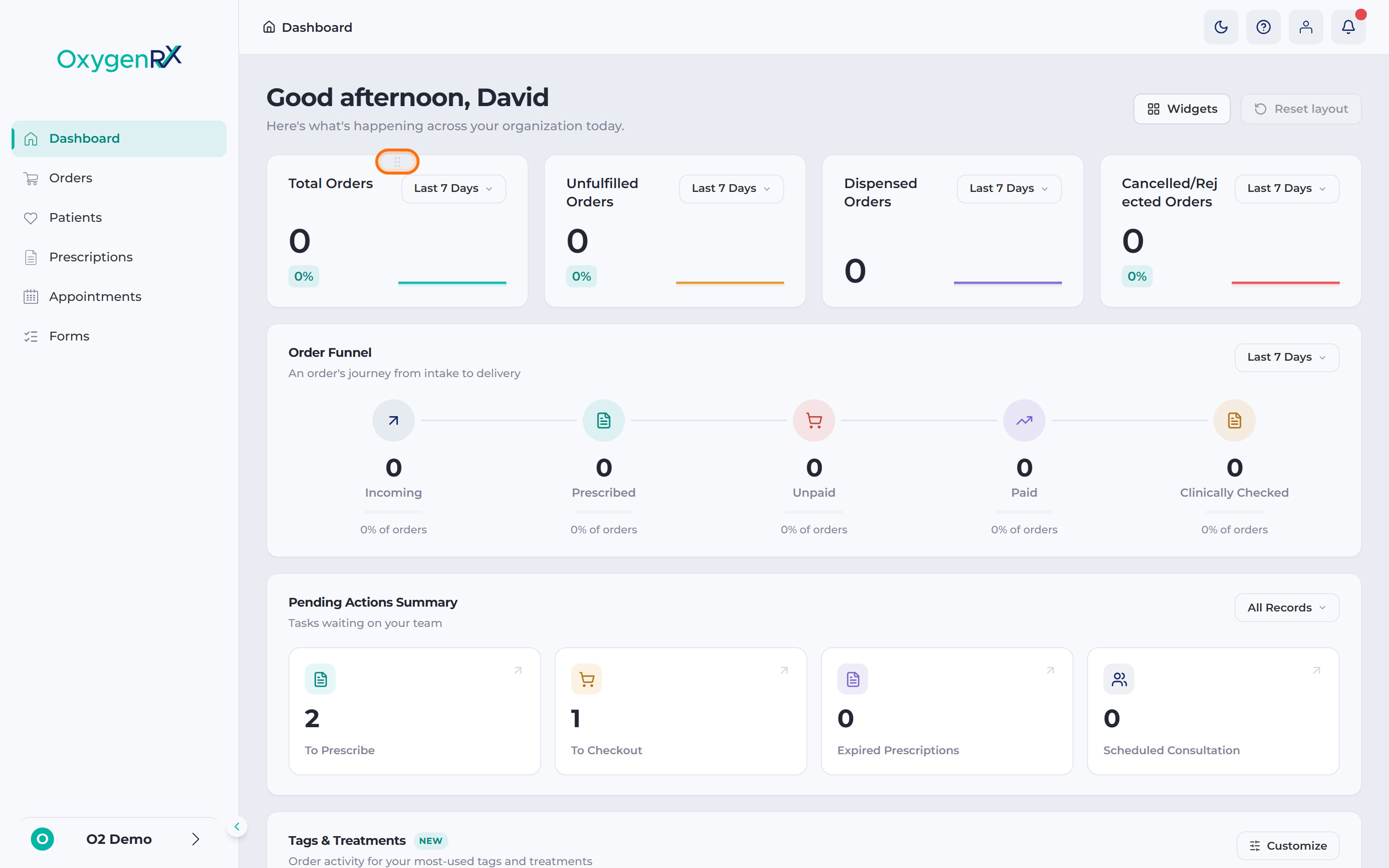
Section titled “What you see when you open your dashboard”At the top of the page is a greeting with your first name. For example, “Good morning, Alex.” The greeting uses your device’s clock. It reads Good morning before noon, Good afternoon until 6pm, and Good evening after that.
Below the greeting is the line “Here’s what’s happening across your organization today.” Your organization is the pharmacy or clinic account you’re signed into.
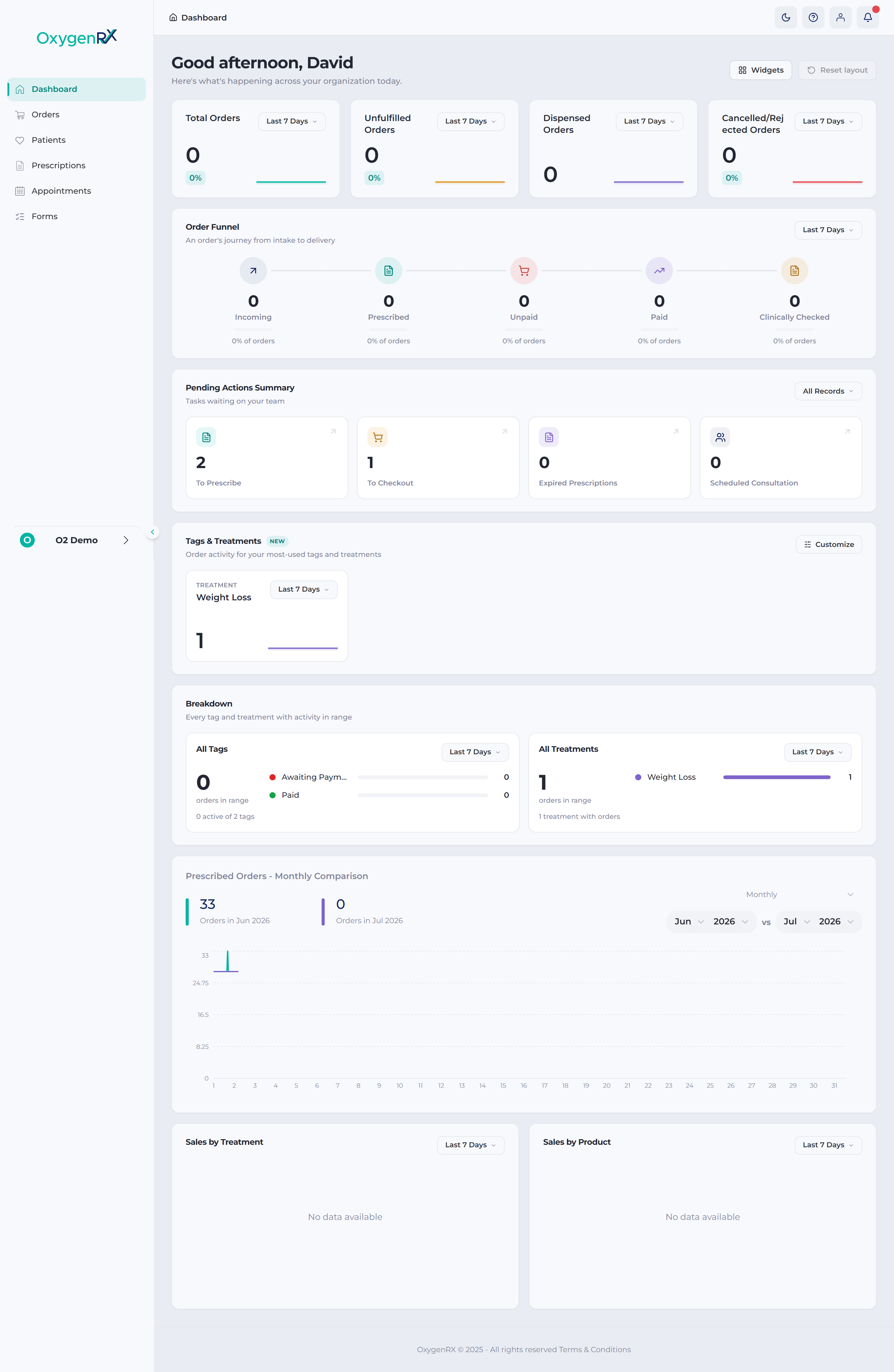
Under the greeting is a grid of cards called widgets. Each widget shows a different piece of information about your orders, prescriptions, and sales. Widgets update on their own.
Two buttons sit in the top-right corner:
- Widgets — shows or hides individual widgets.
- Reset layout — puts every widget back to its default order and visibility. It’s dimmed until you change something.
The widgets
Section titled “The widgets”Your dashboard can show these widgets, in this order by default:
- Total Orders — count of all orders in the date range you pick.
- Unfulfilled Orders — orders not yet fulfilled in that range.
- Dispensed Orders — orders successfully dispensed in that range. This number only fills in for dispensing organizations.
- Cancelled/Rejected Orders — orders cancelled or rejected in that range.
- Order Funnel — shows how orders move through five stages: Incoming, Prescribed, Unpaid, Paid, and Clinically Checked. These are the order statuses an order passes through on its way to delivery.
- Pending Actions Summary — four tiles showing work waiting on your team. The tiles are To Prescribe, To Checkout, Expired Prescriptions, and Scheduled Consultation. Click any tile to open its list. Checkout is the step where a patient pays for their order.
- Tags & Treatments — your top two tags and top two treatments for the date range. Each has its own small chart. A treatment is a course of medicine you prescribe for a condition.
- Breakdown — every tag and every treatment with activity, listed with a bar and a count.
- Monthly Comparison — a line chart comparing order counts across two months or two years.
- Sales by Treatment — a donut chart of your top five treatments by value.
- Sales by Product — a donut chart of your top five products by value.
Change a widget’s date range
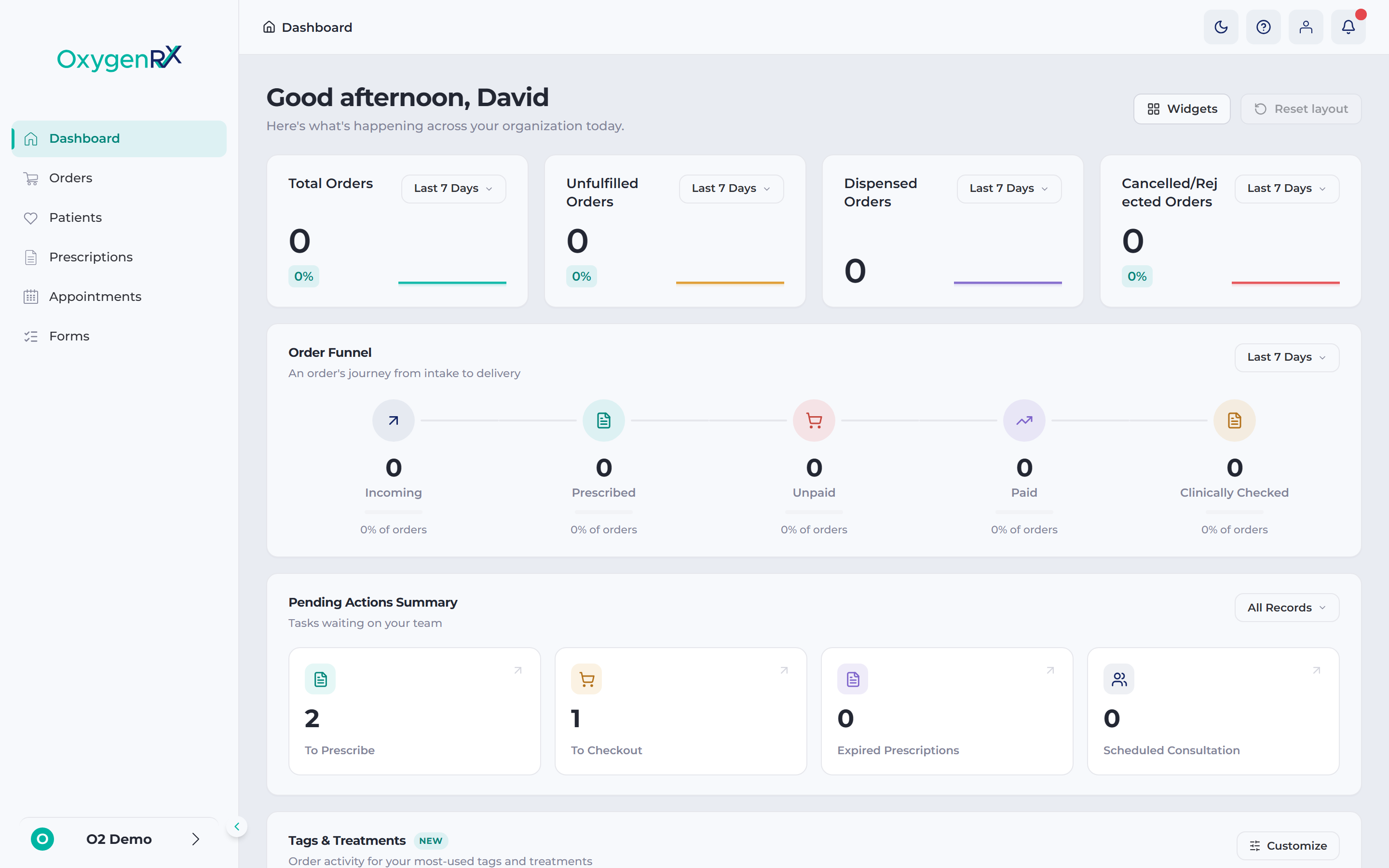
Section titled “Change a widget’s date range”Most widgets show a date-range pill in their top-right corner.
- Click the date-range pill on a widget.
- Pick a range from the list, such as Today or Last 30 Days.
The widget updates to show that range. Each widget remembers its own range on its own. Most widgets start on Last 7 Days. Pending Actions Summary starts on All Records.
Show or hide widgets
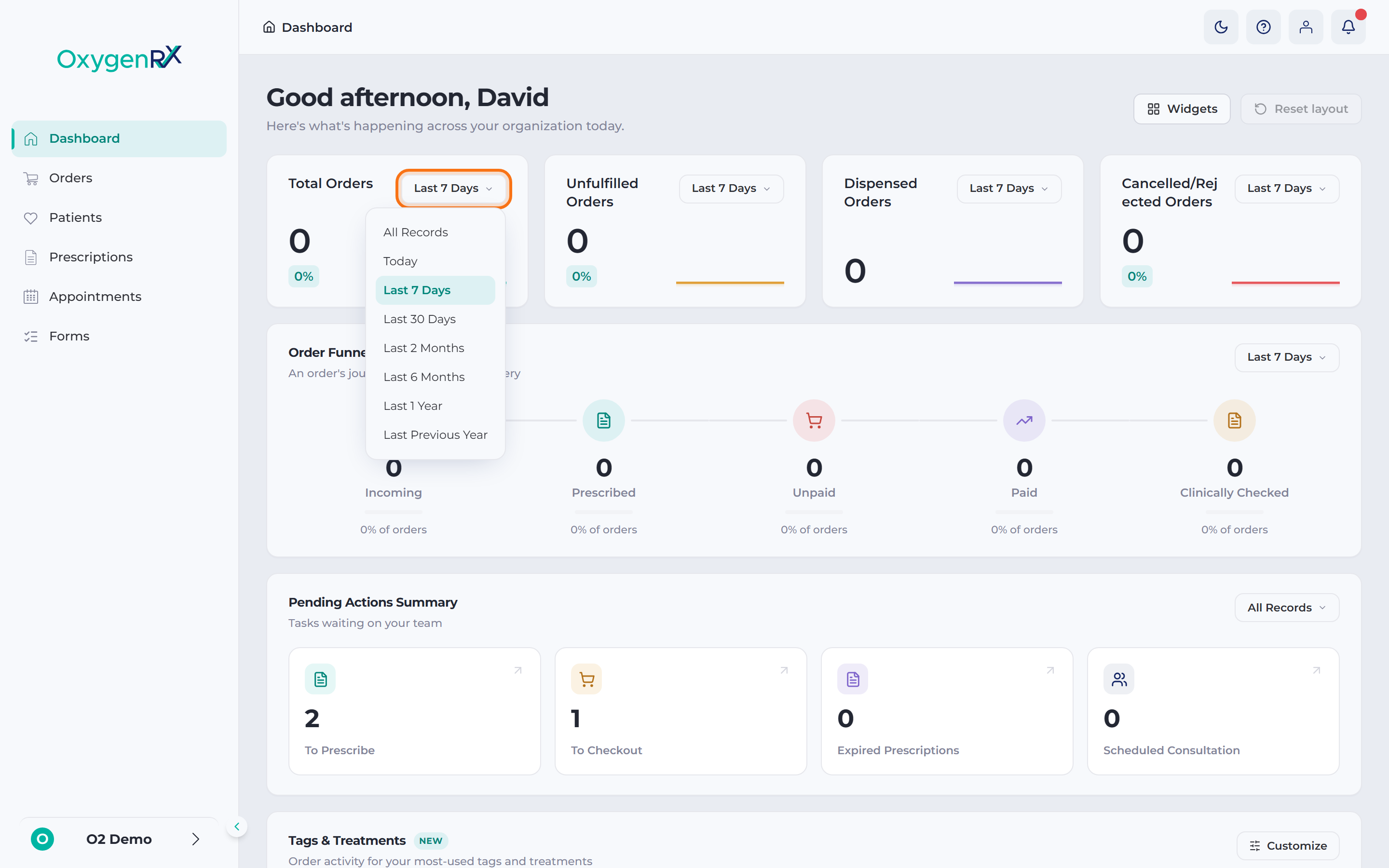
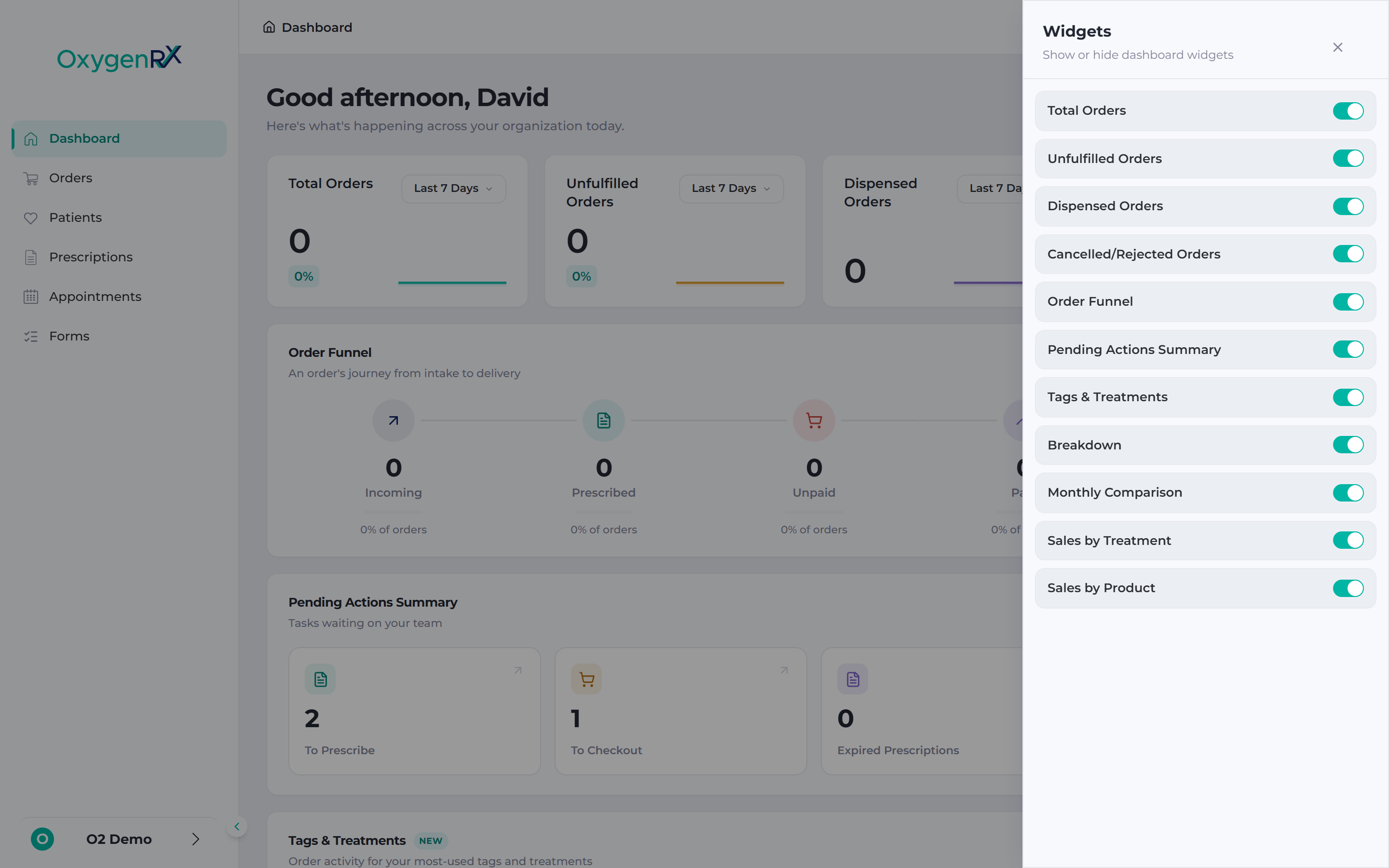
Section titled “Show or hide widgets”- Click Widgets in the top-right corner.
- In the panel that opens, find the widget you want to change.
- Turn its switch on to show it, or off to hide it.
- Click outside the panel to close it.
A hidden widget keeps its place in the grid. It reappears in the same spot when you turn it back on.
Reorder widgets
Section titled “Reorder widgets”- Move your mouse over a widget until a grip handle appears at the top of the card.
- Press and hold the grip handle.
- Drag the widget to its new spot.
- Release to drop it in place.
Pending Actions Summary also lets you reorder the tiles inside the card. Use the same grip-handle drag on each tile.
Reset your layout
Section titled “Reset your layout”- Click Reset layout in the top-right corner.
This restores the default widget order, and shows every widget again. It also resets the tile order inside Pending Actions Summary.
What happens next
Section titled “What happens next”Your layout is saved to your own sign-in. It loads the same way the next time you open the dashboard, on any device.
If something goes wrong
Section titled “If something goes wrong”- Reset layout looks dimmed and does nothing. This is normal on a default layout — no action is needed. The button turns on once you change something.
- A widget shows “No data available,” “No tags found,” or “No treatment activity in range.” There’s nothing to plot for the range you picked. Try a wider range, such as Last 6 Months.
- A number stays blank, such as Dispensed Orders. This widget only fills in for dispensing organizations. If your organization prescribes rather than dispenses, no action is needed.
- Widgets show placeholder shapes for a moment. They’re loading. Wait a second for the real numbers to appear.